Sign In
In order to work with Nexus, at the start of a Micromine Origin & Beyond session, you will need to connect to the Nexus server and sign in. Information on any connected Nexus Workspace/Project as well as the Sign In link to the server is contained in the Backstage Menu.
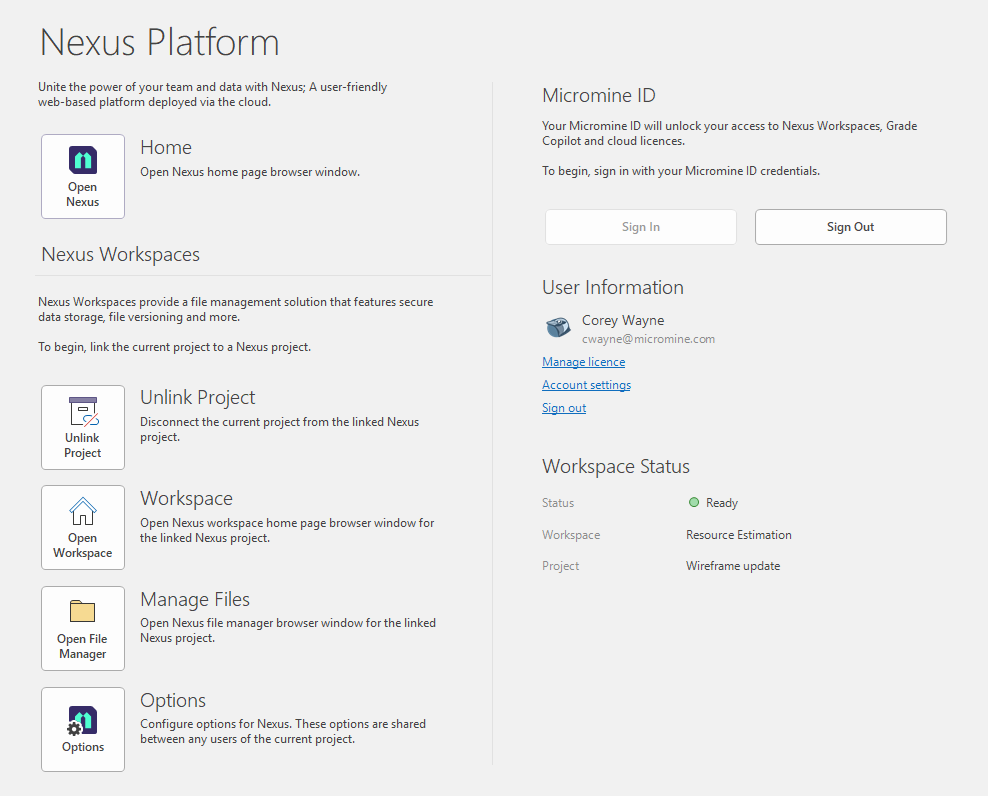
If you connected to Nexus in a previous session and the connection is still active, you just need to sign in.
-
If you have a Nexus account, enter the email address and password provided to you by Micromine Australia Pty Ltd and click Continue.
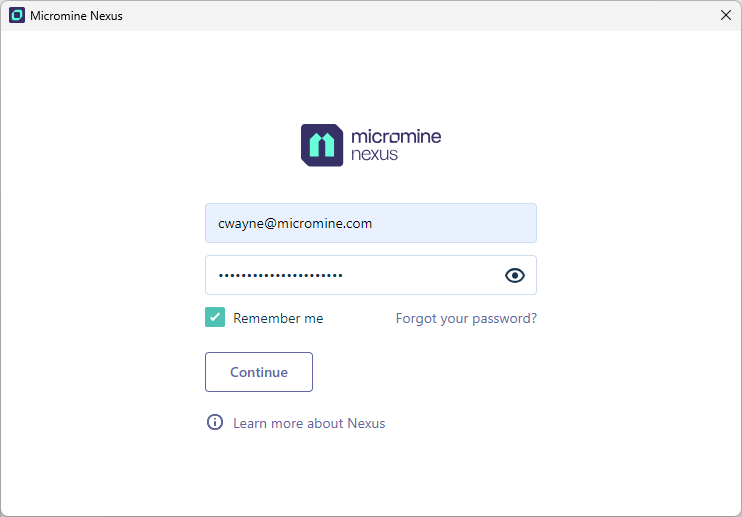
If you select the Remember me option, Nexus will keep your user account logged in for 90 days. For this period, you will not need to enter your credentials again when signing in to Nexus or using Micromine Origin & Beyond.
-
Alternatively, use your Organisational (Microsoft ADFS) account to sign in.
Reset Password
If you have forgotten your password, you can reset it using the following procedure:
-
Click the Forgot your password? link.
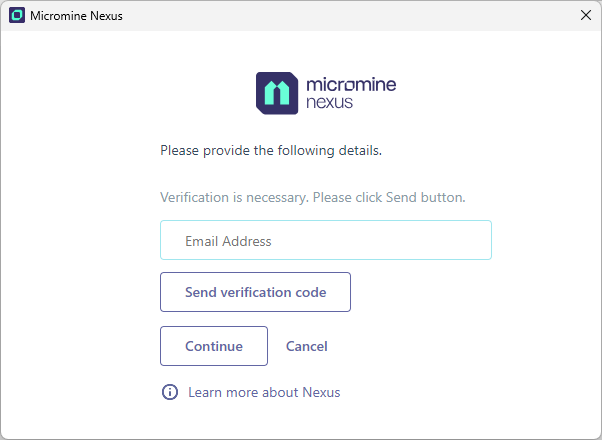
A details screen is displayed:
-
Enter the Email Address for your login in the field provided.
-
Click the Send verification code button.
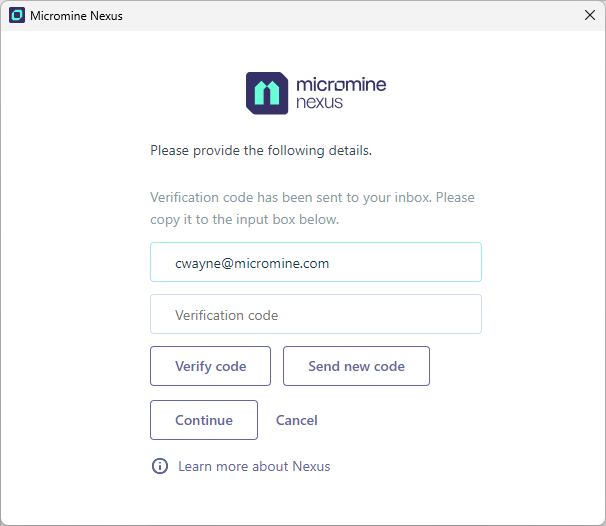
When you have received the verification code via the email you entered,
-
Enter the code in the field and,
-
Click Verify.
-
Click Continue to proceed to creating a new password:
-
Click Continue.
You can now login to your account with the new password.
Your First Sign-in?
If you are connecting as a new user and this is your first sign-in, the option to link the current project to a Nexus project is provided. You must link to a Nexus project in order to use Nexus Storage and Synchronisation features. See: Link
Note that you do not need to link to a project if you are only using Nexus to perform cloud-based Neural block modelling.
Switch User
The current user is signed out and you will be prompted to sign in.
