Вывод
На вкладке Выходные данные формы «Сравнение карьеров» можно задать построение каркасов потерь и/или разубоживания по результатам входной оценки, чтобы наглядно отобразить различия между проектной и эталонной оболочками карьера. Кроме того, вы можете задать параметры расчета и указать файл для отчета об оценке.
Сохранить каркасы потерь
Выберите параметр Сохранить каркасы потерь, чтобы задать и определить каркас(ы) солидов потерь для оценки. Солиды потерь представляют части, отсутствующие в эталонном проекте.
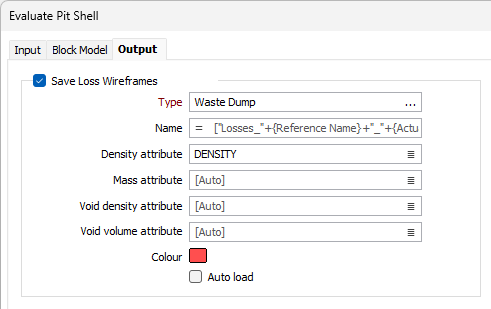
Тип
Используйте поле Тип для выбора каркаса, в который будет записана информация о солидах потерь. В поле можно ввести Имя или Выражение, либо оставить значение по умолчанию Авто.
Атрибут плотности
Дважды щёлкните, чтобы выбрать поле в каркасе потерь, содержащее информацию о плотности.
Атрибут массы
Дважды щёлкните, чтобы выбрать поле в каркасе солидов потерь, содержащее информацию о массе.
Атрибут плотности вмещающих пород
Дважды щёлкните, чтобы выбрать поле в каркасе солидов потерь, содержащее информацию о плотности вмещающих пород.
Атрибут объема вмещающих пород
Дважды щёлкните, чтобы выбрать поле в каркасе солидов потерь, содержащее информацию об объёме вмещающих пород.
Цвет
Дважды щёлкните по полю Цвет, чтобы выбрать цвет по умолчанию для отображения каркаса солидов потерь.
Автозагрузка
Установите этот флажок, если требуется автоматически загрузить каркас солидов потерь в Визекс после завершения оценки.
Сохранить каркасы разубоживания
Выберите параметр Сохранить каркасы разубоживания, чтобы задать и определить каркас солидов разубоживания для оценки. Каркасы разубоживания представляют область, отсутствующую в эталонной выработке.
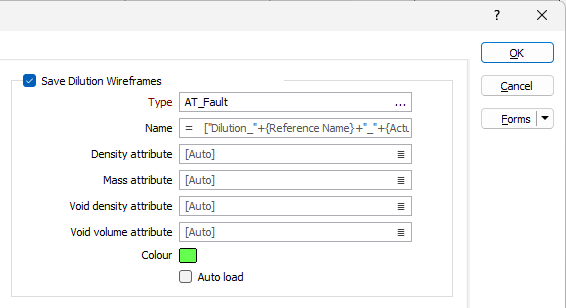
Тип
Используйте поле Тип, чтобы выбрать каркас для информации о солидах разубоживания. Вы можете ввести Имя или Выражение в поле либо оставить значение по умолчанию Авто.
Атрибут плотности
Дважды щелкните, чтобы выбрать поле в каркасе солидов разубоживания, содержащее информацию о плотности.
Атрибут массы
Дважды щелкните, чтобы выбрать поле в каркасе солидов разубоживания, содержащее информацию о массе.
Атрибут плотности вмещающих пород
Дважды щелкните, чтобы выбрать поле в каркасе солидов разубоживания, содержащее информацию о плотности вмещающих пород.
Атрибут объема вмещающих пород
Дважды щелкните, чтобы выбрать поле в каркасе солидов разубоживания, содержащее информацию об объёме вмещающих пород.
Цвет
Дважды щелкните по полю Цвет, чтобы выбрать цвет по умолчанию для отображения каркаса солидов разубоживания.
Автозагрузка
Выберите эту опцию, если хотите, чтобы каркас солидов разубоживания автоматически загружался в Визекс после завершения оценки.
Файл отчета
В поле Файл отчёта введите Имя выходного файла отчёта. Это место, где будет сохранён отчёт, содержащий оценку текущего проекта по сравнению с выбранной эталонной оболочкой.

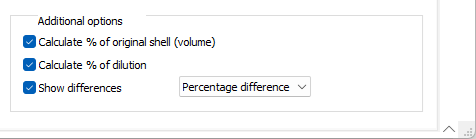
Дополнительные опции
Группа Дополнительные опции содержит опции для настройки различных вычислений при оценке.
Вычислять % от исходной оболочки (объём)
Выберите опцию Вычислять % от исходной оболочки, чтобы вычислить процентное значение объёма исходной оболочки, включённого в оценку.
Вычислять % разубоживания
При выборе опции Вычислять % разубоживания в оценку будет включено значение, представляющее процент каркаса солидов разубоживания.
Показать различия
Если опция Показать различия выбрана, различия между текущим проектом и выбранной эталонной оболочкой будут рассчитаны и показаны в отчёте.
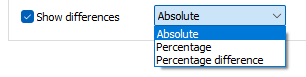
Из выпадающего списка доступны следующие варианты расчёта различий:
-
Абсолютное – вычисляет разницу относительно эталонного проекта в абсолютных значениях.
-
Процентное – вычисляет процентное значение разницы между атрибутами.
-
Процентная разница – вычисляет процентное значение общей разницы между эталонной оболочкой и текущей оболочкой карьера.
Формы
Нажмите на кнопку Формы, чтобы выбрать и открыть сохраненный набор форм или, если набор форм был загружен, сохранить текущий набор форм.
По умолчанию кнопка Формы является недоступной для загруженных слоев Визекса (т.е. при открытии набора форм свойства слоя задаются в панели Просмотр слоев Визекса). В Визексе кнопка Формы доступна только для новых форм, открываемых через вкладку Главная или вкладку Визекс в группе Слои (или двойным щелчком по узлу типа формы на панели «Типы слоев» Визекса).
Сохранить и Сохранить как
Нажмите на кнопку Сохранить, чтобы сохранить изменения, которые вы внесли в набор форм. Нажмите на кнопку Сохранить как, чтобы сохранить внесенные вами изменения в виде нового набора форм. Опция "Сохранить как" по умолчанию назначит вашему набору форм первый доступный номер набора форм.
Сброс
Нажмите кнопку Сброс, чтобы очистить форму от всех значений и вернуть форму в состояние по умолчанию.
Сбросить вкладку
Для форм с вкладками выберите Сбросить вкладку, чтобы очистить активную вкладку от всех значений и сбросить вкладку до состояния по умолчанию, не внося никаких изменений в другие вкладки в диалоговом окне.
Повторить и Отменить (Вернуть)
Нажмите на опцию Отменить (CTRL + Z), чтобы отменить недавние изменения, внесённые в форму. После действия "Отменить", выберите опцию Повторить (CTRL + Y), чтобы восстановить последние изменения, которые были отменены.
Свернуть
Сверните форму, чтобы предварительно просмотреть результаты работы в Визексе или поработать с вводными значениями из Визекса, окна Свойства, Редактора файлов или Редактора чертежа.