Оценка оболочки карьера

Инструмент Оценить оболочку карьера используется для сравнения различных вариантов проектирования одного и того же месторождения. Он позволяет инженеру выбирать различные сценарии проектирования на основе изменений положения дорог, угла откоса, конфигурации уступов и других параметров. Это обеспечивает возможность сравнения оптимальной оболочки карьера и рабочей оболочки, что позволяет количественно оценить разбавление руды в рабочей оболочке. Поскольку оптимизированная оболочка не использует дороги, ожидается разница между оптимальной и проектной (рабочей) оболочками, и эту разницу можно количественно оценить для подтверждения правильности проекта.
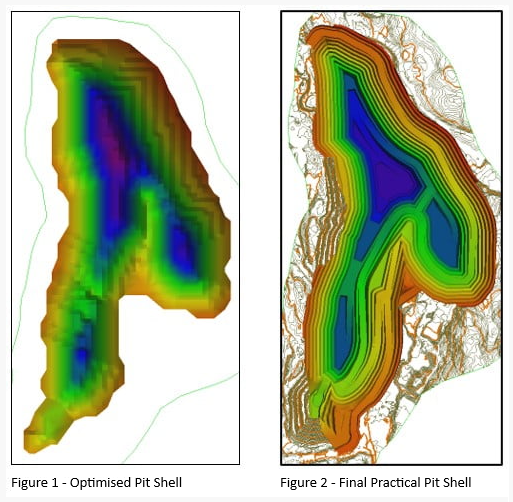
Например, в приведённом ниже сравнении форма оболочки карьера схожа, но различия будут видны в тоннаже, объёме, содержании металла и, в конечном итоге, в стоимости.
Поверхности карьера
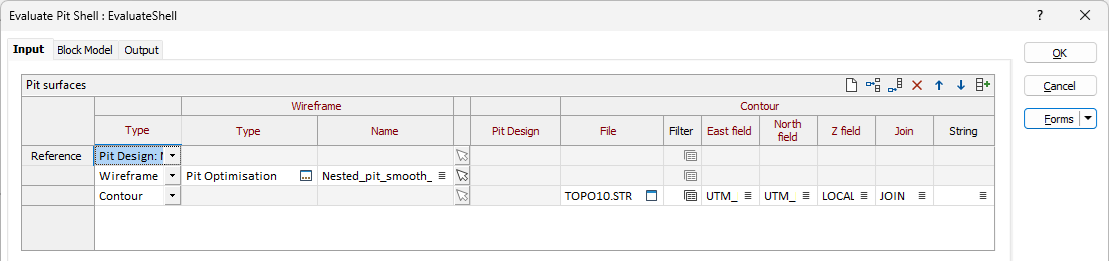
В форме «Оценка оболочки карьера» на вкладке Ввод используйте сетку «Поверхности карьера», чтобы определить эталонную оболочку карьера и оболочки, с которыми ее следует сравнивать. В качестве эталонной оболочки следует использовать оптимальную оболочку карьера; оболочку карьера, полученную в результате математической оптимизации месторождения - обычно с помощью инструмента оптимизации карьера или аналогичного процесса. В качестве оболочек для сравнения могут использоваться любые из следующих вариантов:
-
Файл проекта карьера
-
Каркас
-
Оболочка, ЦМП (открытый каркас)
-
Файлы стрингов, экспортированные из другого проекта карьера
-
Изолинии
Если определено несколько целей, опорным для каждой цели является предыдущая запись, что поддерживает обработку списка поверхностей на конец периода.
Тип
Используйте выпадающий список в первой строке, чтобы выбрать Тип эталонной оболочки карьера.
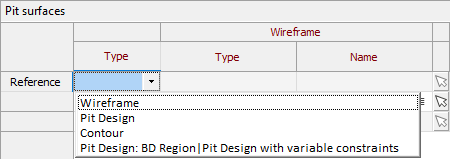
Для эталонной оболочки,
-
Проектирование карьера - выберите активный проект карьера в поле «Тип» или выберите файл проекта карьера в соответствующем поле.
Чтобы добавить файлы для сравнения в процесс оценки, вы можете добавить строки в сетку. Используйте кнопки на локальной панели инструментов для Manage the rows in the list. Выберите один из следующих типов.
-
Проектирование карьера - выберите файл проекта карьера из предоставленного поля. Это поле будет заполнено автоматически, если вы выбрали активный проект карьера.
-
Каркас – выберите тип и имя каркаса из предоставленных полей. Вы также можете использовать кнопку Выбрать из Визекса (или выбрать пункт контекстного меню), чтобы свернуть форму и интерактивно выбрать нужный каркас для вставки и возврата в форму.
-
Контур – выберите файл стринга контура из предоставленного поля.
-
Укажите поля Восток, Север и Z, а также поля Соединение и Стринг для контура, либо оставьте значения по умолчанию.
-
Топография
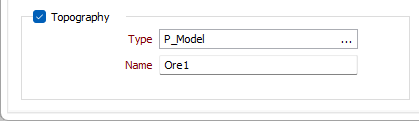
Указание топографии для оценки позволит объединить топографию с указанными поверхностями, чтобы можно было сформировать соответствующие объемы выемки/насыпи.
Выберите параметр Топография, чтобы указать тип и имя каркаса, используемого в качестве топографии.
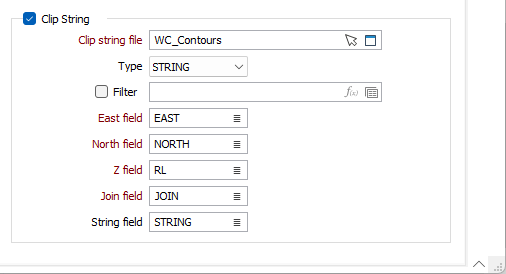
Обрезать стринг
Выберите опцию Обрезать стринг, чтобы указать и определить файл стринга с полигонами обрезки. Если вы укажете стринг, опорный и целевой объекты будут обрезаны ортогонально плоскости наилучшего прилегания полигона перед обработкой.
Обрезать файл стринга
Выберите тип файла и дважды щелкните (F3), чтобы выбрать файл, содержащий стринги, которые нужно вырезать. Вы также можете нажать кнопку Выбрать из Визекса, чтобы свернуть форму и интерактивно выбрать слой, содержащий файл для вставки, и вернуться к форме.
При необходимости выберите фильтр или создайте его с помощью Редактор выражений.
Поля восточного, северного и Z-направления
Укажите имена полей, в которых во входном файле хранятся координаты Восток, Север и (опционально) Z.
Поле соединения
Укажите имя поля, содержащего значения, которые определяют, будут ли точки данных соединены линией, т. е. связаны. Если последовательные записи имеют одинаковое значение в этом поле и стринговое поле не определено, то точки будут соединены линией, т. е. Если поле Стринг определено, то значения в каждом поле в последовательных записях должны совпадать, чтобы точки были объединены в стринг.
Поле стрингов
В большинстве диалоговых окно Поле стрингов - это общий атрибут, который теперь не обязателен к заполнению. Как правило, это поле используется вместе с Полем соединения, чтобы определить, будут ли точки данных соединены линией (в стринг).
Продолжить настройку инструмента оценки оболочек карьера можно на вкладке Блочная модель.
Формы
Нажмите на кнопку Формы, чтобы выбрать и открыть сохраненный набор форм или, если набор форм был загружен, сохранить текущий набор форм.
По умолчанию кнопка Формы является недоступной для загруженных слоев Визекса (т.е. при открытии набора форм свойства слоя задаются в панели Просмотр слоев Визекса). В Визексе кнопка Формы доступна только для новых форм, открываемых через вкладку Главная или вкладку Визекс в группе Слои (или двойным щелчком по узлу типа формы на панели «Типы слоев» Визекса).
Сохранить и Сохранить как
Нажмите на кнопку Сохранить, чтобы сохранить изменения, которые вы внесли в набор форм. Нажмите на кнопку Сохранить как, чтобы сохранить внесенные вами изменения в виде нового набора форм. Опция "Сохранить как" по умолчанию назначит вашему набору форм первый доступный номер набора форм.
Сброс
Нажмите кнопку Сброс, чтобы очистить форму от всех значений и вернуть форму в состояние по умолчанию.
Сбросить вкладку
Для форм с вкладками выберите Сбросить вкладку, чтобы очистить активную вкладку от всех значений и сбросить вкладку до состояния по умолчанию, не внося никаких изменений в другие вкладки в диалоговом окне.
Повторить и Отменить (Вернуть)
Нажмите на опцию Отменить (CTRL + Z), чтобы отменить недавние изменения, внесённые в форму. После действия "Отменить", выберите опцию Повторить (CTRL + Y), чтобы восстановить последние изменения, которые были отменены.
Свернуть
Сверните форму, чтобы предварительно просмотреть результаты работы в Визексе или поработать с вводными значениями из Визекса, окна Свойства, Редактора файлов или Редактора чертежа.