Trail
The People Group form includes a Trail tab. This tab can be used to keep track of the movement of people by displaying a location trail.
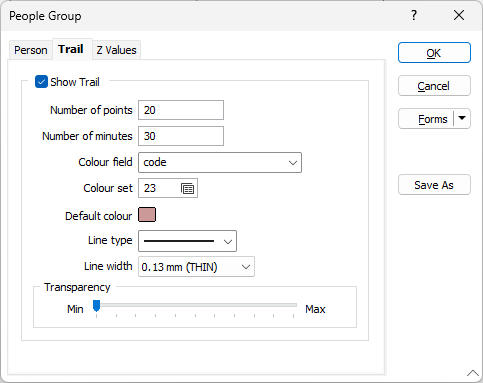
Trail
Select the Show Trail check box to enable Trail display.
Number of points
Enter a number of points <n> which will be used to show <n> previous locations.
Number of minutes
Currently when personnel or equipment are out of range or broken down (for example the GPS antenna has fallen off) their last known position, plus the location trail for the last <n> points is displayed. The trail will be sitting there regardless of its age until the personnel or equipment and starts ‘moving’.
To restrict the display to RECENT trail points, you have the option of specifying the maximum age, in minutes, of the points that are included in the display.
If no value is specified, no age limit is applied to the trail points.
Colour field
Specify the name of the field in the input file that contains values that determine the colour of the location trail.
Colour set
Optionally, double click (F3) to select the set that will be used to control the colour of the location trail. The colour set maps colours to text strings or numeric ranges. This determines the colour for each value in the colour field. Right click (F4) to create or edit a colour set.
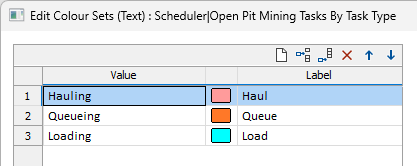
Default colour
Double click (F3) to select the colour which will be used when a colour set is not defined.
Line type
Select a line type from the drop-down list. The line can be specified as a solid line, as a dashed or dotted line, or as a combination of dashed and dotted.
Line width
Choose the (THIN, MEDIUM, THICK, or custom) thickness of the location trail line.
Transparency
Use the transparency slider to specify the transparency of the location trail.