Waypoint Group
Double click on Waypoint Group in the Vizex Layer Types panel to view Waypoint Group properties.
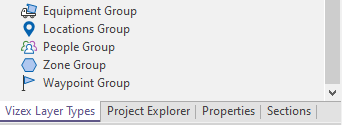
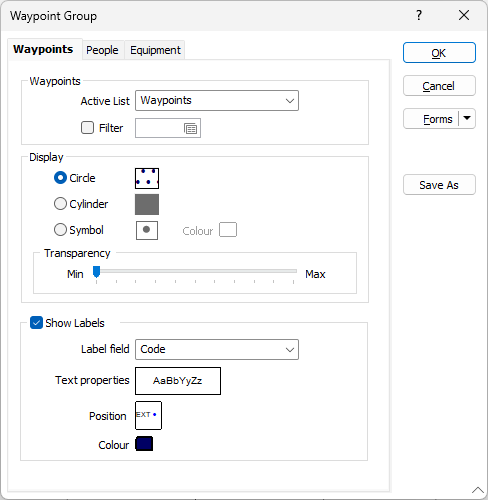
The Waypoint Group properties dialog has three tabs:
- Waypoints. This tab defines the active list and general display of waypoints.
- People. Defines the display of visiting people, including the active list, symbols and colour coding.
- Equipment. This tab defines the general display of visiting equipment units including the active list, symbols and colour coding.
Waypoints
Active List
The Waypoints active list options available to you from the drop down are configured by an administrator using the Reference Edit service.
Filter
Select the check box and double-click in the Filter input box if you want to define a filter. For example, you want to restrict the display of equipment to haul trucks operating underground.
Display
The Display settings for the Waypoint Group allow you to select a Circle, Cylinder or Symbol to represent waypoints displayed.
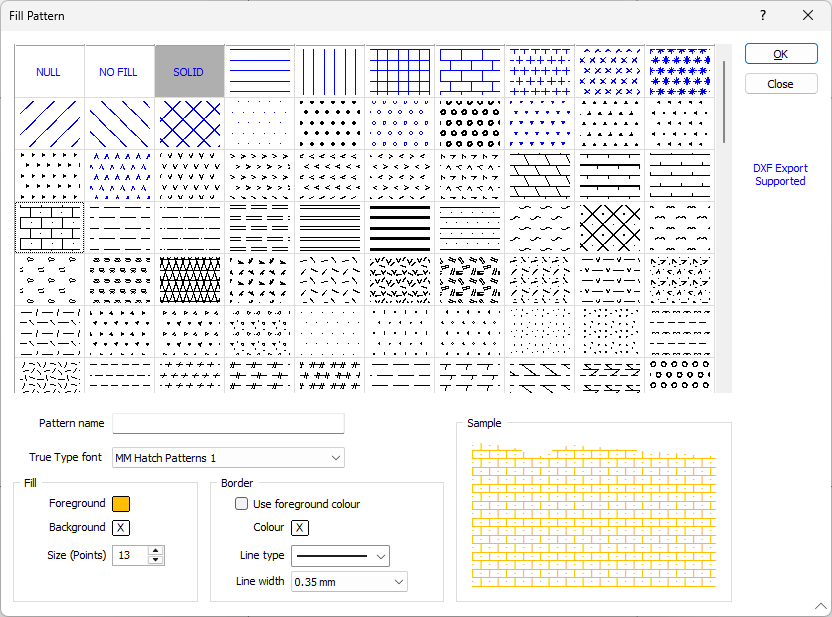
If you select the Circle or Cylinder option, you can set a hatch fill pattern by double clicking in the Hatch preview box.
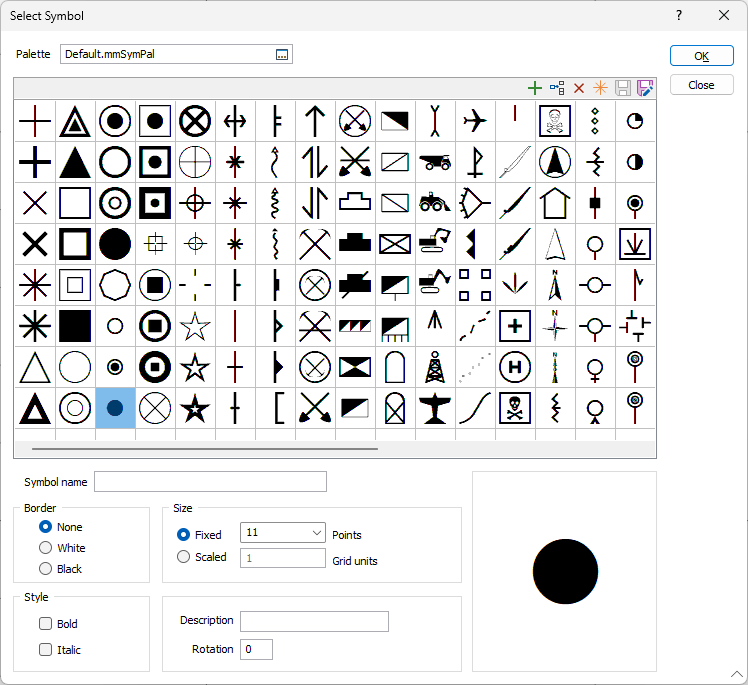
If you select the Symbol option, you can set a symbol for the waypoint display by double clicking the Symbol preview box.
Transparency
Use the transparency slider to specify the transparency of the displayed elements.
Show Labels
Select the Show Labels option to enable the display of labels for the waypoints.
Label Field
Use the drop down to select the Label field for the labels to be displayed.
Text Properties
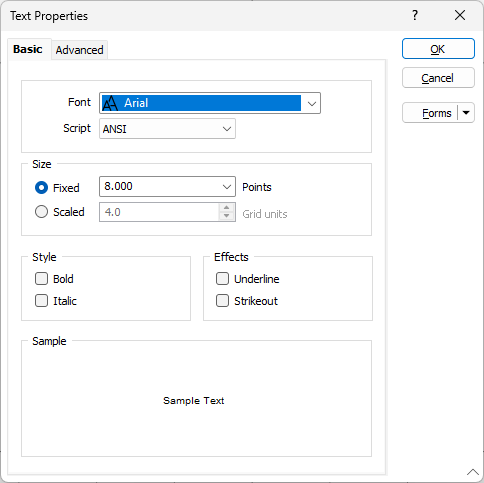
Double click the Text Properties preview to select a font to be used to display the text annotation.
Position
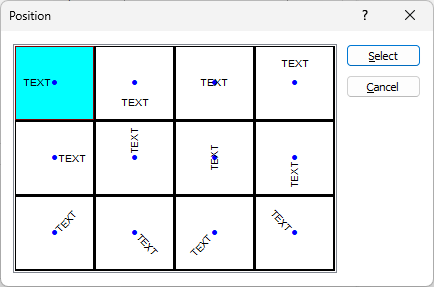
Position the point annotation. Annotation can be located at one of twelve positions around the point. Double-click (F3) to open the dialog box from where you can select a suitable position.
Colour
Double click (F3) to select the colour to be used for the labels.