Edit Multiple Drillholes

To interactively edit the holes on a ring individually, use the Edit Drillholes tool instead.
Until you enter Edit Ring mode and select a ring, drillholes will not be displayed unless the option to Display hole numbers is selected on the Drillhole Labels tab of the Ring Design form.
If no holes are selected, you will prompted to select the holes you want to edit. To edit all on the ring, select the pivot point.
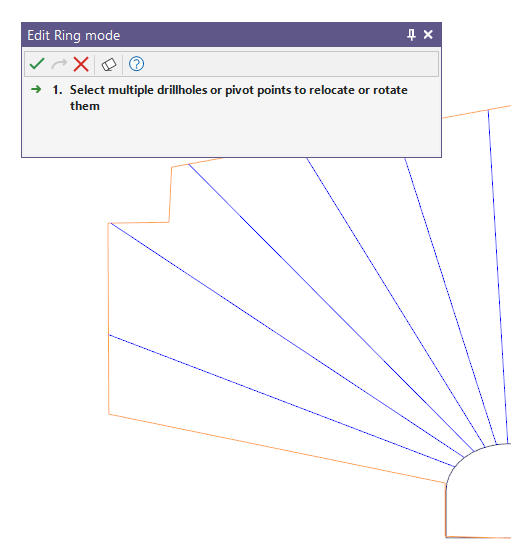
When the drillholes have been selected, you will be prompted to hover the mouse over the collars, holes, toes or pivots you want to adjust:

The Edit Multiple Drillholes tool can be used to interactively modify an existing drillhole fan in 3 ways. The toe boundary spacing between the holes will be maintained whilst changes are made to the fan.
-
Rotate drillholes about the pivot point whilst maintaining the position of the pivot point:
Select the holes to be modified, then hover the mouse over the toe of a hole to rotate hole(s) about the pivot point.
-
Modify the position of multiple drillholes and their pivot points:
Select the pivot point, then hover the mouse over a drillhole trace or pivot point to until you see the move cursor, then make the desired adjustment.
-
Modify the position of multiple drillholes and their pivot points whilst maintaining the holes' toe positions:
Select the holes to be modified, then hover the mouse over the collar to modify the position of the pivot point and related holes whilst maintaining the holes' toe positions.
Note: The adjustments you make will be restricted by drill rig restrictions. If you attempt to make an adjustment that is invalid then a result will not be produced.