Equipment
Use the Equipment tab to display Visiting Equipment.
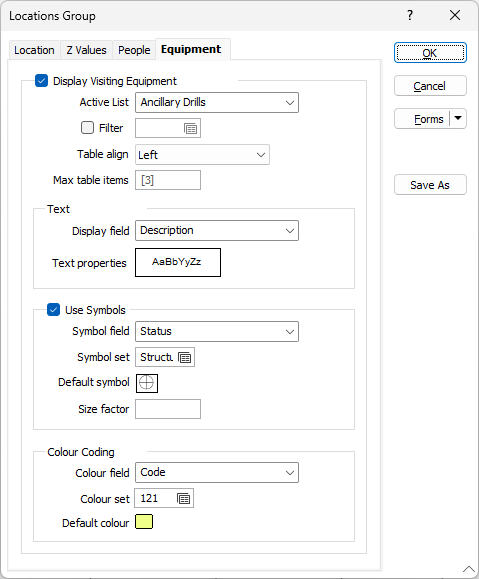
Display Visiting Equipment
Select this option to enable the display of equipment at the location which is marked as 'Visiting' from another site.
Active List
The active list options available to you are configured by an administrator using the Reference Edit service.
Filter
Select the check box and double-click in the Filter input box if you want to define a filter. For example, you want to restrict the display of Equipment to Trucks.
Table Align
Select whether to align the displayed table Left or Right.
Max table items
Enter a value for the maximum number of items that can be displayed in the table for the Visiting active list. The default is 3.
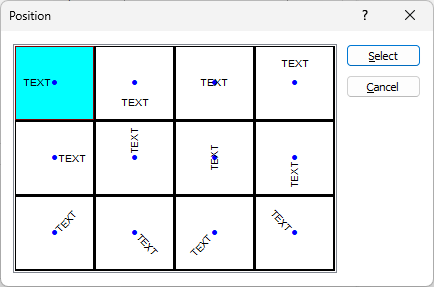
Double click the Text Properties preview to select a font to be used to display the text annotation.
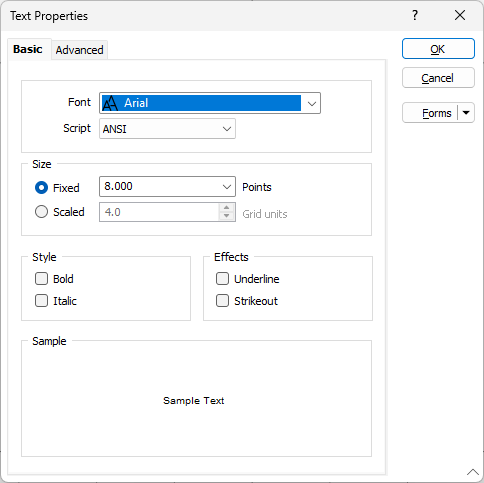
Position
Position the point annotation. Annotation can be located at one of twelve positions around the point. Double-click (F3) to open the dialog box from where you can select a suitable position.
Symbols
Select the Use Symbols check box to enable symbols to be displayed.
Symbol field
Enter the name of the field (in the file) containing the data that will control which symbol is displayed. The symbol set, that is associated with this field, maps symbols to text strings or numeric ranges. For each record in the file, the symbol is determined by the value in this field.
Symbol set
Double click (F3) to select the set that will be used to control the symbol that will be displayed. The symbol set maps symbols to text strings or numeric ranges. This determines a symbol for each value in the chosen (mapped) field. Right click (F4) to create or edit a symbol set.
Default symbol
Double-click the Symbol icon to choose a symbol. You can source symbols from any TrueType or OpenType font.
Size factor
Enter the factor that will be used to control the size of the displayed symbol. The default is 1.0.
Colour Coding
Colour field
Enter the name of the field that contains values which will control the display colour. For example this could be a field with a status for the unit.
The colour set associated with this field maps colours to text strings or numeric ranges. For each record in the file, the display colour is determined by the value in this field.
Colour set
Double click (F3) to select the set that will be used to control the collar display colour. The colour set maps colours to text strings or numeric ranges. This determines the colour for each value in the colour field. Right click (F4) to create or edit a colour set.
Default colour
Double click (F3) to select the colour to be used when a colour set is not defined, or when the value in the colour field is not mapped in the colour set.