Edit Settings
On the Design tab, in the Overlay group, use the Engineering Plots drop-down menu to view a list of saved Engineering Plot Layouts (if any).

To edit the settings of a plot layout, select the layout and click Edit Settings.
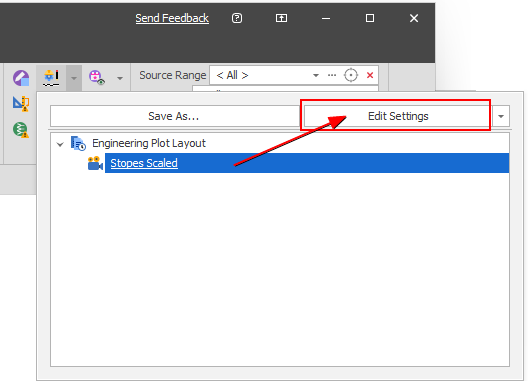
To add a plot layout, see: Create a new layout (below)
When you edit a plot layout, there are two ways to make changes:
-
Apply Settings to the engineering plot overlay. When you click Save As to save a plot layout, any changes you have made to the overlay (visualisation) will be saved to the plot layout.
-
When you create an engineering plot layout, it will incorporate the current layout of the Animation View by default. Click Edit Settings to adjust the Animation Layout of a selected plot layout.
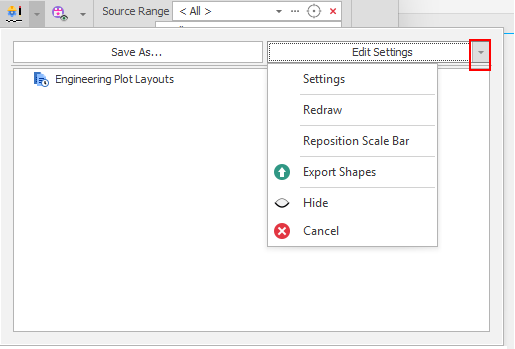
You can also use the following options on the Edit Settings drop-down menu to adjust the current overlay visualisation:
Redraw
Refresh the Plot Layout to reflect changes made to the Animation Layout.
Settings
Apply Settings to the current overlay (visualisation).
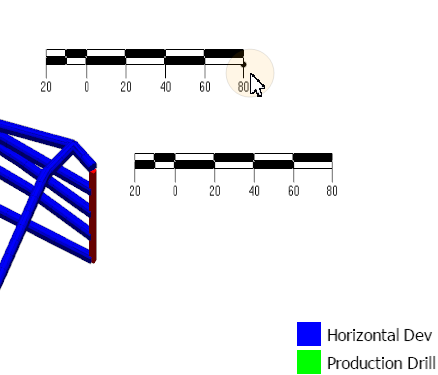
Add/Reposition Scale Bar
Add a scale bar to the display (when none exists) or move the mouse to interactively reposition an existing scale bar in the display. Click the mouse to set its new position.
This populates Scale Bar Position parameters in the Animation Layout dialog.
Keep Plot at Saved Proportions
Toggle whether to keep the plot layout at its saved proportions or rescale the layout dynamically.
Drafting mode is the default mode (the check box is NOT selected). In this mode, the plot layout is drawn to the current screen size, which can cause offsets if you switch between differently sized screens and resolutions.
Keep Plot At Saved Proportions mode (the check box IS selected) redraws using the saved screen size/span so that text and objects match the original proportions, giving you a reliable preview of how the final exported image will look.
Export Shapes
Select this option to export shapes to a new layer. An "Engineering Plots <n>" named layer is created under Layers in the Design Data pane.
Show/Hide
Select this option to toggle the display of overlays on and off (you can also do this by clicking the Engineering Plots icon when visualisation is enabled).
Cancel
Click to Cancel to remove the overlay.
As an alternative to using Save As, you can also select Create a new layout to create a new plot layout from scratch.
(The same options are available in the Animation Window when you right-click and select Design > Overlay > Engineering Plots.)
Create a new layout
-
Select Create New from the Edit Settings drop-down menu.
In the Animation Window, the same option is available on the Design > Overlay > Engineering Plots right-click menu.
-
Apply Settings to the engineering plot overlay. When you click Save As to save a plot layout, any changes you have made to the overlay (visualisation) will be saved to the plot layout. Click Accept.
-
Enter a name for the new plot layout and click Accept.
-
Use the Engineering Plots drop-down on the Design tab, in the Overlay group, to select the plot layout you have just created.
-
When you create an engineering plot layout, it will incorporate the current layout of the Animation View by default. Click Edit Settings to adjust the Animation Layout of the plot layout.
Save As
Click Save As to save the current (selected) plot layout as a new plot layout by entering a new name. Alternatively, accept the default name to save the current (selected) plot layout and overwrite it, based on current settings.