Settings
In the Engineering Plots selection pane, select Settings from the Edit Settings drop-down menu to apply settings to the engineering plot overlay.
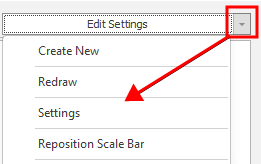
In the Animation Window, the same option is available on the Design > Overlay > Engineering Plots right-click menu.
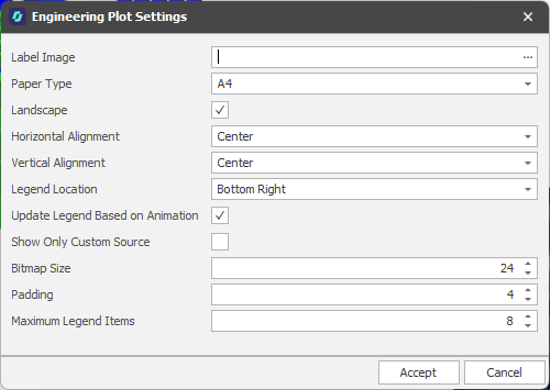
Label Image
Click on the ellipsis to navigate to the location of a label image.
Paper Type
Select a paper/page size. The default is A4. By default, when exporting an engineering plot layout as an image, the image is cropped to the page dimensions.
Landscape
The default plot paper orientation is Landscape. Deselect the check box if you prefer a Portrait paper orientation instead.
Horizontal/Vertical Alignment
Select a (Near, Centre, Far) alignment option for the Title Bar
Legend Location
Set the Vertical (Top, Middle, Bottom) and Horizontal (Left, Centre, Right) location of the legend.
Update Legend Based on Animation
By default, the legend is updated automatically whenever changes are made to the animation layout. Deselect the check box if you prefer a static legend.
Show Only Custom Source
By default Source and Destination Colour Sets are applied in the Animation Layout. Select this check box to only apply the Source Colour Set to the legend.
Bitmap size/ Padding
Use the spin controls to adjust the size of the bin boxes and the padding between them.
Maximum Legend Items
By default, there are 8 legend bins. Use the spin controls to adjust the number of bins up or down. You will need to check there are no unallocated bins, based on the data.
Legend Scale
Use the spin controls to increase or decrease the scale of the legend. The default is 1.00.
Scale Bar Text Scale
Use the spin controls to increase or decrease the scale of the text shown along the scale bar. The default is 1.00.
Scale Bar Divisions
Scale bar divisions are calculated automatically based on the scale of the view, however you can use the spin controls to increase or decrease the number of divisions if necessary. The smaller the number, the larger the scale bar and vice versa.
Accept
Click Accept to apply any changes.
When you click Save As to save a plot layout, any settings you have applied to the overlay (visualisation) are applied to the plot layout.
Cancel
Click Cancel to close the dialog without saving.