Vizex
This
 Слои
Слои
Структурные ленты
Создан новый объектный слой Визекса для отображения и редактирования структурных данных (ленты), ориентированных по координатам XYZ, углу падения и направлению падения. Этот слой отображает ленты с регулируемым положением и длиной.
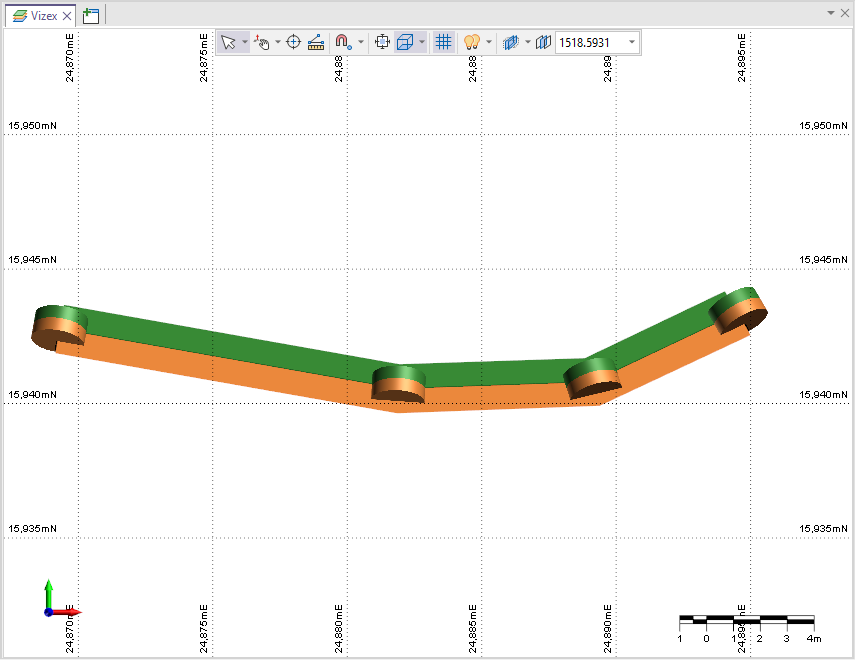
В новом слое доступны следующие функции:
-
Создание, открытие и редактирование новых структурных слоев ленты.
-
Добавить ленту - добавление полилинейных лент к активным структурным данным.
-
Перемещение и/или Вращение - интерактивное изменение положения, направления падения и значений падения ленты.
-
Ориентация по ленте - переориентация выбранных точек на основе ленты.
-
Ориентировать по виду - переориентировать выбранную точку/точки на основе текущего вида.
-
Интерполяция ориентации / Видимого падения - Интерполяция ориентации / видимого падения по точкам вдоль ленты.
-
Ориентация по точке - ориентирует структурную точку по отношению к другой точке.
-
Копировать ориентацию - копирует ориентацию исходной структурной точки в выбранные целевые точки.
-
Поменять полярность - меняет полярность выбранных точек данных.
-
Удалить отображаемые структурные ленты.
Слой «Структурные ленты» был создан для использования с функциями «Структурные данные» и «Структурные тренды» приложения.
Подробную информацию о новом слое и доступных инструментах см. Структурные ленты.
Display
Фильтр отображения легенды
Для большинства типов слоев в легенды «Цвет» и «Штриховка» добавлены параметры видимости. Например, слой Скважины:
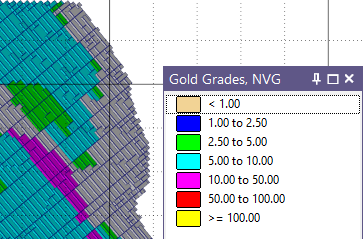
С помощью значков в виде лампочек можно включать и выключать отображение каждого элемента легенды.
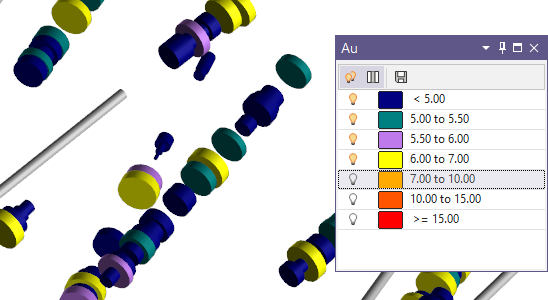
Цвета, символы и штриховки также можно редактировать в легенде.
Кроме того, панель «Легенда» теперь включает в себя панель инструментов, которую можно отображать или скрывать, что позволяет переключать параметры видимости для ВСЕХ элементов, отображать столбец «Видимость» и сохранять любые изменения, внесенные в соответствующий набор элементов легенды.
Параметры видимости доступны для легенд цвета, штриховки, символа и стиля линии на слоях Визекса, включая:
-
Траектория
-
Солиды по траекториям
-
События
-
Каркас
-
Ориентированная структура
-
График
-
Метки интервалов
-
Блочная модель
-
Объем
Для получения дополнительной информации об использовании функций отображения легенды см. Показывать легенду.
Настройки приборной панели
Настройки приборной панели были улучшены, чтобы позволить пользователям отображать направления просмотра с использованием методов компаса и инклинометра, а также углов обзора.
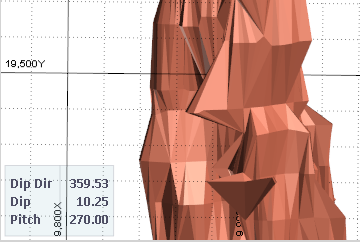
При использовании соглашения ориентации по направлению просмотра с параметром «Углы обзора», для направления камеры отображаются значения азимута и угла наклона.
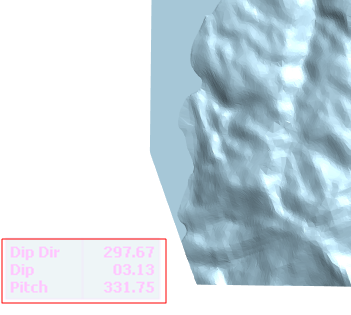
Если при выборе параметра Углы обзора активирован вариант Плоскость экрана, отображаются значения направления падения, падения и простирания.
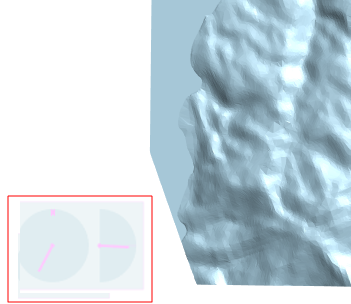
Отображение компаса и инклинометра поддерживает опцию Направление просмотра.
Информацию об изменении настроек приборной панели см. в разделе Настройки дисплея.
Manage Multiple Filters
The ability to manage multiple filters is now supported in the Vizex Layer Display panel.
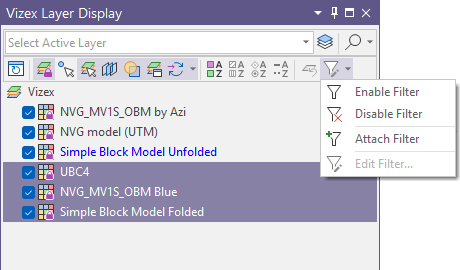
If multiple layers with filters are selected, the selection made from the Edit Filter drop down menu will be applied to all selected layers - for example, Disable Filter.
Grid
Динамическая шкала Визекса
В раздел Сетка на вкладке Визекс добавлена опция Установить масштаб, позволяющая задать набор предопределенных масштабов для камеры Визекса, а также опция Настроить для установки пользовательского масштаба.
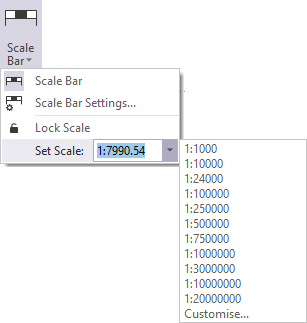
При выборе параметра Настроить откроется форма Настроить шкалы Визекса, с помощью которой можно создать пользовательскую шкалу:
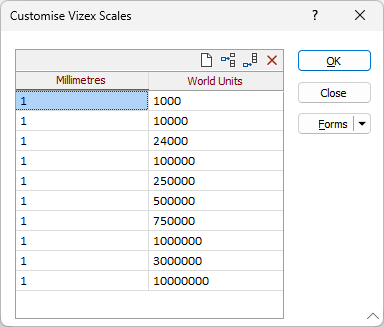
Опция Задать масштаб также добавлена по умолчанию на панель инструментов Визекса.
Настройка шкалы Визекса также отображается в строке состояния в нижней части экрана, что позволяет просматривать, редактировать и блокировать текущую шкалу:

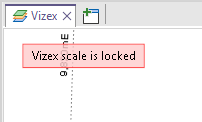
Если масштаб камеры заблокирован и вы увеличиваете или уменьшаете масштаб, масштаб не изменится, а в левом верхнем углу окна Визекса появится предупреждение:
Capture
Разрешение снимка экрана
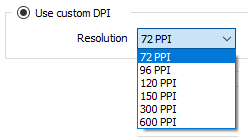
В инструмент Создать снимок экрана добавлена информация о разрешении (только для чтения), отображающая размер изображения в пикселях при выборе параметра Пользовательское значение DPI.
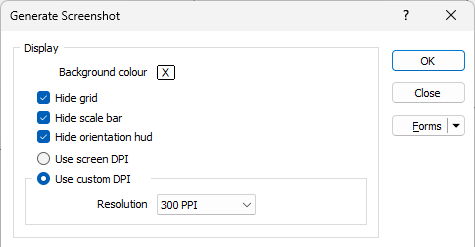
Отображаемая информация о разрешении будет обновляться автоматически в соответствии с выбором из раскрывающегося списка. Если в раскрывающемся списке выбран параметр Пользовательский, поля Разрешение можно редактировать вручную.