Files & Projects
This
 Импорт и экспорт
Типы объектов GIS при экспорте
В параметрах Экспорта GIS добавлена возможность выводить точки, линии и/или полигоны, а также задавать пользовательский суффикс.
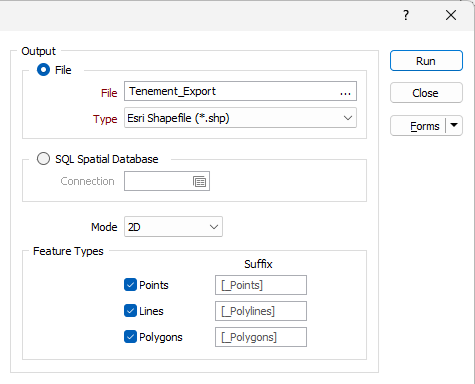
Выбор любого или всех параметров определяет, какие объекты будут экспортированы из входного файла. Если выбран только один тип, например Точки, весь входной файл будет рассматриваться как набор точек. Если активированы другие типы объектов, каждый элемент файла будет обрабатываться в соответствии с соответствующим типом.
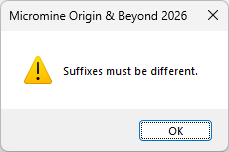
Примечание: Суффиксы должны быть уникальными; в противном случае будет отображено предупреждение.
Экспорт в Google KMZ
В инструмент экспорта Google KML на вкладке Файл в группе Экспорт добавлена поддержка экспорта сжатых файлов Google KML (.kmz) напрямую из Micromine Origin & Beyond.
Keyhole Markup Language (KML) - это XML-язык, который используется для управления просмотром 3D геопространственных данных. В качестве базовой (ссылочной) системы KML использует 3D географические координаты: долготу, широту и высоту. Компоненты широты и долготы определяются в соответствии с Мировой геодезической системой 1984 года ( World Geodetic System of 1984 (WGS84)).
Файл KMZ — это сжатая версия файла KML, содержащая все связанные ресурсы (например, значки, изображения, наложения), объединенные в один файл. Для просмотра подробностей экспорта вы можете открыть файл KMZ в Google Earth®.
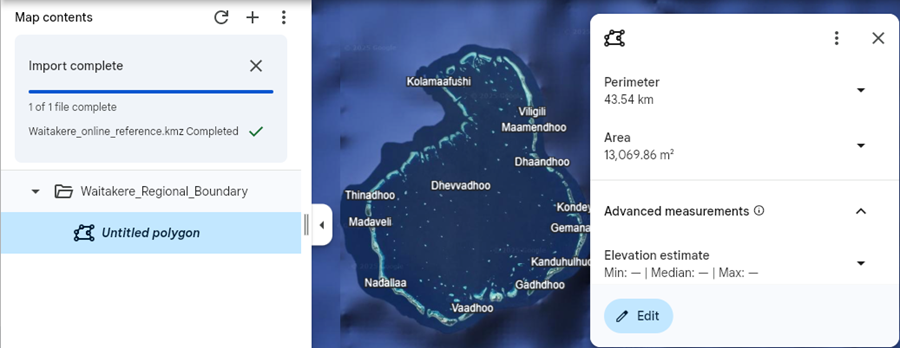
Формат KMZ часто требуется для подачи документов в государственные органы и получения экологических разрешений.
Более подробную информацию см. в разделе Google KML .
Улучшена поддержка ODBC
В функциональность ODBC для импорта и экспорта добавлена поддержка дополнительных типов SQL.
Добавлены следующие типы SQL-запросов:
-
float
-
text
-
nText
-
dateTimeOffset
-
time
Кроме того, значения метки времени и даты теперь будут корректно обрабатываться как символьные, а невыбранные поля не будут учитываться при формировании структуры таблицы.
Более подробную информацию см. в разделе ODBC .
Редактор файлов
Инструменты группы Nexus
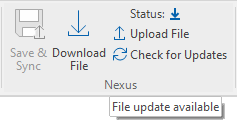
В новую группу Nexus на вкладку Файл | Редактор файлов добавлены следующие инструменты, обеспечивающие синхронизацию открытого в редакторе файла с Nexus.
-
Выберите Загрузить файл, чтобы загрузить открытый файл в Nexus.
-
Выберите Загрузить файл, чтобы загрузить последнюю версию открытого файла из Nexus. Функция Загрузить файл доступна, если в открытый файл в Nexus были внесены изменения.
-
Выберите Сохранить и синхронизировать, чтобы сохранить и загрузить открытый файл в Nexus, не открывая окно Nexus. Функция Сохранить и синхронизировать доступна, когда в открытый файл были внесены изменения.
-
Выберите Отменить изменения в файле, чтобы отменить изменения в файле, открытом в данный момент в редакторе.
-
Выберите Проверить наличие обновлений, чтобы проверить наличие обновлений для файла, открытого в данный момент в файловом редакторе, на сайте Nexus. Если доступна более новая версия открытого файла, будет активирована опция Скачать файл.
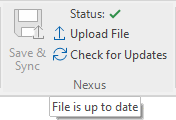
Кроме того, в группе Nexus отображается текущий статус открытого файла.
|
|
Images
Отображение метки географической привязки
Отображаемый символ метки географической привязки для инструмента Географическая привязка изображения на вкладке Файл в группе Изображение был улучшен, чтобы сделать его более заметным для всех изображений, включая черно-белые.
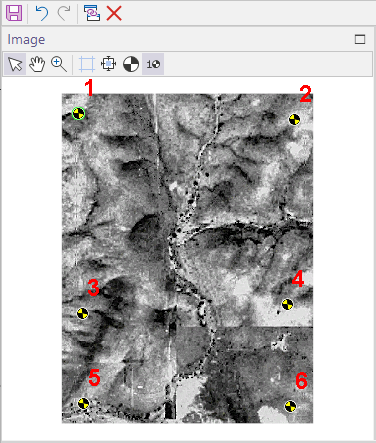
Черно-желтый символ (в стиле знаков безопасности и «манекенов для краш-тестов») ярче и контрастнее темных и монохромных изображений.
Информацию об использовании инструмента см. в разделе Геопривязка изображения.