Viewport right-click menu options
For a full understanding of the reasons why mining is not going as planned, e.g. an Agent is not (fully) mining a block, a Stockpile is not being built/reclaimed, and a Crusher is not operating at its design rate, you can check the Dependencies preventing correct mining of the block, view the detailed Tracing and also go to the block at its design stage in Rapid Reserver.
Additional tools for tracking the Schedule’s progress are available when right-clicking on a block of interest in the Viewport:
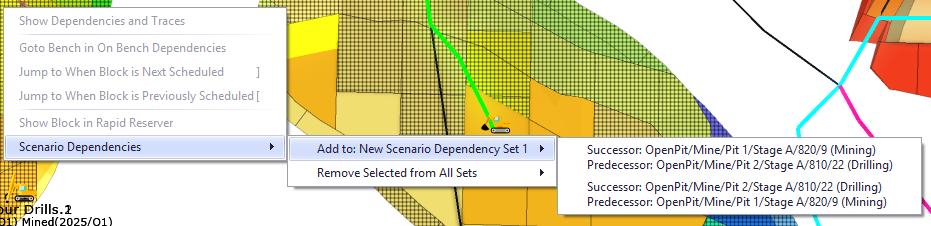
When selecting predecessor and successor blocks, you can also create scenario dependencies:
-
Adding a Scenario Dependency (Requires 2 blocks to be selected, one as predecessor and another as successor, for the option to be available)
Show Dependencies and Traces
To understand why and how a block was mined (or not/not fully) at a particular point in time, review its dependencies and trace messages. To do so, select a block of interest, right-click on it and choose “Show Dependencies and Traces”. It will bring up Dependencies and Traces for <name of a block> window, where the decisions made when an Agent evaluates a source block are listed.
When reviewing the Dependency and Trace dialog for a record, the information shown will update based on the position of the period slider.
For more examples and an explanation of the trace messages, see: Trace tab

Review Dependencies and Traces to find out what is preventing the block from being mined at some point in the time
Go to Bench in On Bench Dependencies
To understand why the work is being done in the current sequence, you can access the On Bench setup step and check the dependency arrows and Starting points for the bench where the selected block is located.
Since the dependencies set in the On the Bench step are the initial check that the Agent makes to produce a ranked list of blocks available for mining, the dependencies types and arrows set in this step are important and determine the mining sequence together with further constraints and rules.

Review On Bench dependencies to find out why blocks are being mined in the given order
Jump to When Block is Next/Previously Scheduled
Select a block of interest and have the Dependencies and Traces dialog open at the same time.
Note that to make it easier to view information on the block status, you can pin the Dependencies and Traces window to a specific section of the working screen. (The same applies to other panels and tabs).

“Jump to When Block is Next Scheduled” command will place a Loader on the selected block and highlight the operation it is performing at that point in time in the Dependencies and Traces dialog.
-
Period slider will move to the time of this transaction, and schedule time will be updated.

-
Use “[“and “]” hotkeys to quickly jump between the block scheduling statuses.
-
Review the dependencies and traces for the selected block, they will update as per the command ran.
Show Block in Rapid Reserver
You can jump to the selected block directly in the Rapid Reserver > Designer tab to review its properties, and make some changes, if required.

Adding a Scenario Dependency
Two blocks must be selected, one as predecessor and another as successor, for this option to be available.
In the Animation Viewport, select one of the blocks in the dependency, hold the CTRL key and select the second block. Right-click to open the menu options and choose which block will be predecessor and successor. For more information, see: Scenario Dependencies
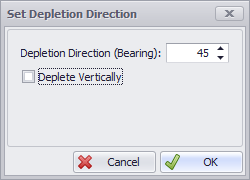
Set Depletion Direction
By default, blocks in ATS are depleted vertically in the animation and stage plans.
Depletion direction can be changed to a bearing direction using this option.
Priority Gantt
Items on the Priority Gantt can be created and edited using this context menu.
For documentation on how the Priority Gantt works, see: Priority tab
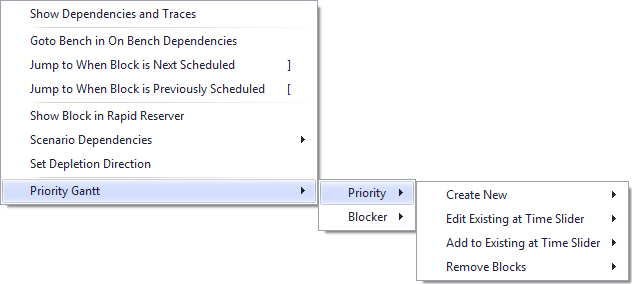
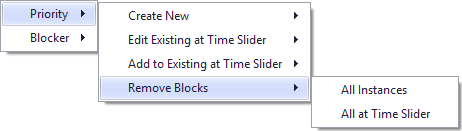
Choose the type of priority to interact with: Priority (incentive) or a Blocker.
Note: The following options for Priority and Blocker are the same and provide the same functionality.
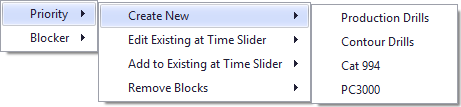
Create New
Create New will provide a list of all Agents and Priority Incentives available in the Gantt. Select the desired Agent/Priority Incentive, this will open the Block Sequencer window, where more blocks can be selected.
Note: The new item on the Gantt will set its Start time based on the Time Slider.
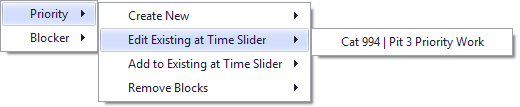
Editing Existing at Time Slider
Editing Existing at Time Slider will provide a list of any Agents and Priority Incentives that contain any of selected blocks at that point in time. Selecting an item will open the Block Sequencer for editing.
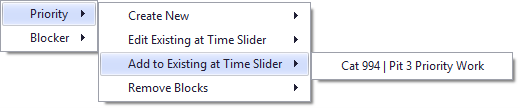
Add to Existing at Time Slider
Add to Existing at Time Slider will provide a list of any Agents and Priority Incentives that exist at that point in time. Selecting an item from the list, will add selected blocks to the bottom of the Sequenced Blocks list.
Remove Blocks
Remove Blocks will provide two options to clear blocks from Priority Items.
-
All Instances – Will clear the selected blocks from all Priority Items in the schedule.
-
All at Time Slider – Will only clear the selected blocks from Priority Items that intersect with the Time Slider.