Database Inputs
Database Inputs are used in conjunction with Expressions and Extensions to calculate database fields.
A Database Inputs table can be created using Table Setup or via Extensions. Fields created using Extensions are highlighted in blue to signify the structure cannot be changed manually.
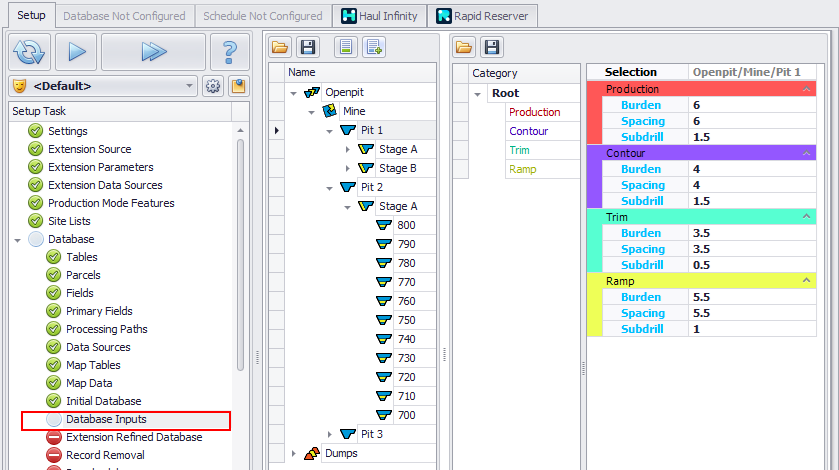
Example of Database Inputs with both Table Setup and Extension Inputs
Table Setup
Table Setup is used to create an inputs table to be used in Expressions. This requires that the Use Expression Builder check box is selected in Configuration Options.
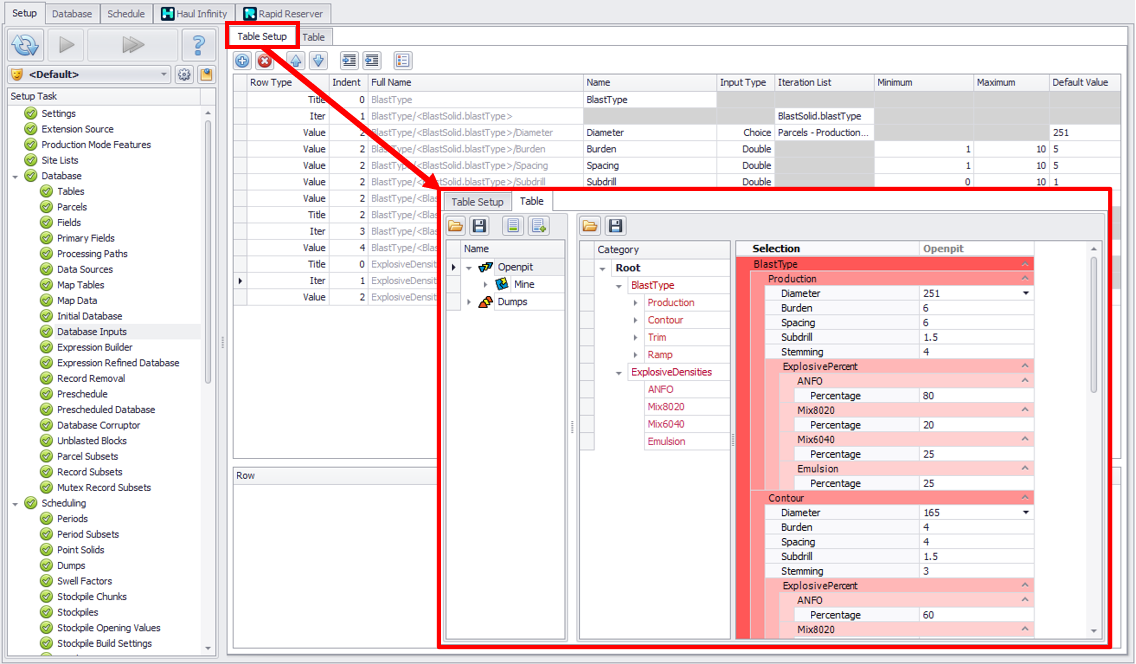
Table Setup
|
Header Field |
Usage |
|---|---|
|
Row Type |
Title – Name used for parent levels. Iter (Iterator) – Inputs under an iterator will be repeated for each value in the Iteration list. Requires users to select an Iteration list. Value –Creates an input field in the table. |
|
Indent |
Used to control table setup. Titles and iterator s must have children |
|
Full Name |
Auto constructed based on table setup. Will become the names used in Expressions. |
|
Name |
The name of the field that will appear in the table. |
|
Input Type |
Double – Numerical input Choice – Drop down menu from a predefined list Bool – Tick box for True/False |
|
Iteration List |
Text Fields – Drop down will automatically show all mapped text fields. Using a field in this manner will create a relationship between the input field and the database field. For example when referencing <BlastType>/Diameter, the expression will automatically grab the diameter for the matching blast type. Parcels – A list of strings based on the Parcel setup. Custom List – Create any list you like. Note this will not create any relationship with database fields, even if the names are exactly the same. |
|
Min/Max |
Set Minimum/Maximum values to be used as input validation. |
|
Default Value |
Select default values for inputs. Note: Setting default values will not update values which have already been set. |
Toolbar buttons
|
Button |
Icon |
Description |
|---|---|---|
|
Add |
|
Add a row. |
|
Delete |
|
Delete a row.. |
|
Move |
|
Move a row up/down. |
|
Indent |
|
Increase/Decrease Indent |
|
Manage Custom Lists |
|
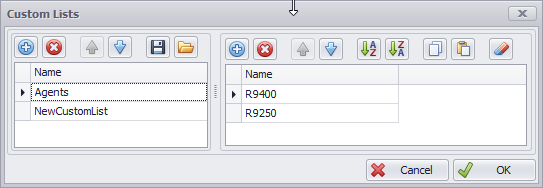
Opens the Custom Lists dialog where you may configure custom lists grouping different items into custom categories. Custom lists allow selection of different fields and you can also access them in the calculated fields.
|


For more information about using Database Inputs with Expressions to calculate database fields, see: Exercises: Expression Builder Walkthrough
Table
The Table tab allows users to populate input values which can be used in Expressions or Extensions.
Fields created using Extensions are highlighted in blue to signify the structure cannot be changed manually.
Values can be input at different levels using the hierarchy in the left-hand panel.
Table inputs can be populated using several methods.
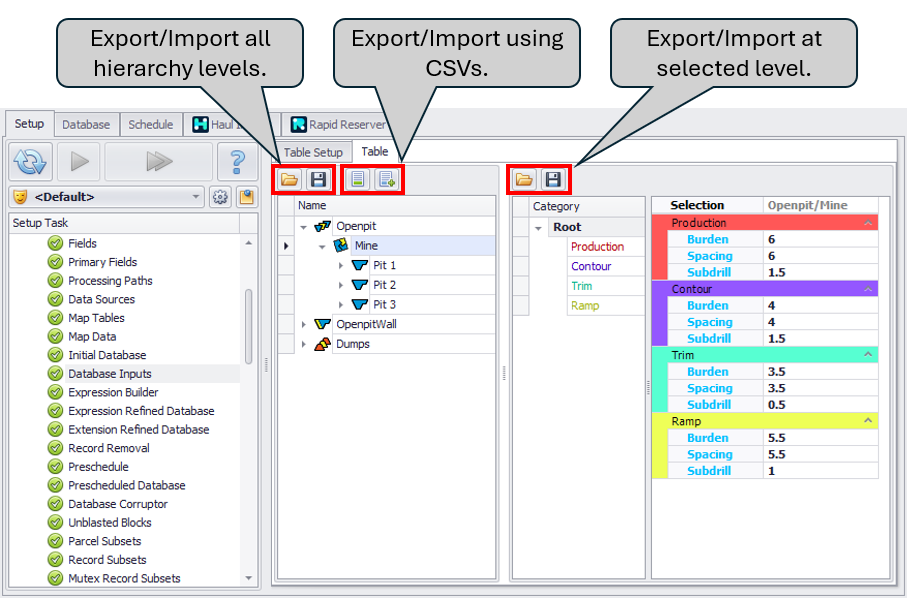
Import Inputs From CSV
To simplify creating the import data, users can use the Create CSV Import Template button to create a template to update the inputs.
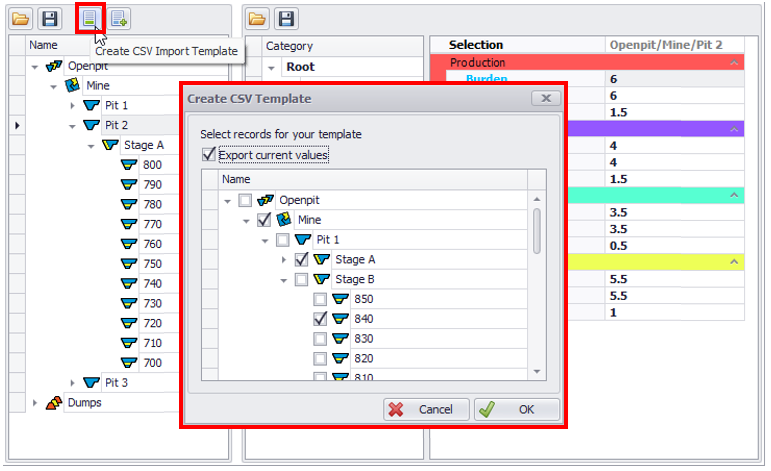
Tick on Export current values to include current inputs in the export template.
Select each level to be created in the template.
Note: If a parent level contains multiple values for a single input, it will choose the inputs from the first low level record in the structure.
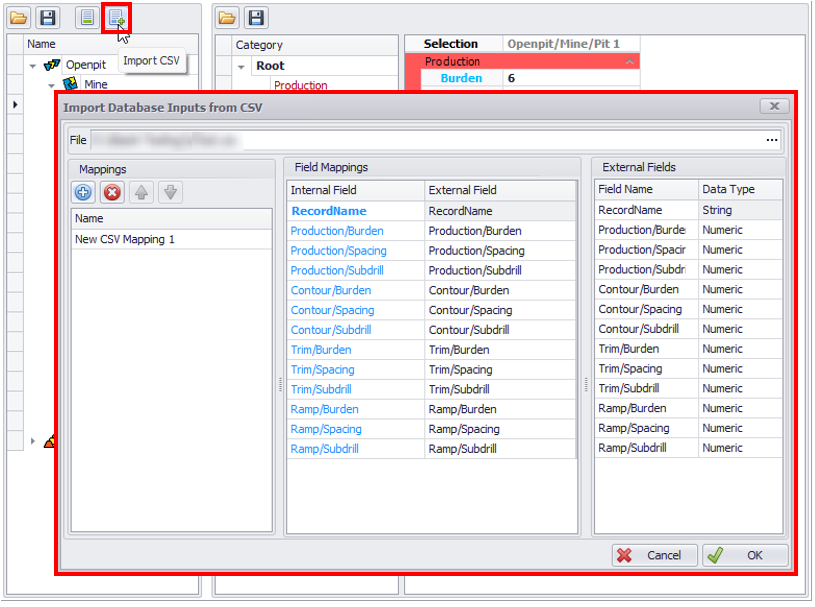
Once the template has been updated it can be reimported using the Import CSV button.
Select the file to import and create a new mapping template, if one does not already exist. Map External fields to the Field Mappings as required. If template names were used, this mapping will happen automatically.