

Map Data
In the Map Data step tell Production Scheduler how to read the import file.
-
Rapid Reserver field names are shown on the right.
-
Production Scheduler field names are shown on the left.
-
Drag and drop Rapid Reserver fields to the matching Production Scheduler field.
-
Optionally copy and paste values between phases using the <Ctrl+C> and <Ctrl+V> keyboard shortcuts.
The coloured squares indicate compatibility between fields. For example, a row with a purple square can only accept purple fields.
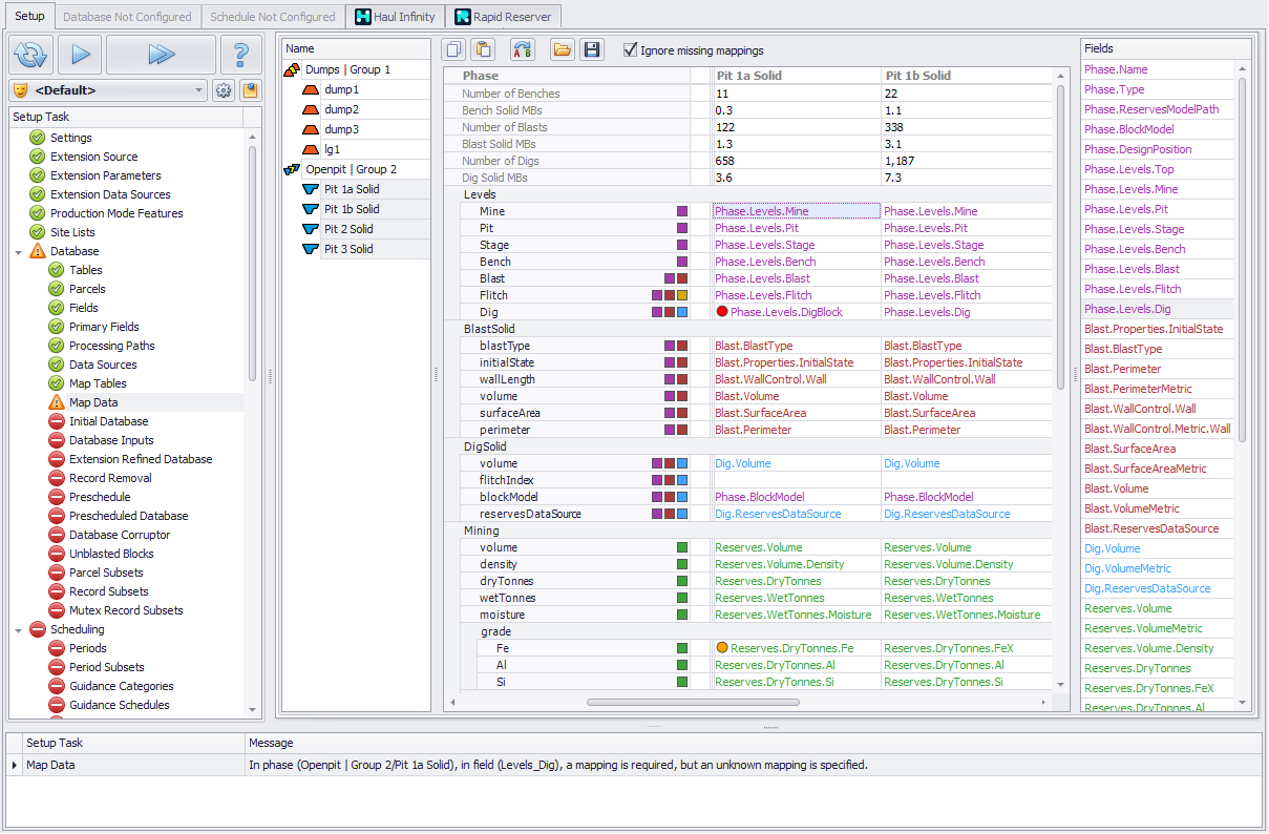
Drag Rapid Reserver fields (right) into the matching Production Scheduler field (left) for each phase
Incorrect fields mapping will stop you from proceeding to the next setup step. Some errors can be ignored by ticking on ‘Ignore missing mapping’, however it is highly recommended to fix all present errors.
Find the fields marked with a red circle. The description of an error is given in the panel at the bottom of your screen. Resolve the error (i.e. by mapping correct fields) and re-run this step.
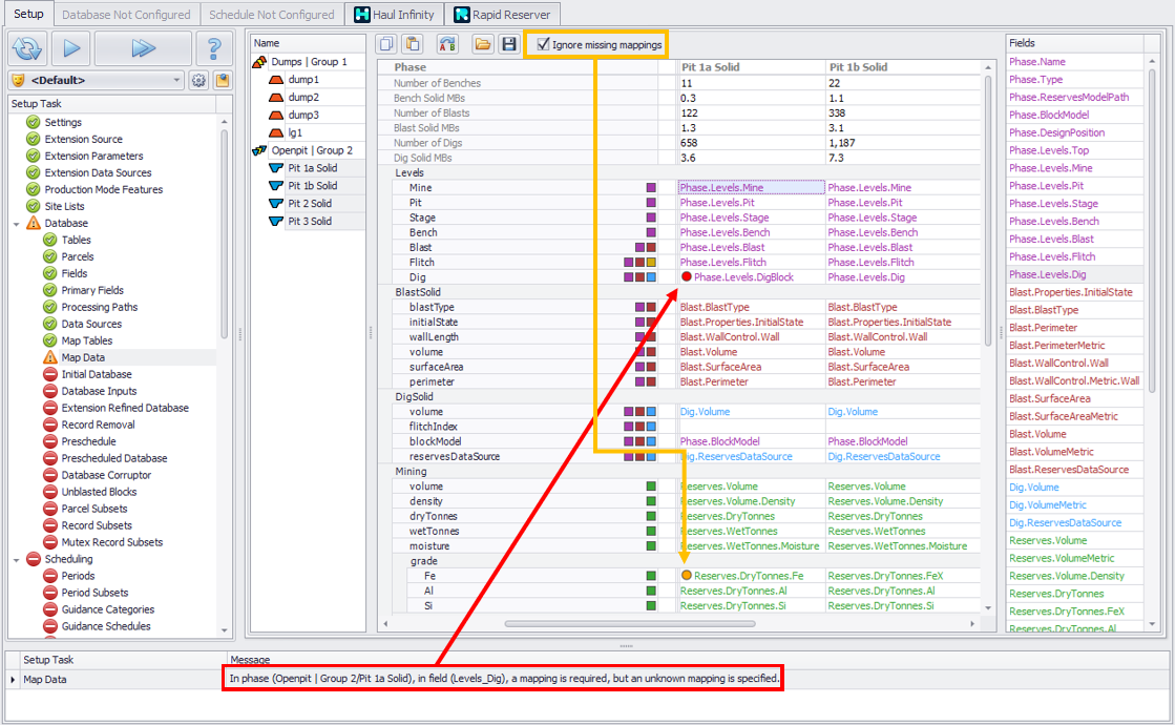
Red circle icon to indicate the error and its description
If changes were made to the resmodel or Table structure in Rapid Reserver, you will need to check the Data Mappings to make sure all fields are mapped correctly.