Personal Settings
Use the Personal Settings page of your user profile to set up your account identity and review your personal details, licensing details and system preferences.
If your Micromine application project is linked to Nexus, this page is also accessible when you select Account Settings in the Licence Manager.
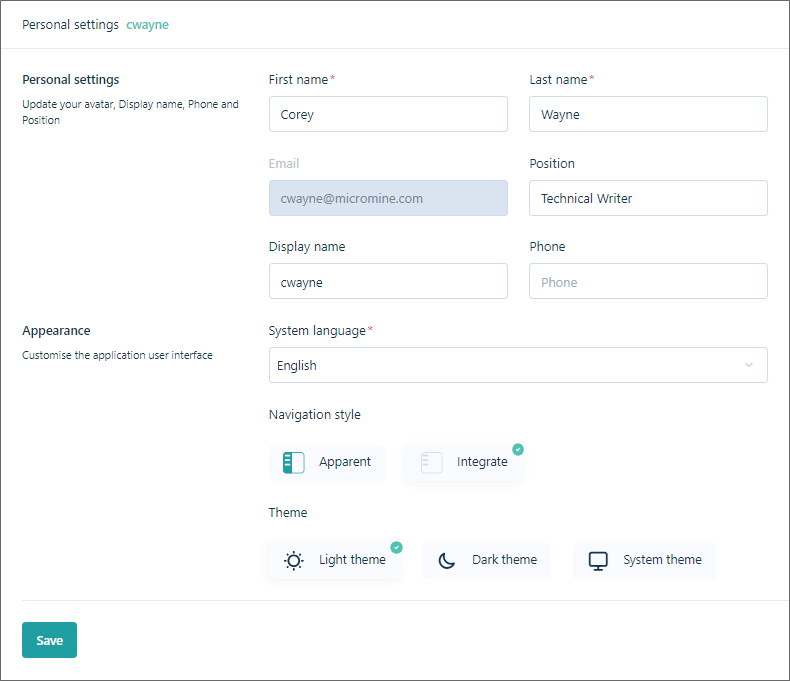
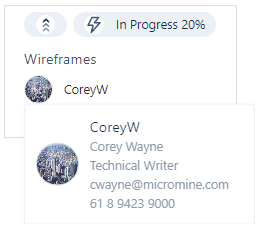
Personal settings including Name, Display Name and Position are very important for the Tenant. As such, it is recommended that Admin request that every user fill Personal Settings with detailed information. This is useful for all members of the Tenant to see information pop ups with the personal details of other users (their name, position, email, contacts etc.) in all menus - for example, in the Tasks chart.
The Display name entered by each User should be relevant and obvious - because it will be displayed in the User attributes list in the Create task form and other places where a User must be assigned. When creating a task, for example, it will be much easier to select the right Responsible person if the Display name is obvious.
First Name and Last Name and Phone
Enter your contact details.
Position
(Optionally) Specify your role within the organisation or team.
Display Name
Your default display name will be set to match the email address you used when signing-in. Decide on a standard across the membership of your workspaces and projects.
Appearance
System language
Set the default language for the Nexus user interface. English, Spanish and Russian language options are currently available.
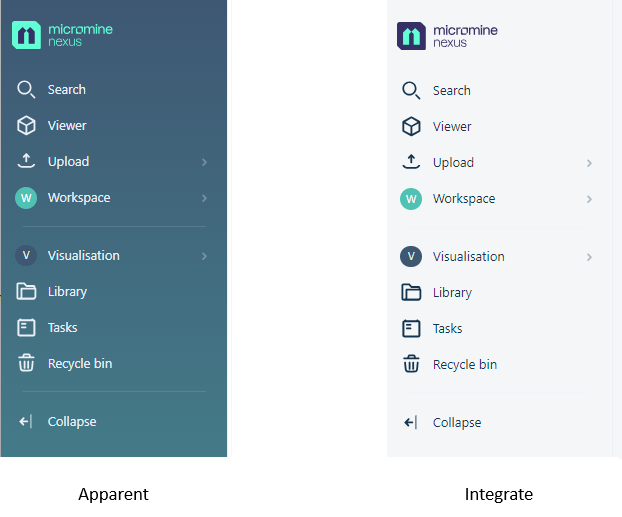
Navigation style
Select whether to show the navigation pane at the left in Apparent or Integrate style.
Theme
Choose a theme for your Nexus browser windows and dialogs. Light and Dark themes are currently available, as well as an option to use the System theme.
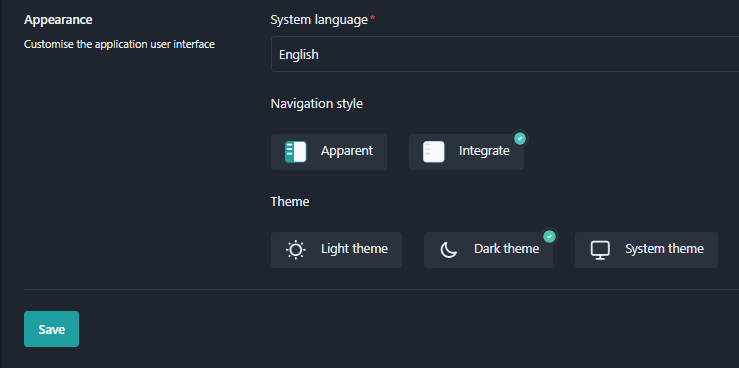
All Nexus applets, including the Viewer, support these themes. The Navigation style cannot be set to Apparent in Dark mode.
Avatar
Choose an avatar. This is how other users will see you when viewing the members of a workspace or project, or when responding to notifications. By default, your avatar will be the first letter of your first name.
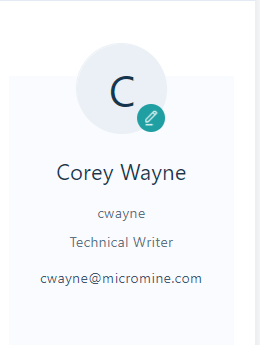
When an avatar has been uploaded, you can remove it using the Remove Picture option:
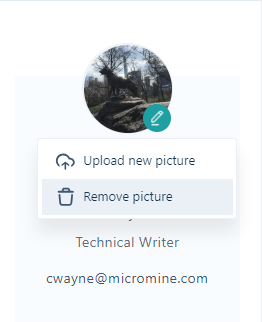
A different avatar can then be uploaded with the Upload new picture option.
Country
Select your locale.
Licensing
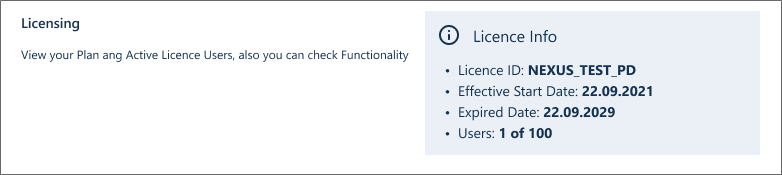
Your licensing details are shown here:
| Details | Description |
|---|---|
| Licence ID | A unique licence ID that is associated with your tenancy. You will need your licence ID when raising a support ticket at support@micromine.com. |
| Effective start date | The date and time at which your licence commenced. |
| Expiry date | The date and time at which your licence will expire. |
| Users | The number of users who have access to Nexus as members of your tenancy. |
The functionality included as part of your plan is listed below your licence details and will depend on your tier.
For information about Nexus deployment options & subscription plans, click on the following links:
Update
Finally, click Save to update your personal settings.
