Copy Solids to Layer
To copy selected source or destination solids to a design layer (layer triangulation), right-click on the selected solid(s) and select Copy Solid(s) to Layer.
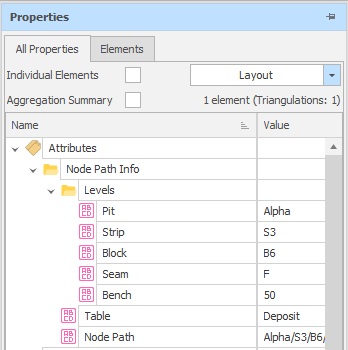
When Source or Destination Solids are selected in the Animation View and you right-click to select Copy Solid to Layer, the node path of each Solid is added to an attribute called Node Path. In addition, attributes are created for each Level in the table and populated with their node positions accordingly. This makes it possible to import back into the data table, if necessary, by selecting Import | Solids | From Design Layers in this Project from the Table right-click menu.
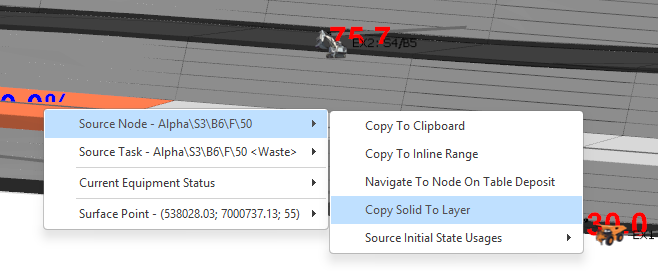
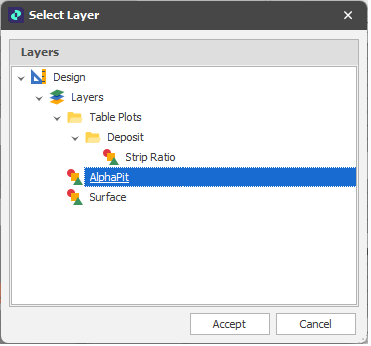
You will be prompted to select the layer to copy the solids to.
Tip: In the Layer Selection pane, you can right-click on the Layers node (or a folder) to Add a new layer.
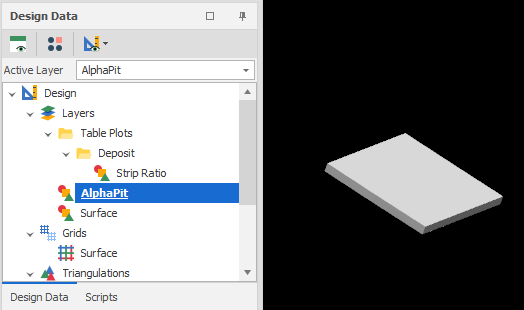
The colour or colour set applied to the selected solids is applied to the output layer.
Attributes of the selected solids are also copied across.