Nexus
Micromine Nexus is a web-based, enterprise-level file management solution which seamlessly integrates with Micromine applications and Open API applications to provide secure data storage, file versioning and access control, plus flexible tools to facilitate the governance of corporate-wide business processes.
The following sections describe how to attach a Micromine Spry project to a Nexus workspace and project.
Workspace Status (Sign In)
-
In the Project Explorer, right click on the root node and select Nexus.
-
In the Nexus panel, click Sign in.

-
You will prompted to login using your Micromine ID and password.
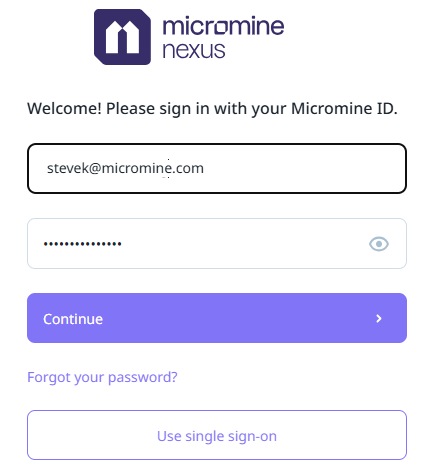
A successful connection is indicated on the status bar at the lower left of the application window:

Nexus (Top)
Workspace (Link Project)
To attach your active Micromine Spry project to a Nexus workspace and project:
-
In the Nexus panel, in the Workspace group, click Link Project:

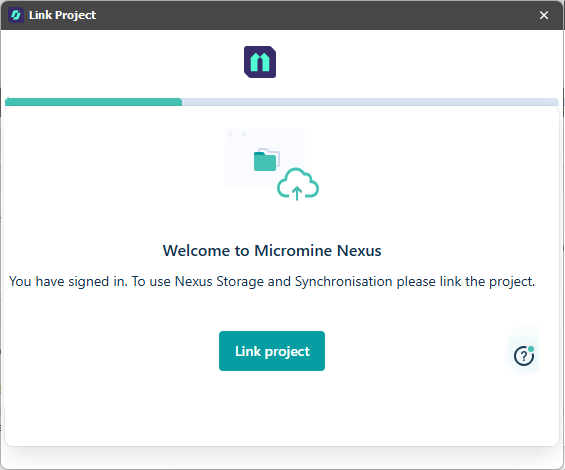
-
You will be prompted to select (or create and select) a Nexus Workspace.
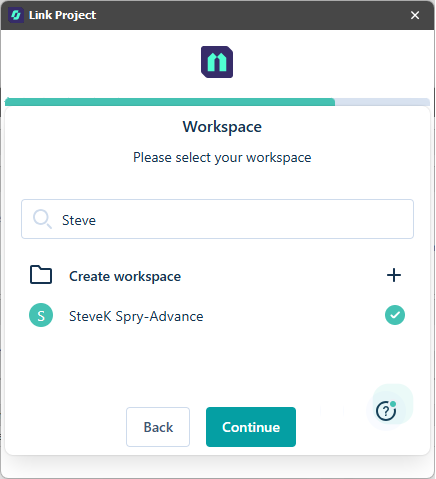
Click to Continue.
-
You will be prompted to select (or create and select) a Nexus Project:
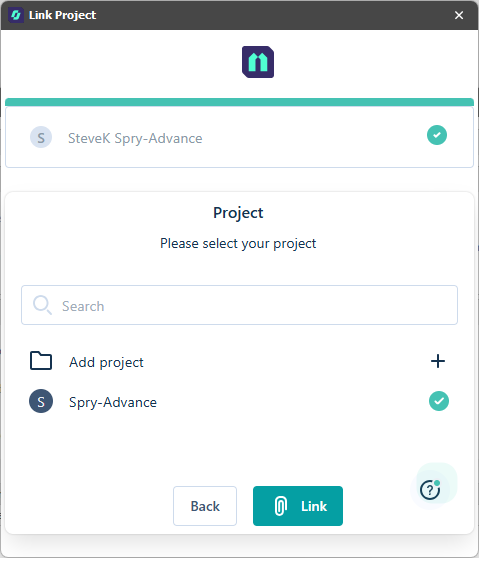
Click to Link the Nexus project to your active Micromine Spry project.
Once a link has been established between your active active Micromine Spry project and a Nexus project, you can upload your layers (including haulage network layers), block models, triangulations and grids to Nexus:
Nexus (Top)
Upload to Nexus
To upload a layer to Nexus:
-
Right-click on a layer and select Upload to Nexus.

-
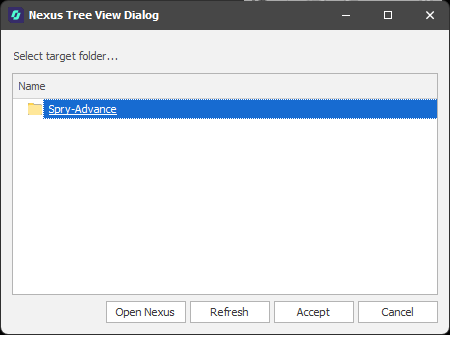
You will prompted to select a target folder as the destination for the uploaded layer.
To create a folder, right-click on the Nexus project name and select Add > New Folder. The newly-created folder will be automatically selected as the target folder.

-
Click Accept to proceed with the upload.
Once a layer has been uploaded to Nexus, a Status icon to the left of the layer name in the Design Data pane indicates whether the layer is up-to-date, has been changed locally since being uploaded to Nexus, or has been updated or deleted on Nexus since being uploaded.
Note that once a file or layer has been uploaded to Nexus or downloaded from Nexus, subsequent name changes in the application are NOT communicated to Nexus, however the link between the local file and the remote file will still remain.
When you Push a name change to Nexus, a message box may advise that the file or layer is already up-to-date. Push anyway. The status is updated, however no name change is applied in Nexus.
| Icon | Status |
|---|---|

|
Up to date |

|
Local changes |

|
Uploading |

|
Update is available |

|
Deleted |
Depending on the status, you can perform the following right-click operations:
Check for Updates
Check the current layer for any updates that may have made to the layer in the linked Nexus project.
Download Changes from Nexus
This option is available when the layer in the linked Nexus project has been updated and is out of sync with your local copy.
A Status icon to the left of the layer name in the Design Data pane indicates that the layer has been updated on Nexus:
Push Changes to Nexus
This option is available when the layer in the active Micromine Spry project has been updated and is out of sync with the layer stored on Nexus.
A Status icon to the left of the layer name in the Design Data pane indicates that the layer has been edited locally since it was uploaded to Nexus:
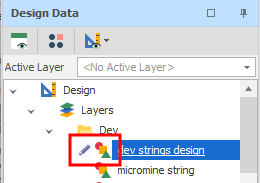
When you push changes, the icon next to the tree mode changes to an Uploading state:
After changes are pushed, the Status icon to the left of the layer name indicates that the uploaded layer is up-to-date:

View on Nexus
Select this option to open a Nexus Object Page which displays various details for the layer or file you have uploaded to Nexus. For layers, a spatial preview of the layer may also be supported.

Workspace (Unlink Project)
To unattach your active Micromine Spry project from its linked Nexus project,
-
First of all, you may need to Workspace Status (Sign In).
-
In the Nexus panel, in the Workspace group, click Unlink Project:

Nexus (Top)