

Destinations Shadings
For better presentation of items on the Destinations chart you can create shading sets for identifying outlier grades in crusher and stockpile builds.
To create and organise Destinations shadings:
-
Select “Configure Global Display Options” from the display options button drop-down.
-
In the Configure Display Options window, go to the Shadings tab.
-
Add a shading set for each grade.
-
In each shading set, select a shading for both “Mining” and “Stockpile” Sources.
-
Click thegear icon next to each source in the Configure Template column to make a custom shading.
-
In the Configure Shadings dialog, add a shading and name it.
-
Set the Shading Field to the grade field.
-
Enter grade ranges and colours.
-
Click OK to finish.
-
Click theSelect Shadings drop-down next to each source and select the new shading (in this example, Fe).
-
You can choose colors from the drop-down in the Color column, or you can create a color gradient by clicking the Generate Gradient button.
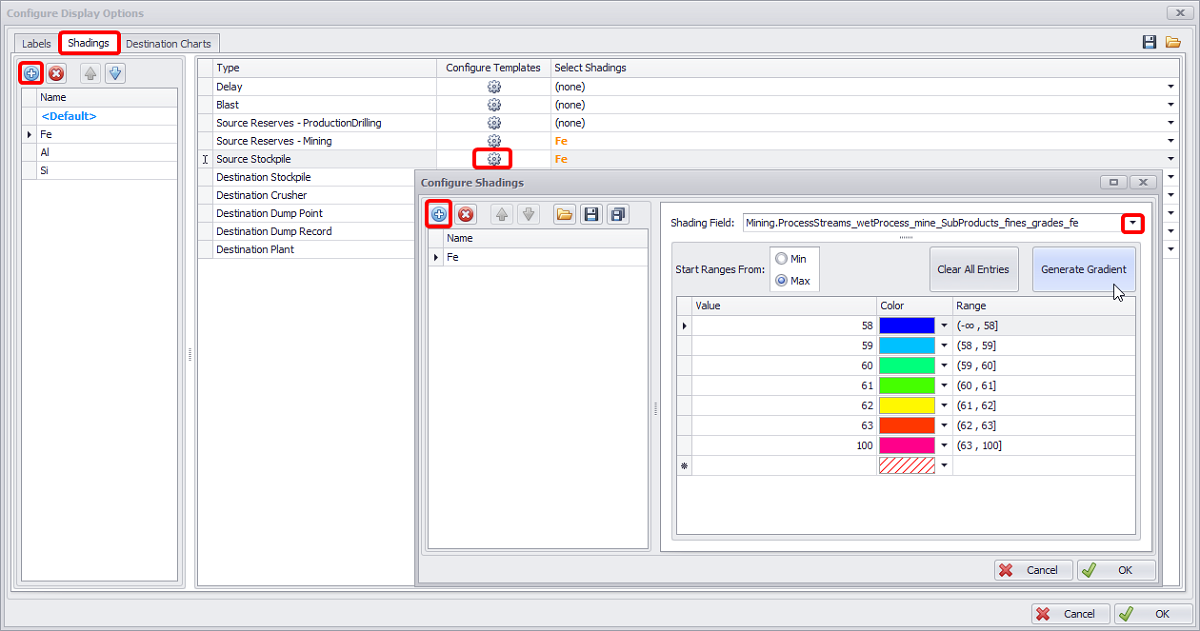
Steps to create custom grades shading
You can save custom display options templates and import previously created ones, in the ".apsDisplayOptions" format.
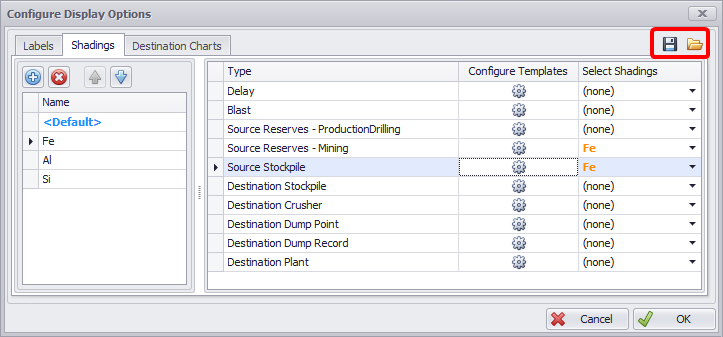
Export and Import Display Options buttons
To apply created shading template to the Destinations tab chart elements, you must select it from the shading drop-down in the Display Settings area of the Configure Gantt Display Options window, as shown in the figure below.
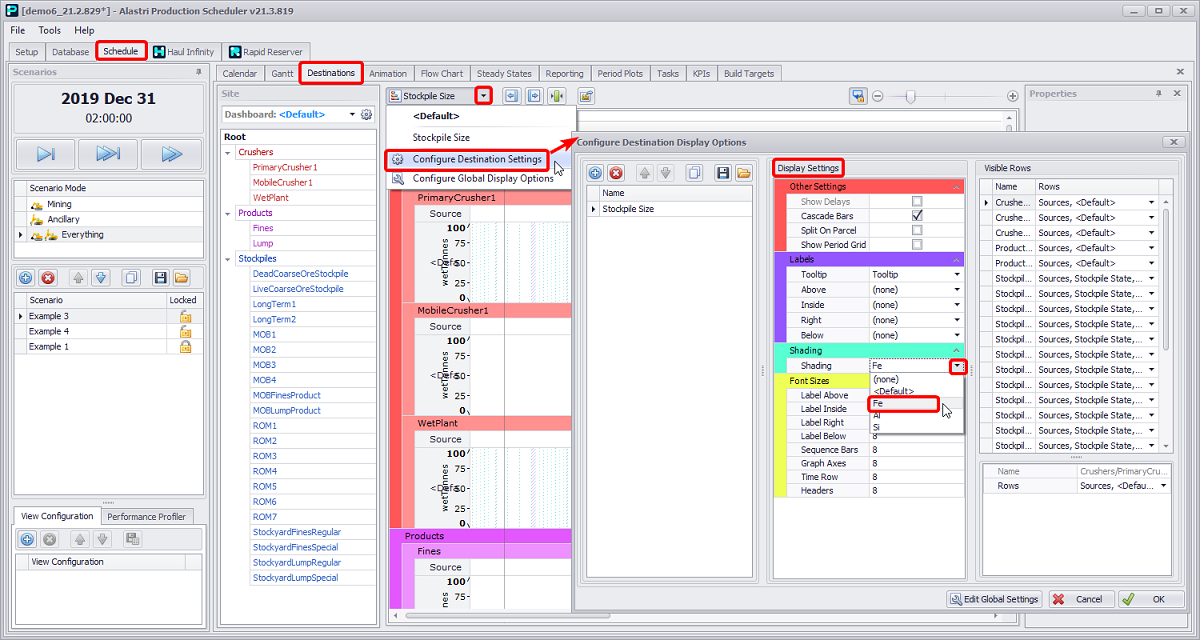
Schedule tab > Destinations tab > Display Options button > Configure Destination Display Options window > Display Settings panel > Shading section > Shading field dropdown