

Destinations Labels
For easier scheduling and clarity of presentation, you can change the labels displayed on the Destinations tab charts at any time.
To set your custom labels go to Schedule tab > Destinations tab > top left button drop-down (i.e. <Default>) > "Configure Global Display Option".
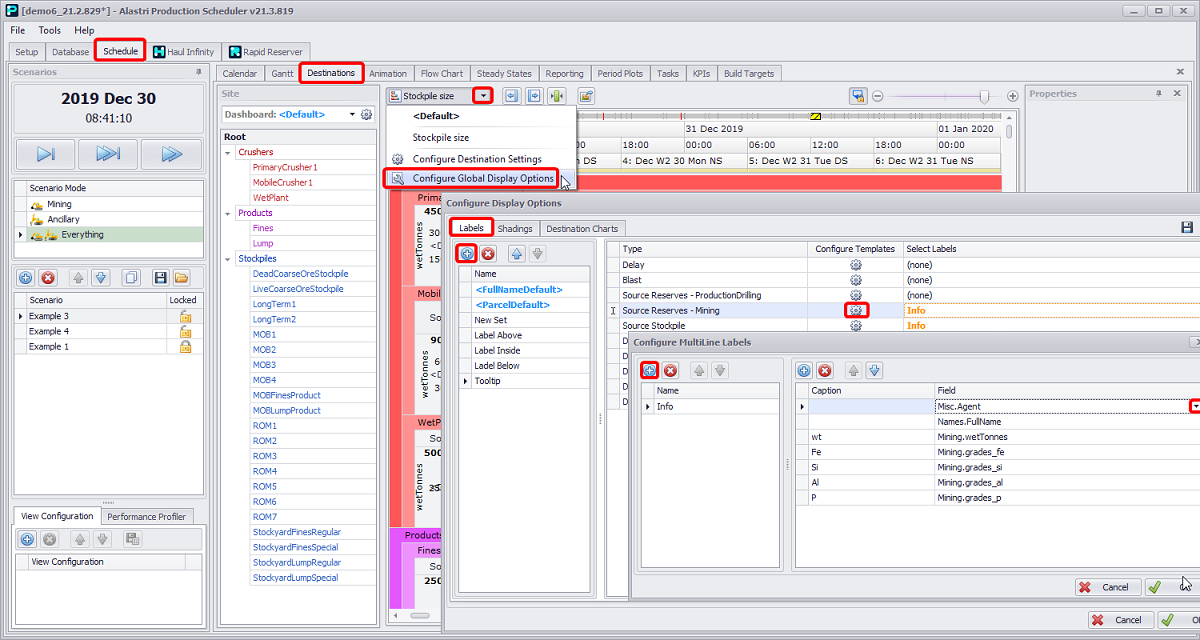
Steps to create custom tooltip labels
Use the label functionality to create a tooltip for inspecting crusher feed and stockpile builds.
To create and organise Destinations labels:
-
Select “Configure Global Display Options” from the display options button drop-down.
-
In the Configure Display Options window, go to the Labels tab.
-
Click theblue plus icon to create new labels. Add four labels:
-
“Label Above”,
-
“Label Inside”,
-
“Label Below”,
-
“Tooltip”.
-
-
In the “Tooltip” group, choose an item (Type column) and press the gear icon in the Configure Template column.
-
In the Configure MultiLane Labels window, add new template and select from the Field drop-down which data you want to display in the tooltip (ex. digger name, tonnes and grades).
-
Click OK to confirm.
-
From the Select Labels drop-down select the created template (in this example, Info).
-
Repeat steps 4-7 for the remaining sets.
-
Click OK to confirm.
You can save custom display options templates and import previously created ones, in the ".apsDisplayOptions" format.
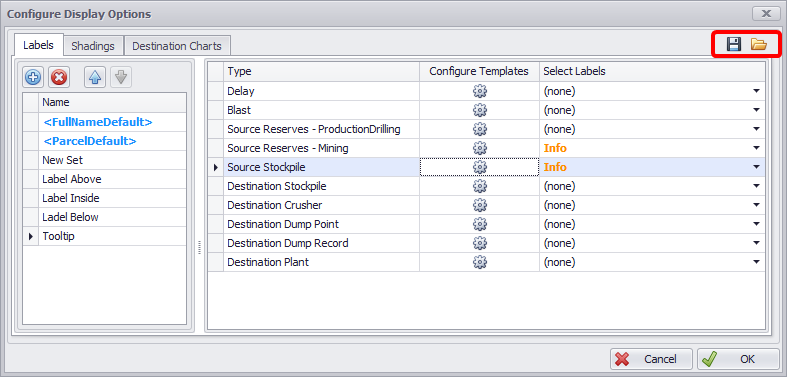
Export and Import Display Options buttons
To apply created label to the Destinations tab chart elements, you must select it from the relevant drop-down in the Display Settings area of the Configure Destination Display Options window, as shown in the figure below.
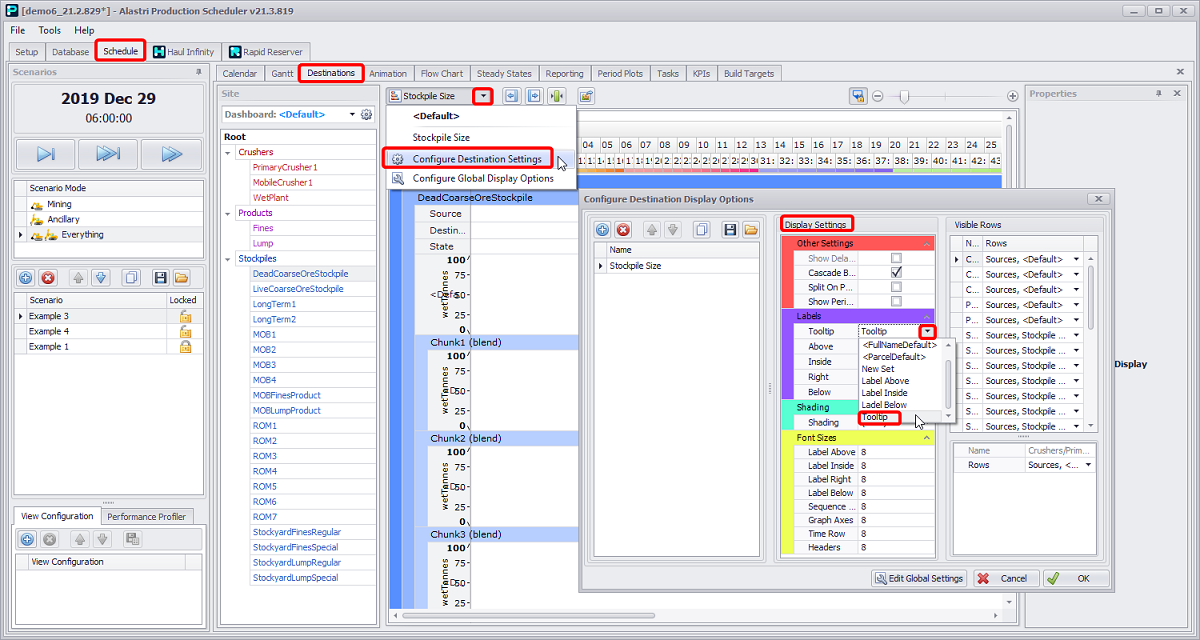
Schedule tab > Destinations tab > Display Options button > Configure Destination Display Options window > Display Settings panel > Labels section > dropdown