General
Use the options on the General Settings page of the Micromine Spry Settings window, to set user interface options, data import and storage parameters and scripting and scheduling options.
User Interface
Accept the defaults or use the options in this group to configure the application user interface appearance and update settings:
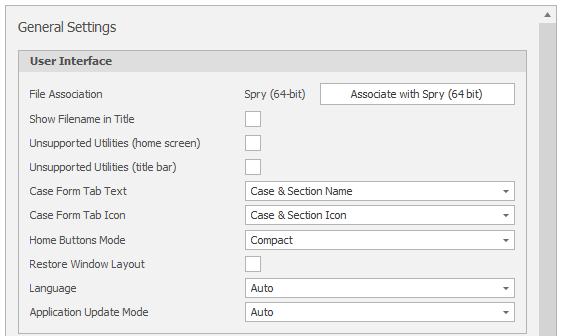
General Settings: User Interface
File Association
Click the Associate with Spry (64 bit) button to set Spry (64 bit) as the default application for the .spry file type.
Show Filename in Title
Select this check box to show the filename of the current project/model on the Title bar.
Unsupported Utilities
Select these check boxes to list unsupported utilities:
-
On the Home screen (when you click on the File tab)
-
On the Application Title bar, Tools > Settings menu.
Case Form Tab Text & Icons
Choose whether to display the Case & Section Name or Only the Case Name on Case Form Tabs.
Choose whether to display Only the Case Icon, Only the Section Icon, or Case & Section Icons on Case Form Tabs.
Skin & Skin Layout
Choose a (Light, Dark) skin and a (Standard, Compact) skin layout. A Light skin and Standard skin layout are the default.
Home Buttons Mode
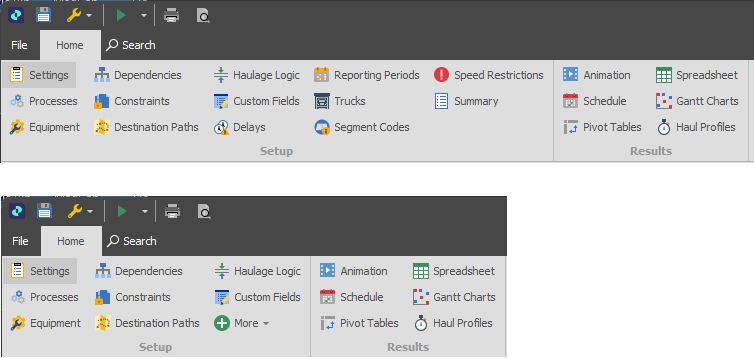
Choose a (Full, Compact) Home buttons mode. This changes how many buttons are shown in the Setup and Results groups on the Home ribbon. In Compact mode, the Setup group will have a maximum of 9 items. The Results group will have a maximum of 6 items.
Restore Window Layout
Select this check box to restore the default window layout. This will undo any changes you have made to the visibility and the position of the windows and panes in the user interface. See: Working with Windows & Panes
Language
The application's user interface language is set to Auto by default. Use the drop-down to select from a list of available languages.
Application update mode
To set the Application Update Mode:
-
Click the File tab to open the backstage menu and select Settings from the side menu.
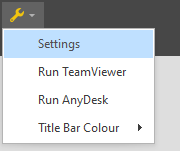
Alternatively, from the Tools menu on the application window title bar, select Settings:
-
On the General tab, in the User Interface group, use the drop-down to change the Application Update Mode setting:
Mode Description Auto If an update or a new version is available, the application will be updated automatically on restart. This is the default option. For more information, see: Auto Manual If an update or a new version is available, the application will only be updated when you choose to run an update process. For more information, see: Manual
Data
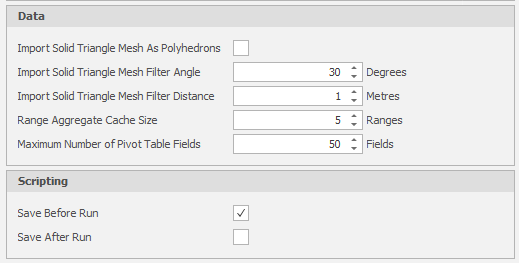
Accept the defaults or use the options in this group to configure the way data is imported and aggregated. You can also set the Maximum number of Pivot Table Fields.
Scripting
Choose whether to Save scripts before or after they are run.
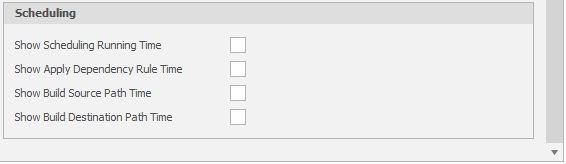
Scheduling
Choose whether to show timings for Schedule Runs, Dependency Rules and Paths:
All Settings
You can also view settings in Debug mode by clicking All Settings at the lower-left of the Settings window. Non-default (user-defined) settings can be quickly identified. Each setting can be referenced by name in scripts and expressions.