Reporting Service
On the Services ribbon, click Reporting to generate a report or choose from a list of reports to run.

The Pitram Portal Reporting service provides a comprehensive list of report types that cover many facets of the mining process.
Reporting provides you with the tools to:
- Define a subset of data for inclusion in a report.
- Run reports individually, or schedule reports to be run at set periods.
- Export to a variety of formats - for example, PDF, CSV, Excel, and Word.
- Save report definitions so that they can be efficiently re-run.
- Send reports by email, save reports to disk, or save to the Library service.
Reports List
By default, the reports in the Reports List are grouped by category - for example Equipment, Locations, Materials, Personnel etc. The order in which these categories are listed is defined in the System Service (Pitram Portal | Manage Report Group Order).
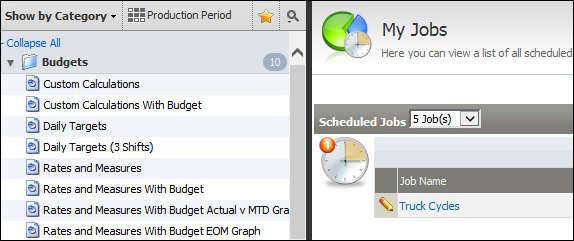
You can control what is displayed in the list by selecting one of the following Show options:
Show all
Display all the report types in alphabetic order.
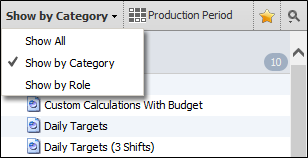
Show by Category
By default, report types are grouped according to categories defined using the System Service - Equipment Hours, Locations, Movements and Measures, etc. Groups are listed in alphabetic order.
Show by Role
The process of assigning reports to a role is part of on-site customisation. If roles have not yet been assigned, reports will appear under an Unassigned category.
My Jobs Pane
The My Jobs Pane shows the reporting jobs that are scheduled to run, pending authorisation, or complete.
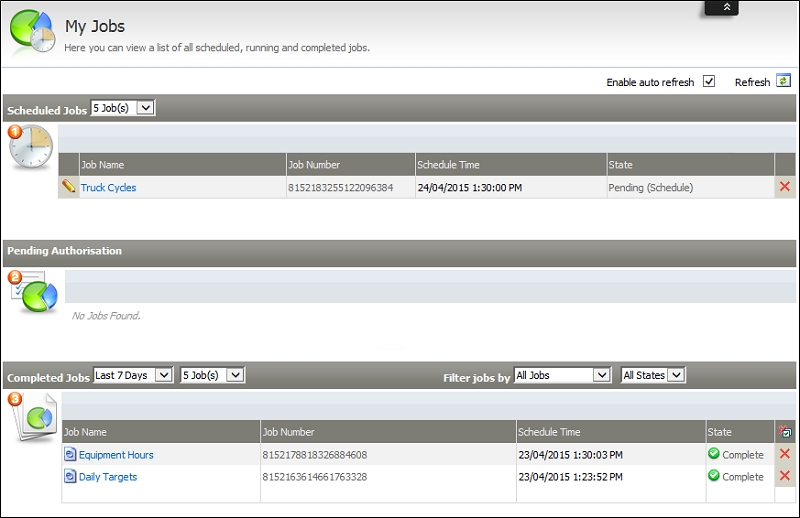
Scheduled Jobs
Jobs are reports that have been defined and set to run according to a particular schedule. A schedule can include the frequency with which a report is run, as well as the start time, end time, and date on which a report is scheduled to be run.
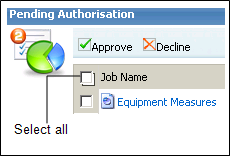
Pending Authorisation
Reports that are Pending Authorisation are awaiting the authorisation of a Person of Authority before the report can be distributed by email or copied to the Library.
A Person of Authority is defined by logon, or by customised role. A Person of Authority may elect to Approve or Decline permission for a report or reports to proceed.
Completed Jobs
Reports that have ran successfully (Complete) or could not be run (Failed (Extraction)) are listed here. You can click on a report name in the list to view the contents of the report.
You can set filters to limit the number of scheduled jobs and completed jobs listed in the pane.
Report Type Definition Pane
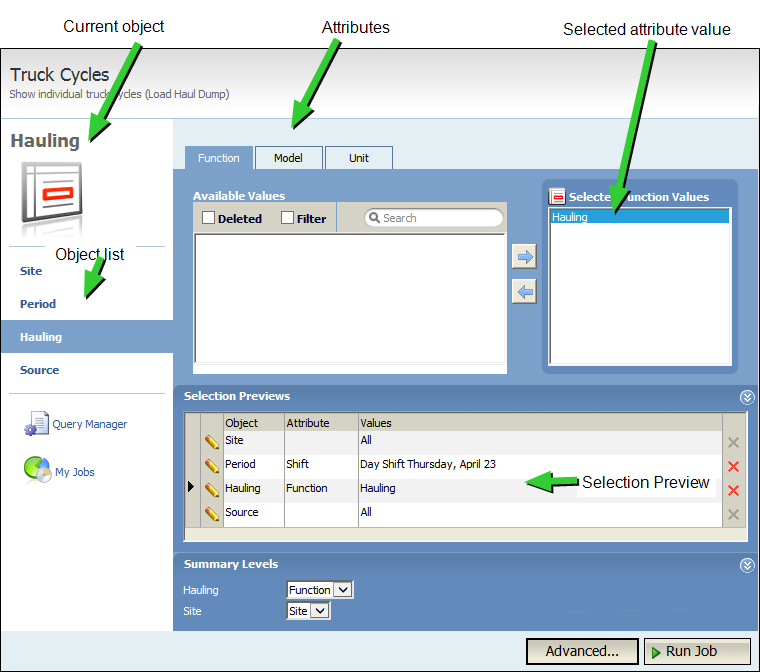
When you select a report type from the list, the My Jobs Pane is replaced by a Report Definition Pane. The options available on this pane will vary according to the report type. The pane comprises the following areas:
Objects and Object Values
Each Report Type has an object list. The content of a report is defined by the values you select for each object. Many objects will have a set of attributes you can select values for. Other objects will have a single list of values to select from.
Some object attributes may have default values that cannot be changed, while others object attributes may values that can be individually selected.
Selected Values
When you select an object, a set of Available Values for each attribute of the object are shown in the Available Values pane. Values selected in the Available Values pane are passed to the Selected Values pane.
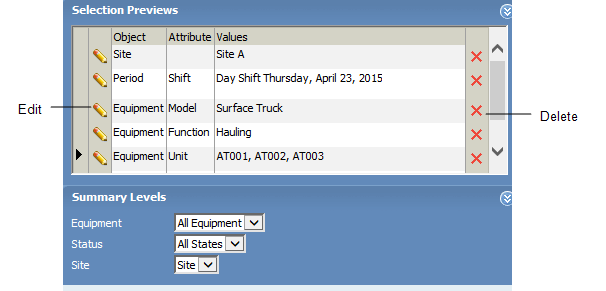
In the following example, the selected object is Equipment. There are 5 attributes, and the selected attribute is Unit. If there is data for the selected equipment units AT001, AT002, and AT003, and they meet the criteria defined in other selections, those units will be included in the generated report.

Selection Preview
A Preview pane displays the objects and attribute values you have selected as part of the report definition. You can edit and delete your selections.
Should you decide that a selected value is not required, there are two ways to delete it from the query:
- Highlight the value in the Selected Values pane and double-click (or press the arrow key) to move it back to the Available Values pane.
- In Selection Previews click on the Delete icon
 of the appropriate value or row to delete it from the query. Note that some objects marked with an asterisk * require a value to be selected.
Summary Levels
Use the Summary Levels to define the final report structure.
Warnings
If changes have been made in Event Editor to any of the events in a shift for the Period that you select, you will receive a warning message (see below). The message will indicate whether you may not be accessing the most up to date information.

Go to the Pitram Service | Shifts to reprocess the problem shifts. Problem shifts will be identified by a similar warning message. Reprocess the shifts.
If you return to Reporting and select a Period that includes the shifts being reprocessed, you will receive another warning message (see below). This message is alerting you to the fact that the shift is currently being reprocessed.
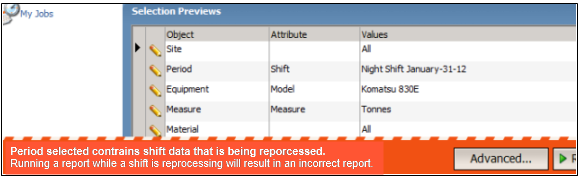
Wait until the shifts have been reprocessed to select a Period.
Favourites 
Select the Favourites icon to display a list of the most recently defined reports. At most, five reports will be displayed. To close the Favourites category, click the Favourites option again.
Search 
Click the spy glass icon to open a Search window:

Type in a part or full search. The reports list will display all report types that include the search term.
To return to the full reports list, click the Search icon again.