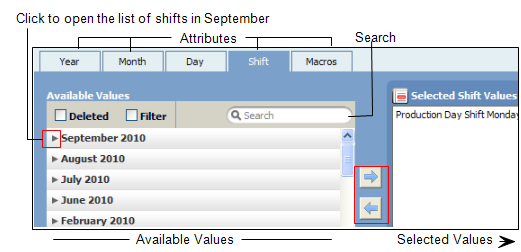
It is very important that a lot of care is taken when selecting the values to be displayed in the report, and a through understanding of how to work with objects and attributes is needed:
- Attributes. Each object has one or more attributes. Select an object from the list of objects and the attributes are displayed as a set of tabs above the Available Values area. The attributes of an object operate as a hierarchy of levels - with the broadest list of values (left-most tab) to the more detailed list of values (right-most tab).
For example, if there was a object called Date, the broadest attribute on the left would be Year. Each year has many months, and each month has many days—the most detailed attribute on the right:
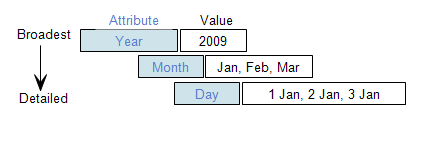
Year -> Month -> Day is an example of how attributes range from the broadest or highest level, to successively move detailed or lower levels. Attributes are presented as a hierarchy of levels.
Click an attribute tab to access the available values. When there is only one attribute for the object, the tab is not displayed.
In summary, an Equipment object, may have the following hierarchy of attributes:
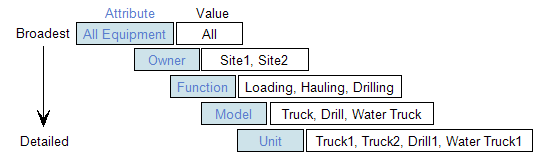
When you select a value from a tab, all items that are defined by that value in all the levels below will be included in the generated report.
Using the Equipment example above, if you select:
Attribute Value Function Hauling Unit = Truck1 and Truck 2 will be displayed in the report:
- Because they are defined as Hauling in the database.
- If there is information in the database for each item.
- If they meet the requirements of the other selected values.
Unit = Drill1, Water Truck1 will not be displayed because they are not defined in the database as Hauling.
If you select:
Attribute Value
Function Hauling, Drilling Unit = Truck1, Truck2 ( defined as Hauling) and Drill1 (defined as Drilling) will be displayed in the report if:
- There is information in the database for these items.
- They meet the requirements of the other selected values.
If you select:
Attribute Value
Function Hauling Model Water Truck Unit = Truck1, Truck2, Water Truck1 will be displayed in the report if:
- There is information in the database for these items.
- They meet the requirements of the other selected values.
All of the selected values make up the query to extract a particular data set from the database. When selecting a value, due consideration should be given to the role a value plays in relation to the other selected values—those selected in the same object, and those selected for another object.
If, for example, you select the following for the Equipment object:
Attribute Value
Owner Site1 All the values for the attributes Function, Model and Units (levels below the Owner) will be included in the report if:
- They are owned by Site1.
- There is data in the database for the values and they meet the criteria defined by the other selected values.
Any Function, Models and Units that are not owned by Site1 will not be included.
If you select:
Attribute Value Owner Site1 AND Unit Drill1 Included in the report will be:
- All the values for the attributes Function, Model and Units (levels below the Owner) if they are owned by Site1.
- Drill1 will be included if it is owned by Site1. It would be redundant to individually select this Unit if it was owned by Site1. The higher level attribute Owner selects all values where Owner = Site1.
- If there is information in the database and if it does not conflict with the requirements of other selected values.
The attributes for a Status object may include the following hierarchy of attributes:
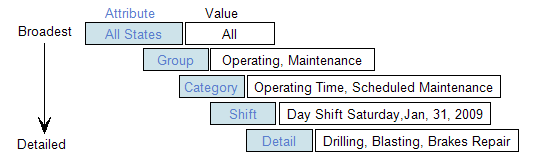
Selecting a value from an attribute at a broader level means that all values in the levels below are also selected. These values will be included in the report if the value meets the criteria defined by the levels above. For example, if you select:
Attribute Value
Group Operating
All values in the levels below (Category, Shift and Detail attributes) will be selected if they are defined in the database as a subset of Group = Operating. Detail = Brakes Repair, for example,would not be defined in the database as a subset of Operating, and therefore would not be included in the report.
The attributes for a Period object include the following hierarchy of attributes:
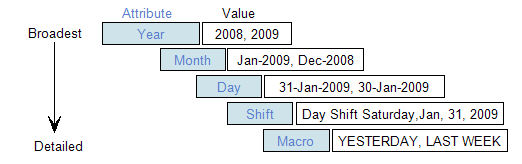
If you select:
Attribute Value
Month Jan-2009
AND Shift Day Shift, Dec 31, 2008 This query includes values from two different levels for the object, Period. The two values are mutually exclusive. Day Shift, Dec 31, 2008 is not a subset of Jan-2009. If there is data in the database for these two values, it will be included in the report.
If, for example, you select:
Attribute Value
Month Dec-2008
AND Shift Night Shift, Dec 31, 2008 Again, two values have been selected from two different levels for the object, Period. In this case, the two values are inclusive. Night Shift, Dec 31, 2008 is a subset of Dec-2008.
To include a value which is a subset of another is redundant. The report will include ALL the shifts in December 2008, if there is data in the database. If there are two shifts per day and each shift is two pages long, that means that the report will be 62 pages.
Be careful selecting values as your report may become excessively long.
The Period object has an extra attribute called Macro. Select the appropriate macro from the list.
Objects marked by an asterisk *are required and a value must be defined.
- Available Values. Click on an object and the attribute hierarchy for that object is displayed as a set of tabs above the Available Values area. Select a value or values from the list and pass them to the Selected Values area. To pass values either:
- Deleted. Select to show values that have been deleted from Reference data and are no longer in use. For example, historic data—a truck that has been decommissioned.
- Filter. Select to show data that has been filtered.
- Search
 . Type in a letter, or part or full word in the Search text box. The list of values in the Available Values dialog will include a subset of values that commence with or include the typed sequence.
Double-click a value, or highlight a group of values using the mouse, Shift or Ctrl keys and click the [.
The sum of the selected values makes up the query to extract the data from the database.