Cutting Profile
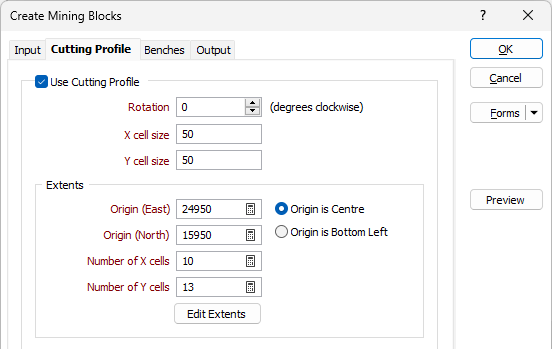
Select the Use Cutting Profile check box on the Cutting Profile tab of the Create Mining Blocks form, to define a cutting profile that will be used to cut the wireframes into mining blocks.
Rotation
Enter or use the increment controls to adjust the rotation of the cutting profile (degrees clockwise).
X and Y cell size
Enter the X and Y cell size of the mining blocks.
Extents
These options are used to enter the X and Y extents and number of cells of the cutting profile.
Auto Calculate
 Click on the Auto Calculate icons to calculate the extents of the cutting profile based on the extents of the input wireframes. You can also use the Auto Calculate icons to populate the X and Y cells fields with the number of blocks required in each direction.
Edit Extents
Click the Edit Extents button to collapse the form and visually adjust the extents of the cutting profile. Interactively adjusting the extents rectangle in Vizex, or in the Vizex Property Window, will update the values in the form.
Custom Numbering Schema
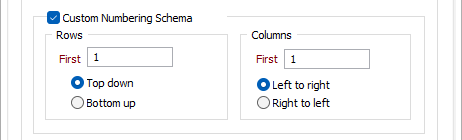
Select the check box if you want to specify a user-defined numbering schema for the cells that comprise the cutting profile.
If no numbering schema is defined the first row and column number will be 1. Rows will increment downwards and columns will increment from left to right. Values less than 10 will be padded with a leading zero (the maximum number of rows or columns is 99).
Write to File
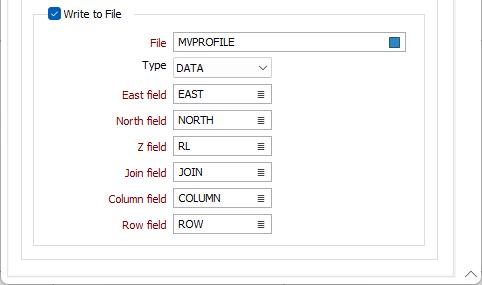
Select the check box if you want to write the cutting profile to a file.
File
Select the File to write to from the field provided. You can also click the Pick from Vizex button to collapse the form and interactively select a layer containing the file to be inserted and return to the form.
Easting, Northing, Z
Specify the names of the X, Y and Z coordinate fields in the file.
Join
Specify the name of the field containing values which define whether data points will be joined by a line i.e. strung. If successive records have the same value in this field, a line will join the points.
Column and Row
Specify the fields in the selected file that will contain Column and Row information.
Preview
Click the Preview button to see a preview of the cutting profile. If you are happy with the result, click OK. Otherwise adjust the parameters you have entered and preview again.