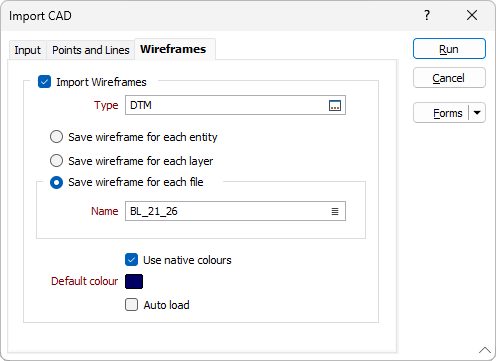
Wireframes
The Wireframes tab of the Import CAD form is enabled if the input file contains 3D solids that can be imported as wireframes. Select the Import Wireframes check box to enable the import.
Type
Click on the Select icon (or double-click) to select a wireframe type to save as.
Save wireframe for each entity
When this option is selected, each wireframe name will be prefixed with the layer name and suffixed with the entities index number within the layer.
For example: LayerName_4
Save wireframe for each layer
Select this option to import each layer as a separate wireframe. The layer name will be used to name each wireframe.
Save as a single wireframe
This option gives you the opportunity to merge two or more wireframes into a single entity. When you import to a single wireframe, you must specify the Name of the output wireframe. You can also use the Pick from Vizex button (or select the context menu option where available) to collapse the form and interactively select the required Wireframe to insert and return to the form.
Note: Some CAD formats store several layers of information in separate wireframes. For these formats, if the Save as a single wireframe option is selected, the wireframe will be saved as a single 'blob' wireframe.
Use native colours
Select this option to colour-code the wireframes using the native colours extracted from the Input file.
The colour assigned to each wireframe will be the colour of the last solid entity imported for that wireframe. If no valid native colour is found, the Default colour is applied instead
Default colour
Click on the Colour icon to select a default colour for the output wireframes.
Auto load
To display the data in Vizex once the file(s) have been imported, select the Auto load option.