Import Options
Use the Import Options page of the Reduce Block Model Wizard to choose how the reduced model is imported and displayed.
Ignore Loading Filter
Select this check box to ignore the filter loaded as part of the properties of the layer (if any).
Import Exported Block Model
Select this check box to import the exported block model(s).
Copy Properties
Select this check box to copy the properties of the block model(s) as part of the import process.
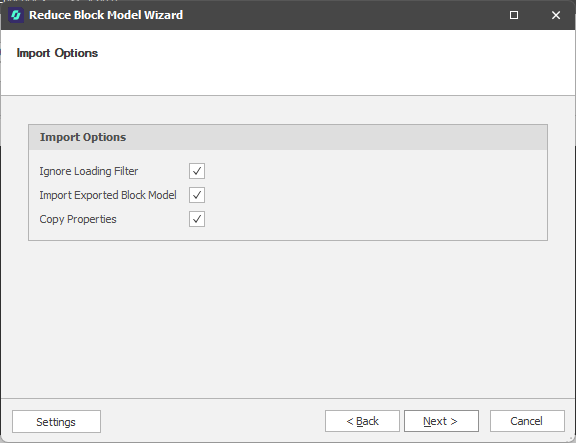
Reduce Block Model: Import Options
Back
Click Back to use the Field Options page of the Reduce Block Model Wizard to populate the reduced block model with user-defined calculated fields. See: Field Options
Next
Click Next to begin the export and import (when selected as part of Import Options).
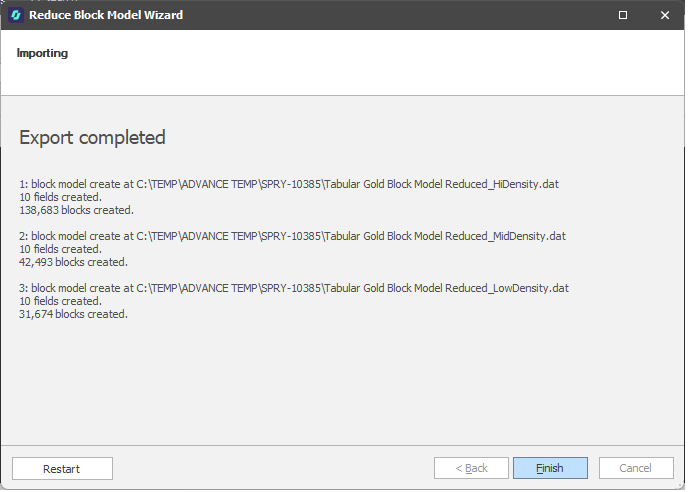
Restart
Click Restart (at the lower left of the Wizard window) to proceed with another export/import and return to the Filter Options page. From there you can adjust your export/import settings and re-export and re-import if needed.
Finish
Click Finish to close the Reduce Block Model Wizard.