Field Options
Use the Field Options page of the Reduce Block Model Wizard to populate the reduced block model with user-defined calculated fields.
Field Mappings
Name
Enter a name for each field.
Data Type
Click to select a (Double Precision Float, Integer, Text String) field data type.
Expression
For each field row, click to use the drop-down (or click on the ellipsis to use the Expression Editor) to build a calculated field expression. Calculated field values may be derived from fields in the source block model. See "Wizard" below.
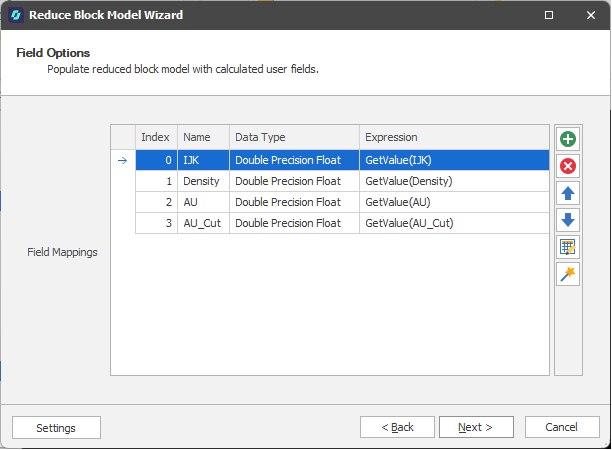
Reduce Block Model: Field Options
Use the toolbar to manage the list of calculated fields that will be used to populate the output block model file.

|
Add a new calculated field to the list. |

|
Delete the field(s) currently selected in the list. |

|
Move the currently selected row(s) Up to reorder the list. |

|
Move the currently selected row(s) Down to reorder the list. |

|
Use the Bulk Editor to make bulk modifications to the items in the list. |

|
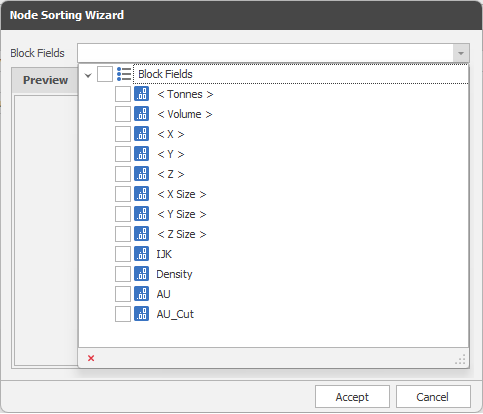
Click the Wizard icon to quickly generate calculated fields from fields in the source block model. You can then edit the expressions to reference more than one block model field, if necessary.
|
Settings
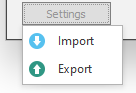
Click the Settings button to import or export settings:
-
Import the settings saved in an XML file.
-
Export current settings to an XML file.
Back
Click Back to use the Filter Options page of the Reduce Block Model Wizard to filter which blocks will appear in the reduced block model. See: Filter Options
Next
Click Next to use the Import Options page of the Reduce Block Model Wizard to choose how the reduced model is imported. See: Import Options