Importing Default Mobile UI Configuration
The default mobile UI reference data groups can be imported together using the Reference Edit service.
Note: All MobileUserInterface reference data groups must be deployed for the option to be enabled. See Deploying Default Mobile UI Configuration.
When the relevant reference data groups have been deployed, to import the Mobile UI configuration, in Portal;
-
Open the Reference Edit service.
-
From the Other Actions drop down, select Load Default Mobile UI Reference Data.
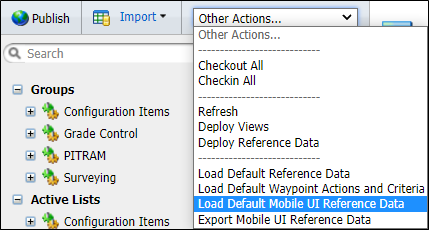
A confirmation prompt will open.
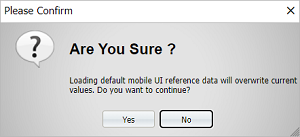
-
Click Yes to proceed.
The default data will be loaded and the application will prompt you when complete.
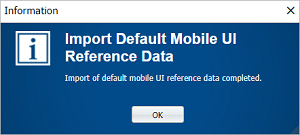
-
Click OK to close the prompt.
To view the imported templates, in the Reference Edit service,
-
Navigate to Configuration Items > Mobile Settings > Mobile User Interface.
-
Select MobileUserInterfaceProfile.
The templates are displayed in the table at the right.
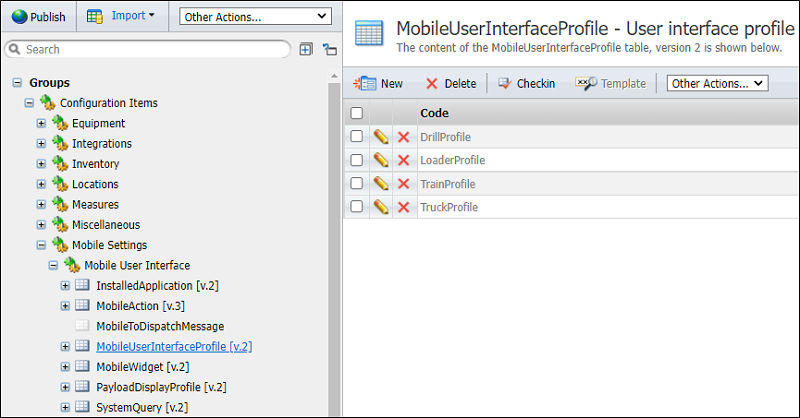
Note: For the Train Profile, there is no default measure for the Wagons in the system, as the default UI Reference data set does not contain the FixedMeasure value. Consequently, the Dump button will not be displayed for the profile, regardless of whether it is configured in the MobileShortcut group. You will need set the relevant measure in the MobileActions group for the TrainDump token after the default UI reference data has been deployed.
For information on creating and configuring new Mobile User Interface Profiles, see: Configuring Mobile UI Profiles.
These profiles need to be allocated to the relevant Operational Profile for a group (fleet) or Mobile Unit Configuration for a single unit.
To allocate a profile,
-
Navigate to Configuration Items > Mobile Settings.
-
Click on either OperationalProfile or MobileUnitConfiguration and Checkout the group.
-
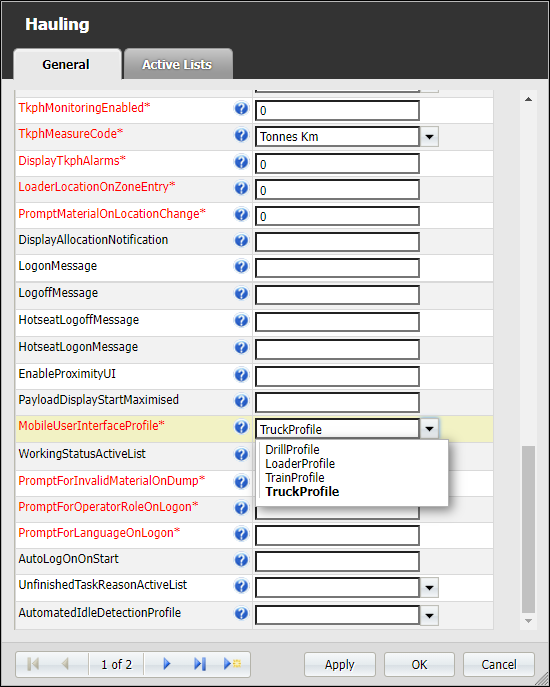
Open an OperationalProfile, for example, in order to allocate the MobileUserInterfaceProfile using the drop down list provided - as shown in the following example:
-
Click OK to save the changes to the selected token.
-
Repeat this procedure for any tokens to which you want to allocate a profile.
-
Checkin the OperationalProfile / MobileUnitConfiguration groups when complete.
-
You can use the Checkin All option on the Other Actions... drop down menu to check in all of the reference data you have modified.
For information on configuring and creating Mobile UI Configuration, see: Configuring Mobile UI Profiles.
The profiles you configure can also be exported for use in other applications, using the procedure outlined in Exporting Mobile UI Configuration.