Load a Logging Profile
To work with Micromine Geobank For Field Teams you will need to create or load a Logging Profile.
A Logging Profile determines how you use a device to log data in the field. When you setup a profile, you define the tables and columns that will either be used for reference or for data entry. The data that is logged on a device may also be synced with the data stored in a server database.
To load a profile:
- Select File | Select Logging Profile or click the Select Logging Profile button (CTRL + L) on the toolbar:

- Click the Load from File button in the Licence Manager:
- Use the browser to navigate to the Logging Profile file (*.gmp) you want to load.

The Logging Profile is opened and you can start adding data.
You can also download a profile from a database server. See: Download a Logging Profile
All Micromine Geobank For Field Teams Logging profiles are given a unique identifier when they are created. This is independent of the name of the profile; this means that over time you may have created:
- Copies of the same profile with different names
- Different profiles with the same name (profiles with a different unique id- for example cloning a profile gives it a new id)
If Micromine Geobank For Field Teams detects either of these scenarios when importing a profile, it will display one of the messages below:
Version Warning
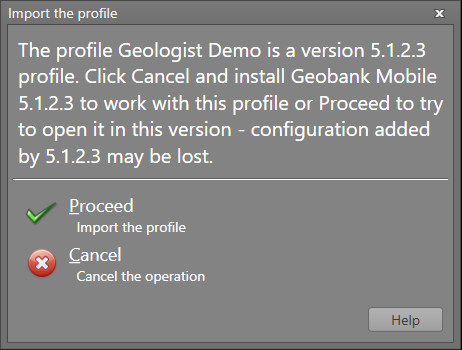
If a profile created in a later version of Micromine Geobank For Field Teams is edited in the current version, it is possible that some of the configuration added by the later version will be lost. For this reason, a warning message about the profile version will be displayed in the following cases:
- When downloading a later version profile from the SQL Server Sync database.
- When importing a later version .gmp profile.
- When opening the data entry forms for a later version profile.
- When opening the schema editor for a later version profile.
It is best practice to edit the profile using the version in which it was created (or using a higher version).
Note: If a profile with an earlier version layout is exported and then subsequently imported to the latest version, the layout will not be copied to the new version.
Same profile with a different name
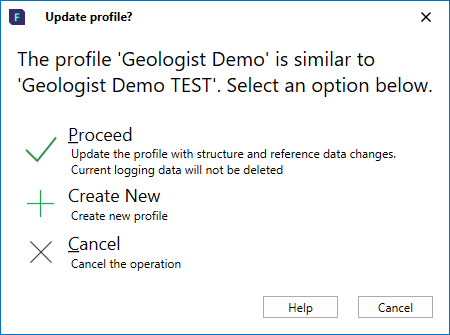
Selecting Proceed will retain the current name, logged data and synchronisation properties, but will update the structure and reference data to match the profile being imported. This approach can be used if the manager occasionally wishes to distribute profile and reference data updates to users in the field.
Summary of the merge (if this option is selected):
| Retained in the existing profile | Merged in (from the profile being imported) |
|---|---|
|
|
Selecting Create New leaves the existing profile entirely unaffected, and Imports the new profile separately, assigning it a new ID. The two resulting profiles can no longer be merged.
Different profiles with the same name
Micromine Geobank For Field Teams will show the dialog below if it identifies that the profile being imported has the same name as an existing profile BUT is a different profile - this may be a clone of the profile (see Clone a Logging Profile) or a completely different profile with the same name.
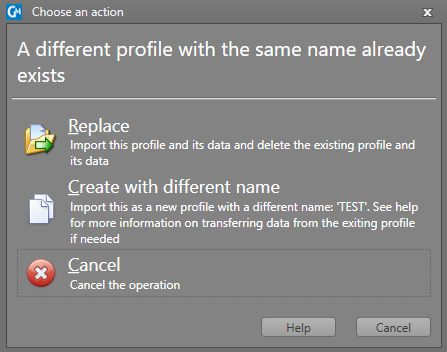
Selecting Replace will delete the existing profile and its data and import the new one in its place.
It is strongly recommended that you create a backup or export the current profile to a .gmp file before using the Replace option.
Selecting Create with a different name will leave the existing profile entirely unaffected and import the new profile with the auto-generated name. Profile names can be adjusted as desired after the import.
If the existing profile has data which needs to be transferred to the newly-imported clone of the profile, this can be done by:
- manually copying and pasting the data from one logging profile to the other - either via Excel or by having each profile open in a different instance of Micromine Geobank For Field Teams
- exporting the required data from the existing profile to files, then importing it into the new profile.