Download a Logging Profile
|
|
In the Logging Profile Manager you can click on a Download Profile button to download a profile from a connected database server. |

Manage Connections
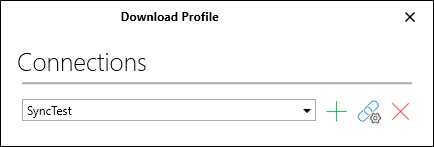
In the Download Profile dialog, select a connection from the drop-down list. If there is only one connection, it will be selected by default. If there are no connections you will need to add one.
| Option | Description |
|---|---|

|
Click the Add button to create a connection and synchronise the profile. |

|
Click the Properties button to view or edit the properties of the current connection. |

|
Click the Remove button to remove the synchronisation (this also removes the selected connection from the list). This operation cannot be undone. |
Available Profiles
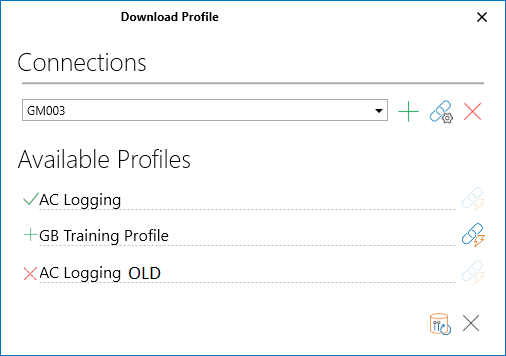
When a connection is active, a list of available profiles are shown. Icons to the left of each profile name indicate the download status of that profile:

|
This profile already exists on the device and on the server. You do not need to download it. |

|
The profile on the server is available to be added to your device. |

|
This profile already exists on the device and on the server, but their schemas are incompatible. |
Download a profile from the server

|
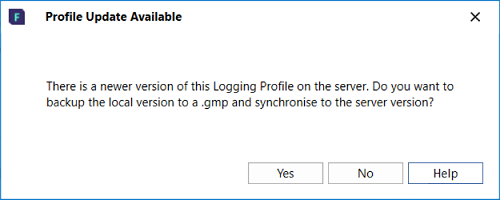
Select a Logging Profile from the list and click on the Synchronise Schema button. If the synchronisation process discovers a different version of the logging profile on the server, the Synchronization Version Conflict prompt will be displayed.
This will usually happen as part of a planned profile upgrade by your Micromine Geobank Administrator. New tables, columns, lookups rules or other changes may have been made to the profile on the server, so the local copy of the profile needs to be brought up to date. The options in the prompt are as follows:
|
Delete a profile on the server

|
This option is only available when a Master password has been set for the profile. A Master password allows an administrator to take control of any synced data. |
Other

|
Click the Refresh button to refresh the list of profiles stored in the local database. |

|
Finally, click the Close button to close the dialog. |