Synchronisation
The purpose of synchronisation is to allow users on multiple devices to log data at the same time and periodically synchronise with a central database to both backup and share their data.
When a user synchronises, any new data they have logged, or changes made to data logged previously, is copied to the central database and any data that is now on the central database from synchronisations by other users is copied down to the device so the user can view, but not edit, data logged by others.
Synchronisation provides a powerful way to collaborate and to manage data being logged by a team. It is important to understand, so that you can then develop your work processes around, the Micromine Geobank For Field Teams workflow.
Note: The sync database should not be modified outside of GM’s sync mechanism. Any modification to the Micromine Geobank For Field Teams sync database cannot be supported. In particular, custom triggers may cause data corruption.
When you open a Logging Profile its Sync status is shown on the status bar at the bottom right corner of the Logging Profile screen:

|
Synchronisation is turned off. |

|
Synchronisation is turned on. |
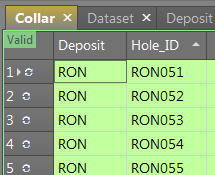
Records that were created elsewhere are shown in green and a Synced icon is shown to the right of each record number. You can view but you cannot edit these rows.
Synchronise Data
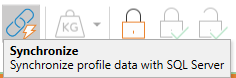
Provided a connection is active, you can synchronise your profile data by clicking the Synchronise button on the main toolbar:
Micromine Geobank For Field Teams will never do a partial synchronisation; if for any reason the connection between the device and the SQL server is lost during the sync process, the 'transaction' will be rolled back, leaving the data as it was before the sync. Once the connection has been re-established, the sync can be attempted again.
As part of your Micromine Geobank For Field TeamsSynchronisation Options, you can also choose whether or not to automatically sync your data changes to the server (or be prompted whether to sync your changes to the server) when you exit the profile.
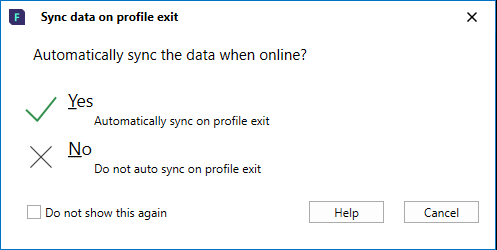
If the synchronisation process discovers a different version of the logging profile on the server, the Synchronization Version Conflict prompt will be displayed.
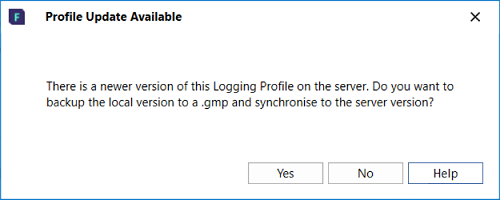
This will usually happen as part of a planned profile upgrade by your Micromine Geobank Administrator. New tables, columns, lookups rules or other changes may have been made to the profile on the server, so the local copy of the profile needs to be brought up to date.
The options in the prompt are as follows:
-
Yes: This will backup the local version of the logging profile with the correct structure and data and save it as <profilename>_backup_before_profile_update_<date-time>.gmp.Having the backup copy will allow you to restore missing records if necessary. This .gmp can be sent to your administrator if any concerns about data need to be addressed. The server version is then retrieved to update the local copy of the profile.
Updating the profile will:
-
Apply any changes which may have been made to the profile; such as new tables, columns, rules, initialisations, defaults, auto-advance settings, device integrations, lookups etc.
-
Preserve and synchronise any data captured on the local device since the last synchronisation, even if column or table names have been changed.
-
The only exception is if tables or columns have been removed from the logging profile. In this case, the administrator will need to retrieve any data pertaining to the removed tables or columns from the .gmp backup, if this data is still relevant.
-
-
-
No: This will cancel out of the synchronization process and make no changes to the profile. Extra exports, backups or copies could be done before re-synchronising to update the logging profile. See: The Micromine Geobank For Field Teams workflow
The Micromine Geobank For Field Teams workflow