Panorama
Companies performing 'diamond' drilling regularly take high-resolution photographs of core trays containing drill core; and often have legacy photographs and old, yet-to-be-photographed core trays in storage. Images are taken of completed trays, as they can often be more reliable than manual data in spreadsheets for accurate information capture.
These core trays contain labels and blocks which indicate the identity of the drillhole and the depths from which the core was extracted. The process of cropping drill cores from photos of trays, and subsequently correctly labelling the drillhole and depth information is known as a ‘çrop and stitch’ process. Not surprisingly, this can be a laborious and time-consuming task.
Micromine Geobank provides the Panorama Job Manager which gives users the ability to select one or more core tray photographs and perform the 'crop and stitch' to generate and save photos of the extracted core. The Job Manager utilises Nexus to automate the process and provide interval naming of stick images with tray, core, box, depth details and more.
The Panorama Job Manager can:
-
Crop out multiple drill core images from a single core tray photo.
-
Detect marker blocks within core tray photo.
-
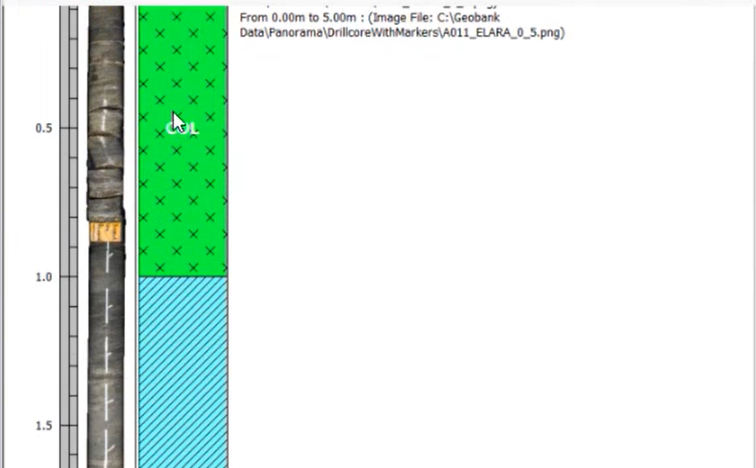
Put drill core images in the drill hole trace at appropriate depth and scale.
Drill core images can be added to reports to more easily compare reported lithology with the physical sample:
Note: Panorama always extracts cores as left to right, top to bottom for horizontal core trays, and bottom to top, left to right for vertical core trays:
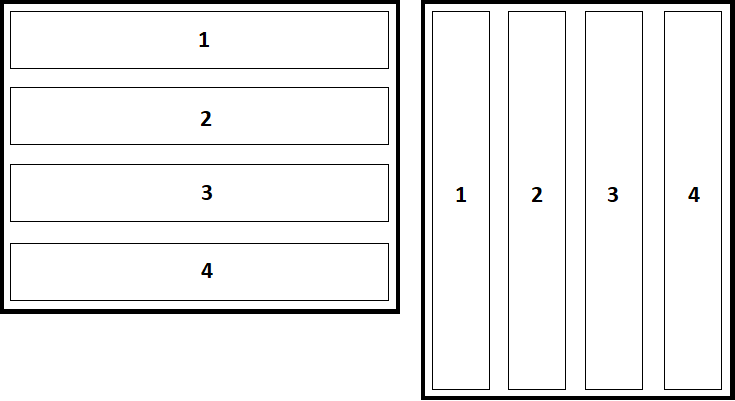
Any other orientations (such as if the image is flipped) will cause the core trays to be stitched in the wrong order during post-processing.
Output images are centre-aligned. This means that if a job contains a thick core and a thin core, for example, the output from the core extract process will centre-align the thin core to the thick one in the one image - making it easier to interpret the results.
The Panorama Job can be performed using a single file, a folder full of images, or referenced images or saved image blobs from the Database.
Panorama log files which can be used to debug any job framework issues, are located in C:\ProgramData\Micromine\Geobank\Logs\Panorama.
Note: A User must have Panorama enabled (and be logged into Nexus from the backstage menu) in order to open Panorama job manager.
About In Progress Jobs
When a user opens the Panorama Job Manager, any in-progress jobs for the machine (whether uploading, downloading or in post-processing) will start running. However, they will only run if there is a single instance of Micromine Geobank version 24+ running. If user has two or more instances of Micromine Geobank version 24+ running on the same machine, opening the Job Manager on any of the active instances will not run the jobs. This is by design to avoid concurrency issues. To resolve this issue, the user will need to close all other instances of Micromine Geobank version 24+ before opening the Job Manager.
Also important to note is that jobs will only run on the computer that first ran the job. For example, if a user creates and starts any jobs on ComputerA, then logs in to ComputerB and opens the Job Manager using the same model database, then the job/s created in ComputerA will not run on ComputerB - only on ComputerA. This is to avoid the user running the same job on multiple computers.
In order to use the Job Manager, a user requires an active Nexus account. See Nexus.
For more information on the Panorama Job Manager, see Job Manager.
For information on creating a job in the Job Manager, see Add a Panorama Job