Drillhole Dataset
The Drillhole Collection tools are used to export drillhole data to Nexus. Drillhole Datasets you create can be assigned to a Drillhole Collection Export or Drillhole Collection Import.
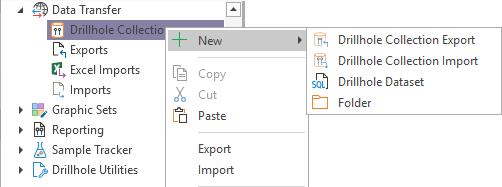
To create a Drillhole Dataset, in the Configuration Manager under Data Transfer,
-
Right-click on the Drillhole Collection option.
-
Select New | Drillhole Dataset.
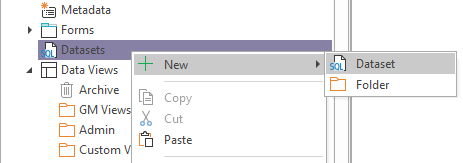
Alternatively, to create a database object only, you can right click on Datasets in the User Interface menu and select New | Dataset.
The Drillhole Dataset window is opened and you can add a Name and Description for the new drillhole collection.
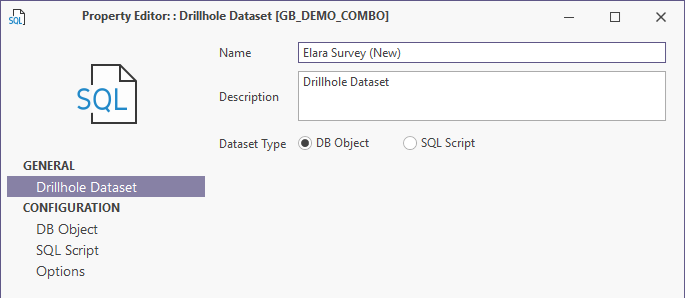
The Dataset Type option is used to select whether the dataset is a Database Object or SQL Script.
DB Object
If your new drillhole dataset is to be built as a database object, select the option and then click the DB Object tab.
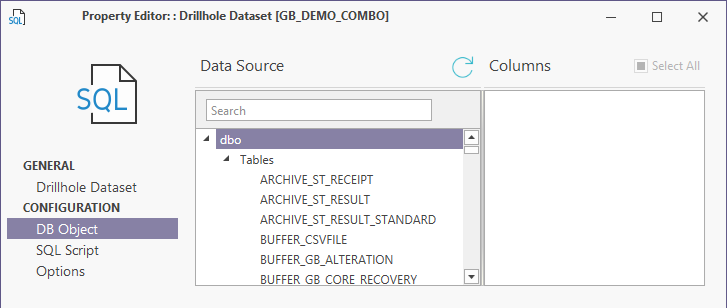
In the Data Source panel at the left, you can select the database table which contains the information for your drillhole dataset.
If you enter text in the Search field, the list of database tables will be filtered and you can select the required table to populate the Columns panel. For example:
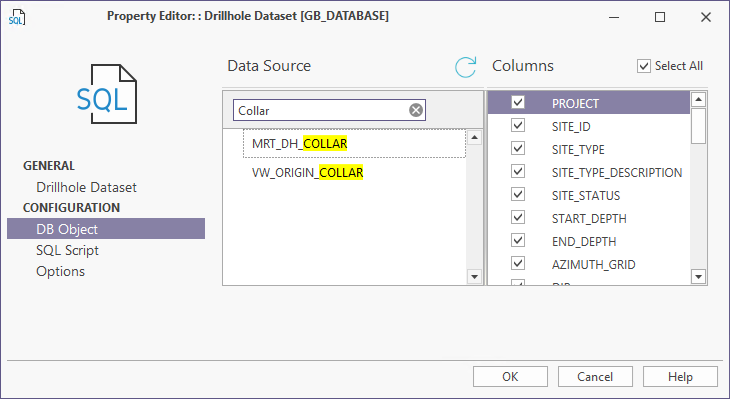
The Tables, Views and Table-valued functions in your database are grouped by schema, and then by (Table, View, and Table-valued Function) group.
To quickly refresh the schema of the dataset, click the Refresh button above the list of tables and views:

With the Columns panel populated with the columns from the selected database, select the required columns for the dataset.
Note: Easting, Northing, Elevation and End Depth are compulsory columns that must be included in the Collar details for any dataset you add to a Database Collection. For Survey details, the Depth, Direction and Inclination columns are compulsory.
You can Select All the columns in the database table by selecting the check box.
When the required columns are selected, click the Options tab.
SQL Script
If you want to build the drillhole dataset using an SQL script, click the SQL Script tab.
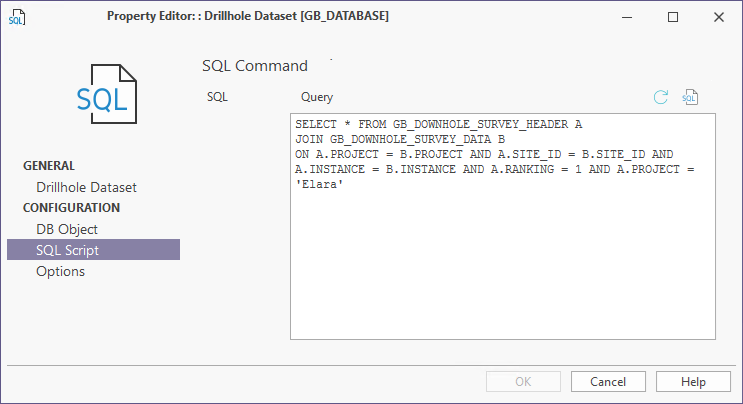
You can enter or edit your SQL statement in the Query panel directly, or click the SQL button to open the SQL Editor.
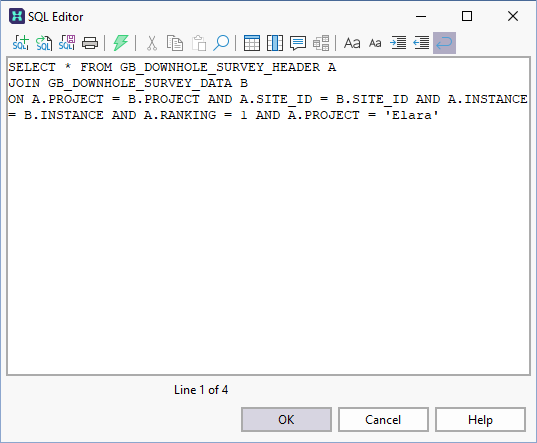
For information on using the SQL Editor, see Query: Configuration.
When your Query is complete, click the Options tab.
Options
The Options tab of the Drillhole Dataset form contains options that can be applied to your drillhole dataset.
Select the Use Default Display Names option to use default display names for the columns in the dataset rather than custom column names.
Select the Read-Only option to make the columns of the dataset read-only.
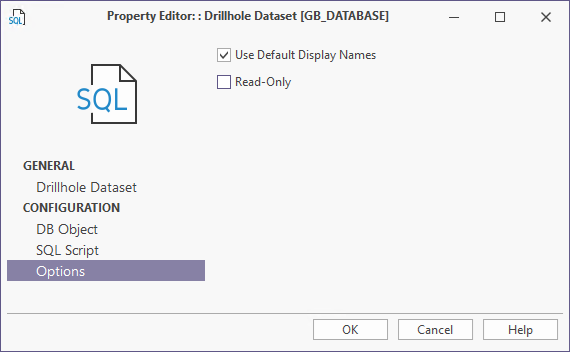
Click OK to save the new Drillhole Dataset.
The dataset can now be assigned to the Drillhole Collections you create for export of data to Nexus.