Drillhole Collection Import
Drillhole Collection Imports are used to import drillhole data from a linked Nexus project. In Nexus, drillhole data can be uploaded in a series of CSV files for the Collar, Survey, Interval and Event tables and converted to a Nexus Drillhole object which can be imported to Micromine Geobank. When you create a Drillhole Collection Import, you specify the database tables and columns that include the drillhole data to be imported from your linked Nexus project.
To create Drillhole collections, a Drillhole Dataset is required - see Drillhole Dataset.
To create a Drillhole Collection for import data from Nexus, in the Configuration Manager under Data Transfer,
-
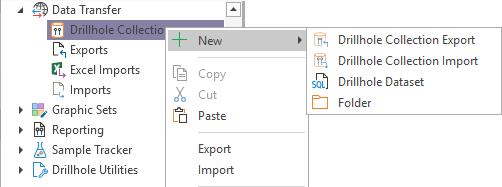
Right-click on the Drillhole Collection option.
-
Select New | Drillhole Collection Import.
The Drillhole Collection Import window is opened and you can add a Name and Description for the new drillhole collection.
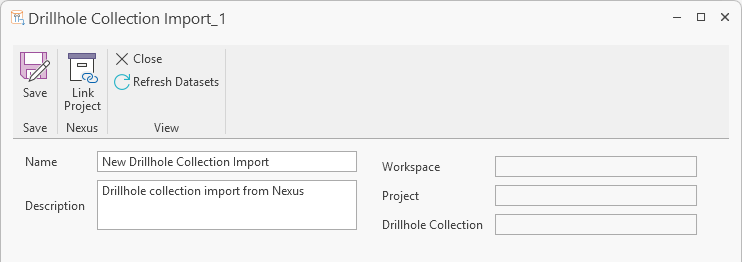
If a dataset is created after a collection is made, you can click the Refresh Datasets button in the toolbar to refresh the datasets visible to the object.
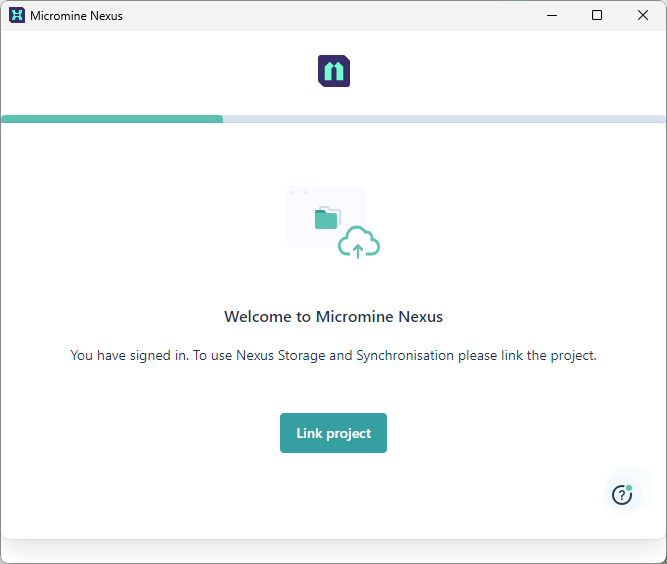
To configure the import, you can use the Link Project tool in the Drillhole Collection Import window to link to a Nexus project. If you are not signed in to Nexus, you will be required to. When completed, you can use the wizard to link your project:
-
Click Link Project to continue.
-
Select the Workspace which contains the Project to be linked and click Continue.
-
Select the Project to link the drillhole collection to and,
-
Click Link:
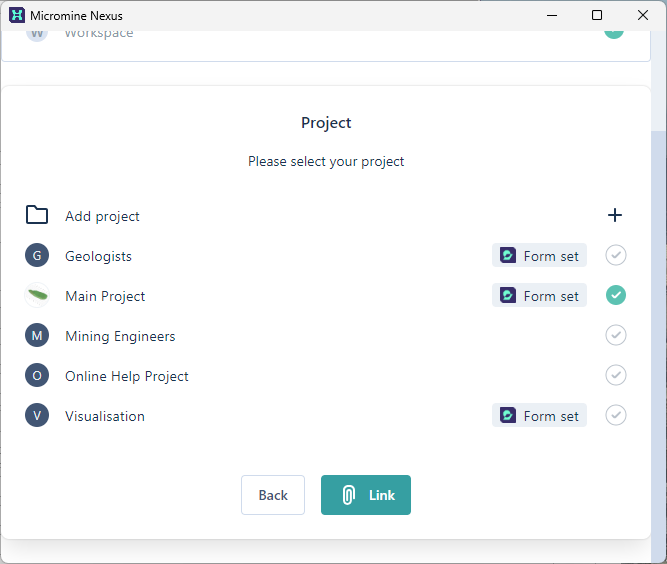
This will add the Nexus Workspace and Project name to your Drillhole Collection details and open the Select Drillhole Collection dialog:
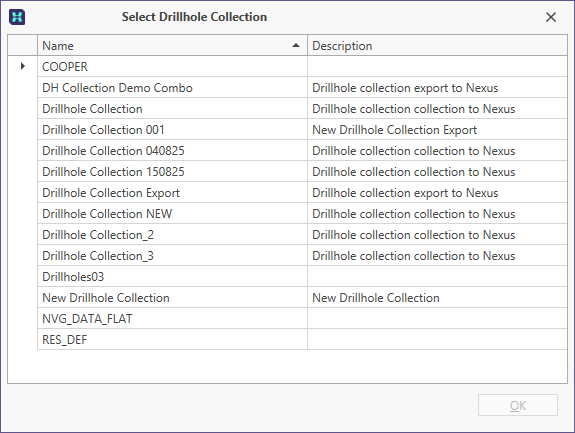
The Select Drillhole Collection dialog displays the collections (drillhole objects) available for import from your linked Nexus project.
-
Select the Drillhole Collection for the import and click OK.
The selected collection will be displayed in the read-only Drillhole Collection field.
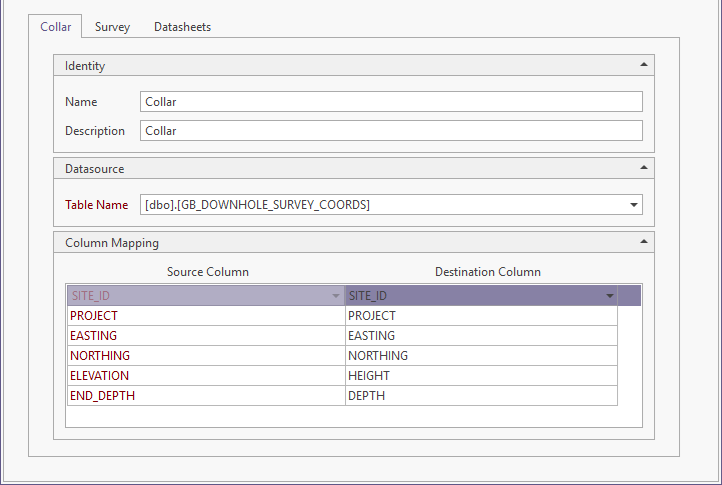
With these details configured, the Collar information can be filled using the Collar tab.
-
Enter a Name and Description for the Collar information in the Identity fields.
In the Datasource section of the Collar tab,
-
Select the Dataset for the drillhole collection from the drop down list of the available Drillhole Dataset.
-
The Site ID Field option is automatically filled where found. If required, you can select a different Site_ID Field from the drop down list of the fields in the dataset.
-
The Project ID Field is also automatically filled and you can select a different field from the drop down list, if required.
-
Optionally select an Additional ID Field from the drop down list, if required.
Collar
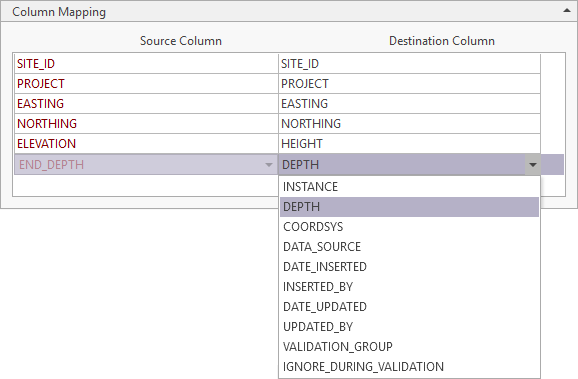
The Column Mapping section of the Collar tab contains a grid displaying Destination columns and Source columns for mapping the Collar data for import.
Source and Destination Columns in the grid are mapped from the Drillhole Collection you selected for the import. For imports, not every Source Column must be mapped. You can opt to not import certain data Source columns to a destination column if none are available.
You can accept the mapped tables from the collection, or select a different table using the drop down in the Destination Column field for the Source.
Survey
When the Collar data has been properly mapped, click the Survey tab to map the Survey data tables:
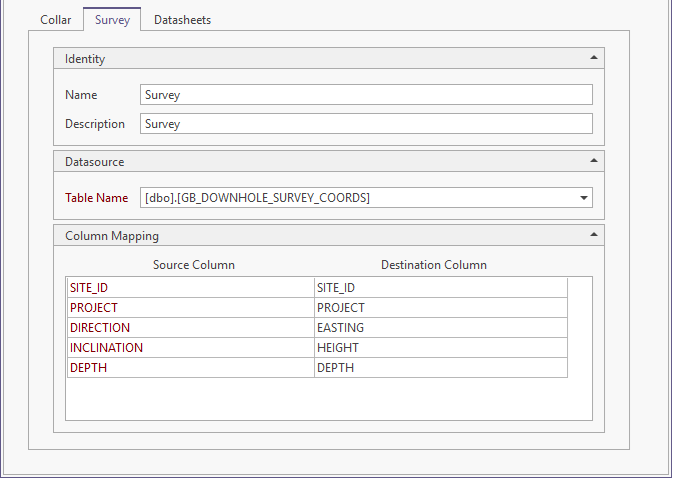
As with Collar data, the Destination columns are automatically mapped from the collection for import and you can manually select alternate columns from the drop downs.
Datasheets
When the Survey data has been mapped in the grid, click the Datasheets tab.
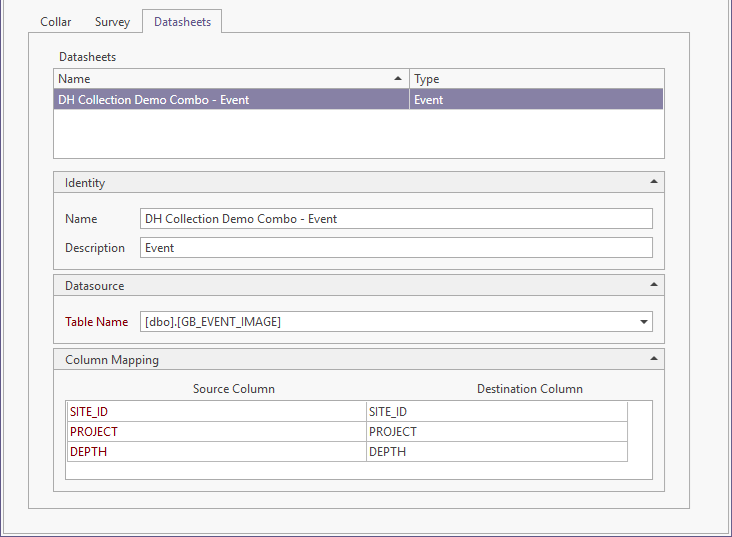
The Datasheets tab displays any events and/or intervals that are included in the collection for import. Datasheets represent the Event and/or Interval data for the drillhole collection.
Events denote points down drillholes (or along a trench) where something of interest has happened. For example, you may want to record the point where oxidation stops.
An Interval contains information such as assays or lithology for successive intervals down each drillhole (or along each trench).
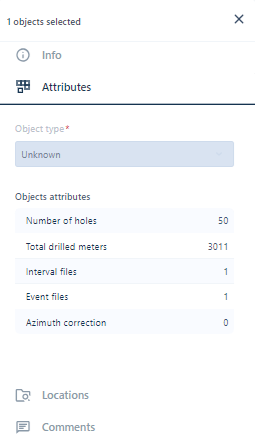
Data for the Events and Intervals in the object are displayed in Nexus in the Attributes for the drillhole collection:
When your Drillhole Collection Import is configured, to save it,
-
Click the Save button in the Drillhole Collection Import toolbar.

The Datasets and Drillhole Collections you create will be listed in the Configuration Manager under Data Transfer | Drillhole Collection:
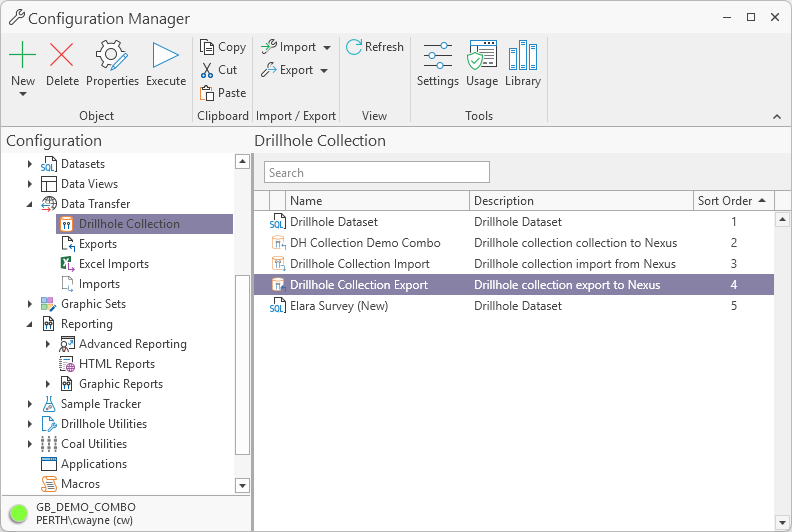
Individual Drillhole Collections can be imported from here using the Execute command on the right-click menu. See: Execute: Drillhole Collection Import.