Layers from External Project
To import layers in an external project and display them as design layers in the current project:
-
In the Design Data pane, right-click on the Layers node or the name of a folder and select Import | Layers from External Project.
-
In the File Explorer, you will be prompted to select the project to import layers from.
-
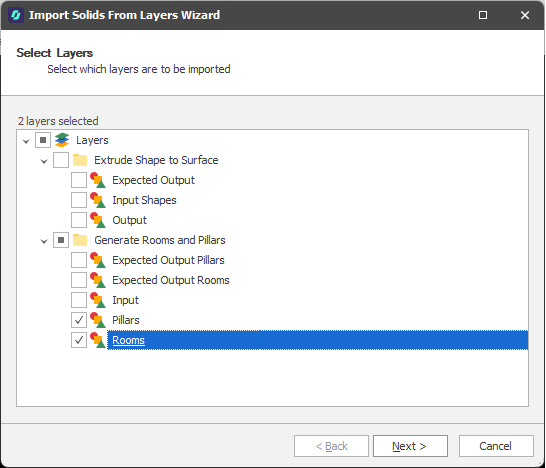
In the Import Solids from Layers wizard, select the layers to import and then click Next.
-
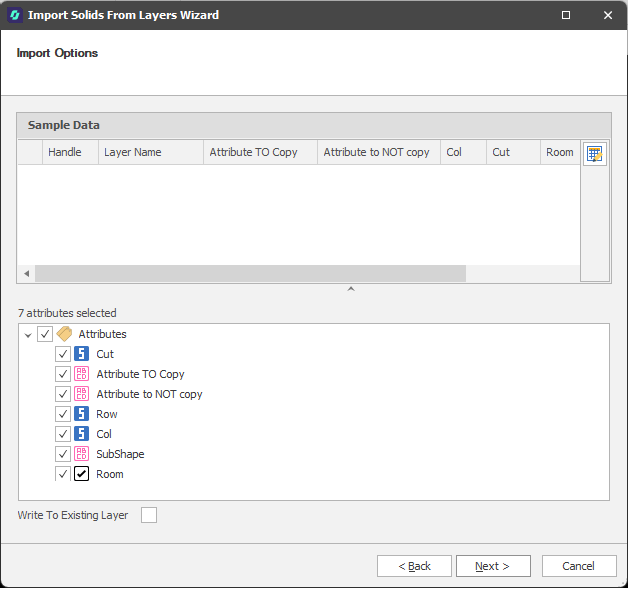
Select the Attributes you want to import.
Note: For third-party file imports, the contents of the file you have selected for import are shown in the Sample Data pane for review. This may not be applicable when importing Micromine Advance layers.
A completion message is displayed once the import has finished.

-
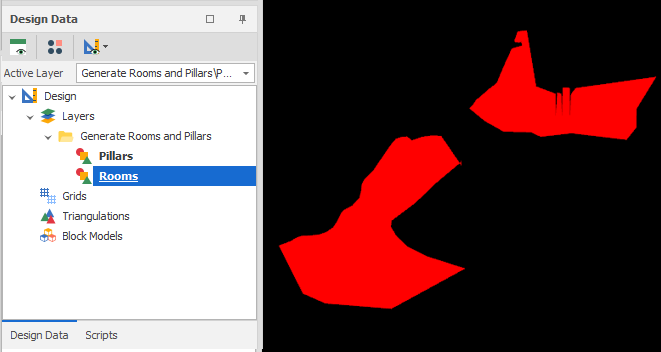
Display the imported layers and verify that the attributes you selected have been imported:
Restart
Click Restart (at the lower left of the Wizard window) to proceed with another import and return to the Import Options page. From there you can adjust your import settings and re-import if needed.