Entering Target Values
When you enter target values, you define the target values for a specific period of time. The chosen time-frame can be a pre-configured production period or a user-defined date range.
Period
To setup targets by Production Period, one or more periods must be defined using the Reporting Service. When a period is defined, Period will appear on the Shift-Day-Week-Period-Month sequence on the header:

When periods are defined, if you use the Range selector to select a range of days that includes more than one period, the range will automatically include all days within those periods.

For example, if you have three periods defined as:
- period01 = 1 January to 28 January
- period02 = 29 January to 25 February
- period03 = 26 February to 25 March
And a range selected as:
- 26 January to 28 February
(The selected range includes three days from period01, all the days in period period02, and three days in period03.)
The range will automatically select days from 1 January to 25 March - an amalgamation of all the days of all three periods.
If no periods are defined
You can select and define a target for a variable number of days without reference to a production period.

Range
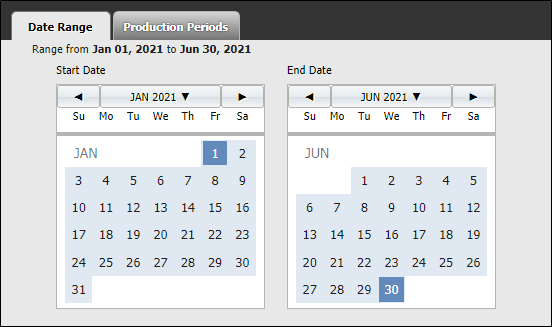
A calendar based time-frame. The target will be defined for the range of days selected in the calendar.
To enter target values:
- If production periods have been defined, select the period for which target entries will be entered.
- Enter the required value directly in the cell. Repeat for all the applicable periods.
- To save the values you have entered, click OK.
A period is generally used if you require non-calendar periods at site. For example, you may need to generate quarterly reports on tonnes moved to the surface.
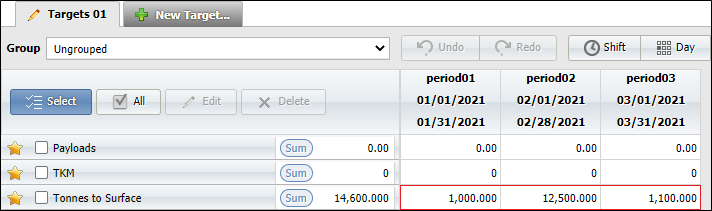
When you change the value for the period, the Sum value is automatically calculated.
Alternatively, target values may be entered for a calendar-based date range.
- Click on the Calendar control to expand the current date range selection:
- Use the arrows at the top of the From Date and To Date boxes to scroll to the year and month, then select a day of the month.