Weighbridge Configuration
If a weighbridge is used on site to quantify the material moved, the third-party weighbridge recording device transmits the information to the system. In particular, the system needs to be able to identify:
- the unit of equipment involved.
- the Destination. (where the material is to be dumped)
- the Material type that is being hauled.
The relationship between the recording device is defined in the Reference Edit service. The reference groups that are involved are:
-
WeighbridgeProfile. A single WeighbrigeProfile is defined for a site.
- The WeighBridgeID attribute of the Configuration Items | Locations | Material reference group.
- The WeighBridgeID attribute of the Pitram | Equipment | Equipment reference group.
- The WeighBridgeID attribute of the Pitram | Locations | Location reference group.
It is the WeighBridgeID which identifies the truck that is hauling material, the type of the material, and the material destination. This information is shown, together with the material weight and the date-time of the Dump event, on the Weighbridge Pending Pane in Data Acquisition.
Define the WeighbridgeProfile
The WeighbridgeProfile determines which columns are displayed in the Weighbridge Pending Pane. If an attribute is deployed it will be a required column in the WeighbridgeProfile
To define a WeighbridgeProfile in Reference Edit:
- If the WeighbridgeProfile reference group has not been deployed, select Other Actions | Deploy Reference Data on the navigation header. The Reference Data Deployment dialog will open.
- In the Search text box at the bottom-left, type in a Search string. For example, a search on "weighb" will highlight those nodes with items that have a name that contains the string "weighb".
The search is NOT case sensitive.
- Select Configuration Items | Third Party Integration | WeighbridgeProfile.
- Set the following WeighbridgeProfile attributes:
Attribute Definition OperationMode* Select either:
- 0 = Manual. All weighbridge events (both valid and invalid) are displayed on the pane in Data Acquisition.
- 1 = Auto. Only invalid events are displayed in the pane. Events that are edited to a valid state are saved and removed from the display.
MovementMeasure The Material measure type - Tonne, for example. ProfileType Boolean. Currently, only 0 (zero) is available TableName*
Map to the third party data source file. LocationColumn Define the column that lists the source location in the source file identified by the TableName attribute. EquipmentColumn* Define the column that lists the equipment in the source file identified by the TableName attribute. MeasureValueColumn* Define the column that lists the measure value in the source file identified by the TableName attribute. PersonColumn Define the column that lists the person involved in the source file identified by the TableName attribute. DestinationColumn** Define the column that lists the destintion location in the source file identified by the TableName attribute. MaterialColumn Define the column that lists the material type in the source file identified by the TableName attribute. MeasureTimeColumn* Define the column that lists the event time in the source file identified by the TableName attribute. IsLocalTime* Select either:
- 0 =UTC time.
- 1 = Local time.
DateTimeFormat* Select either:
- U = UNIX.
- S = Normal string.
- T = Tricks time format.
* Must be deployed for the weighbridge pane to function.
** Must be deployed if OperationMode = 1, Auto.
- Click OK to save the new reference group. You will receive a message to say that the group was successfully deployed.
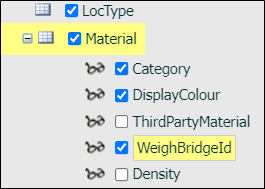
- Select Configuration | Location | Material and select the WeighBridgeID attribute:
- Select Pitram | Equipment | Equipment and select the WeighBridgeID attribute.
- Select Pitram | Locations | Location and select the WeighBridgeID attribute.
- Go to Configuration Items | Groups | Third Party Integration. You will see that a new, WeighbridgeProfile reference group is shown.