Multiple Loaders and Trucks Panel
For a live view of the trucking cycle, from and to a single loader, see: Loader and Trucks Panel
The Multiple Loaders and Trucks panel is appropriate for both open cut and underground operations, and provides a live view of the trucking cycle - the truck cycle starts with “loading” where one or multiple loaders load the truck. The truck then hauls, dumps, travel empty and goes back to the loading state.
Source Locations
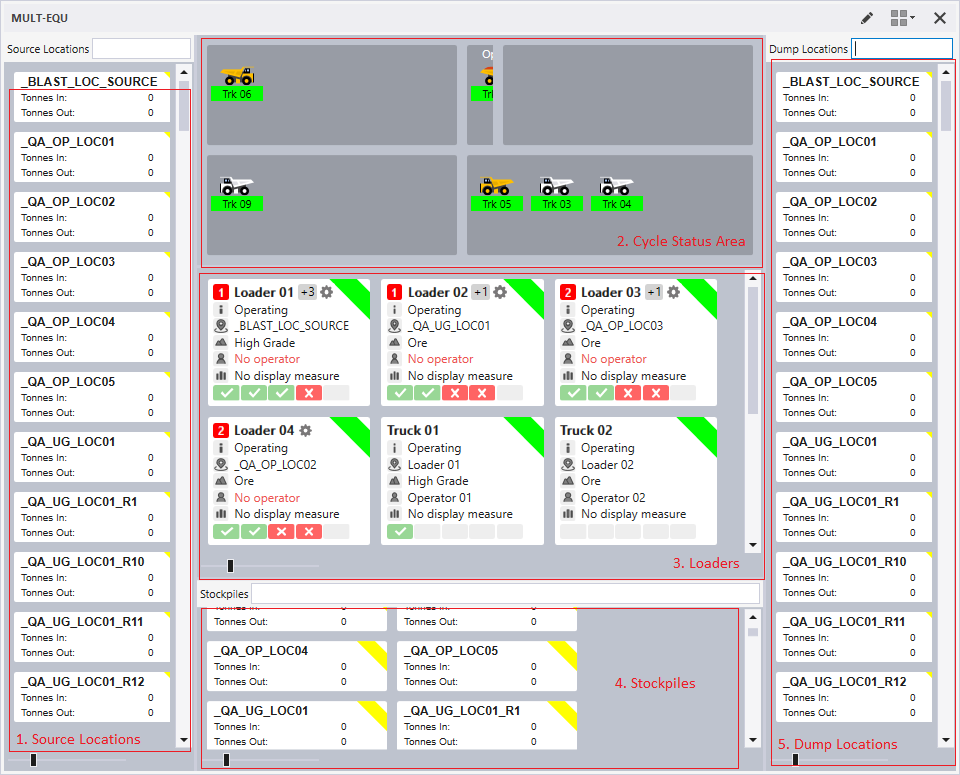
The Source Locations panel comprises the following:
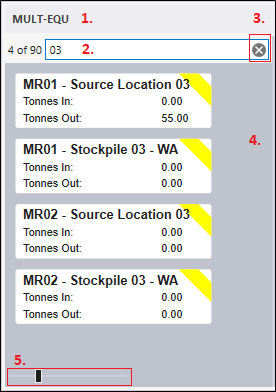
- The number of locations displayed against the number of locations in total, for example, 2 of 7.
- A Filter box. Locations may be filtered by a partial match on Description.
- A Clear Filter button can be used to clear the filter.
- Locations (defined as part of the configuration of the panel) that pass the filter.
- A Zoom control which allows the scale of the object in different areas of the panel to be increased or decreased. Note that when an area of the panel has focus, you can zoom in/out with the mouse wheel while holding down the CTRL key.
Note: These values will be empty when the Filter box is empty, or when the number of filtered locations is equal to the total number of locations.
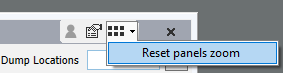
You can reset the zoom for the areas on the panel from the Panel menu:
Scrolling
If there are more objects than can be displayed in an area of the panel, a vertical scrollbar is displayed:
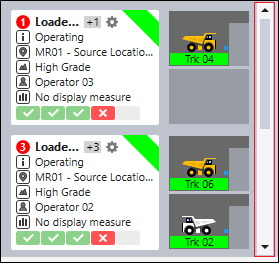
This allows the list of loaders, for example, to be scrolled by clicking and dragging the scroll bar with the mouse. Alternatively, click on the scroll bar and use the mouse wheel to scroll up and down while holding down the CTRL key.
Cycle Status Area
The Cycle Status Area comprises a maximum of five separate status zones, each of which corresponds to a truck cycle status.
The number of status zones is specified as part of the configuration of the Multiple Loaders and Trucks panel.
The Travelling Empty status zone is mandatory and will be present on every Multiple Loaders and Trucks panel.
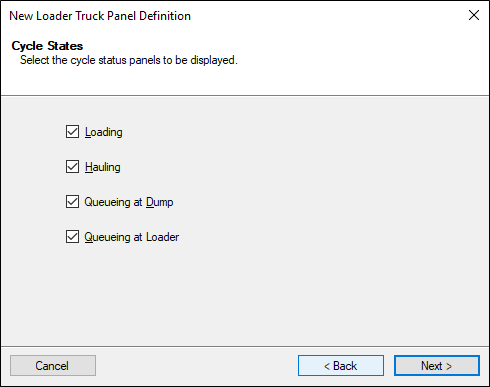
For easy identification, each status zone has its own tooltip and may contain multiple trucks.
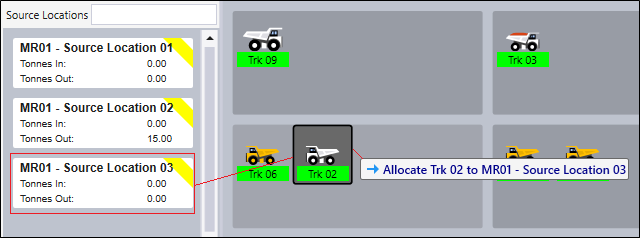
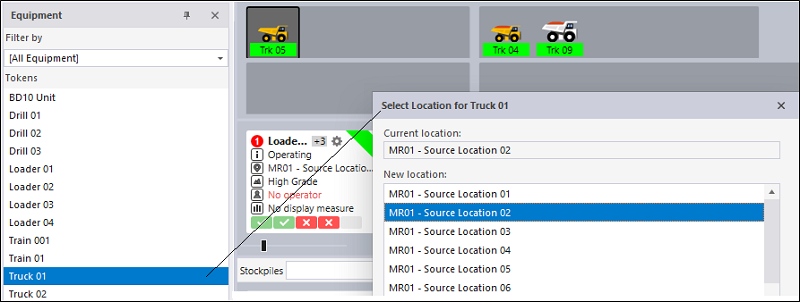
Drag and drop operations are annotated to show the object being dragged and the target of the drag and drop operation. In the following example, a location is dragged onto a truck - the annotation reveals that the truck is allocated to that location:
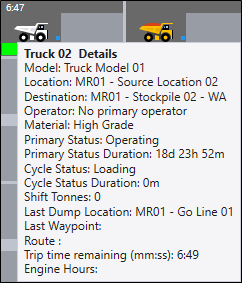
Each truck also has its own Details tooltip showing the properties of each truck, such as the Status, Material and Person Allocation, etc:
Trucks are automatically sorted based on their time of allocation in each of the cycle status zones. The earlier a status is set for a truck, the closer that truck will be to the next cycle status.
Trucks may be moved from one cycle status zone to another by:
- Double-clicking on the truck to move it to the next stage in the cycle
- Interactively dragging and dropping a truck with the mouse.
Note: If a truck is in a pre-dumping state (queuing at dump or hauling, depending on how the panel has been configured) double-clicking will not produce any cycle status change since a dump event is expected.
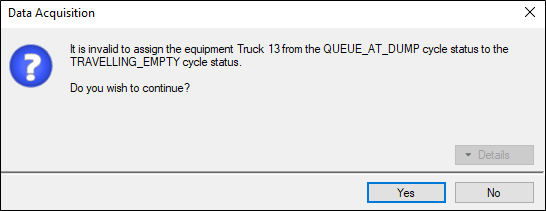
In the case of drag and drop, validation is applied to ensure that the cycle status change is valid. If the cycle status change fails the validation, a user is still able to complete the status change, however he or she must confirm the change via a warning dialog:
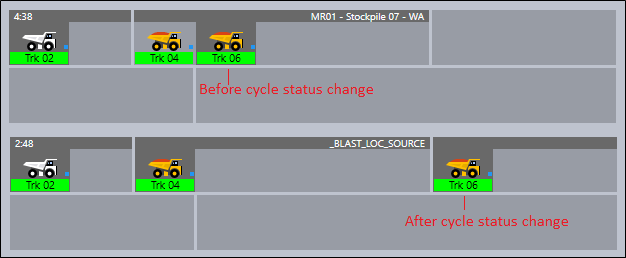
After a drag and drop operation has been completed, the truck will be placed at the end of the queue in the new status zone, and will be furthest away from the next status zone:
Interactions with the Token Navigator Panel
The following scenarios are supported:
- The user is able to reallocate equipment (a loader or a truck) when dragging that equipment from the Token Navigator panel to the Multiple Loaders and Trucks panel.
- Allocate the truck to a location
- Change the cycle state in the case where it is different from its current cycle state – e.g. if the truck is in a ‘Loading’ state but is dragged to a section for ‘Hauling’.
A truck should be dropped onto a Cycle Status Area. A loader should be dropped onto the Loaders Area.
The following events are created on completion of the drag and drop::
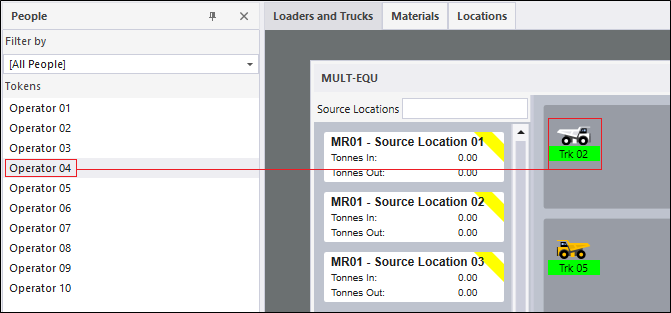
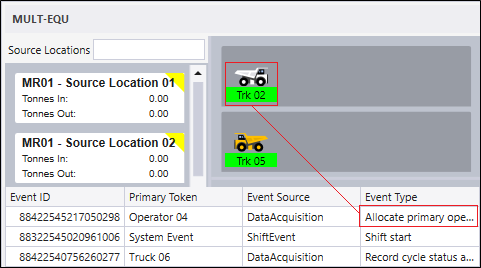
- A person can be allocated to equipment by dragging and dropping that person from the Token Navigator panel and onto a Loader or a Truck in the Multiple Loaders and Trucks panel:
- On completion of the drag and drop:
- An Allocate primary operator to equipment event is created:
- A truck which is in a non-operating primary status may be dragged from the Token Navigator Panel to the Cycle Status Area (any cycle state) in the Multiple Loaders and Trucks panel.
- The Multiple Loaders and Trucks Configuration Wizard includes that truck AND
- The truck listed in the wizard is in an operating state. If the truck is not operating, it will not be displayed in the panel. To solve this problem (to display a non-operating truck in the panel), a user can drag it from the Token Navigator Panel and drop onto the Multiple Loaders and Trucks panel.
- Change the primary state to “Operating”;
- Allocate the truck to a location, and
- Change the cycle state in the case where it is different from its current cycle state – e.g. if the truck is in a ‘Loading’ state but is dragged to a section for ‘Hauling’.
A truck is displayed in the Multiple Loaders and Trucks panel if:
When dragging a truck to the Multiple Loaders and Trucks panel, a user is prompted to:
To configure a Multiple Loaders and Trucks Panel, see Multiple Loaders and Trucks Configuration: