Configuring Mobile Actions
MobileActions created in Pitram can be assigned as action buttons in the UI for the user in Pitram Mobile.
To create and configure a new mobile action, in Reference Data,
-
Select Configuration Items | Mobile Settings | Mobile User Interface.
-
Click MobileAction.
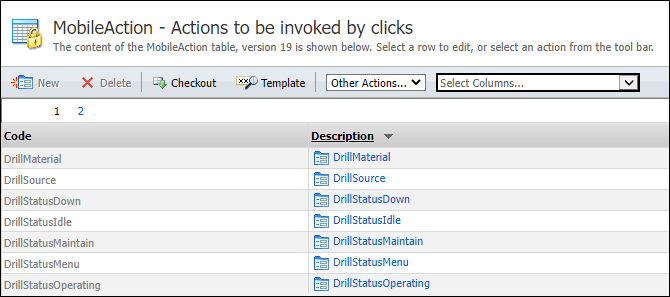
The MobileAction configuration page opens with the configured actions displayed.
-
Click the Checkout button in the toolbar to place the table in edit mode.
-
Click New.
The Create New MobileAction form opens.
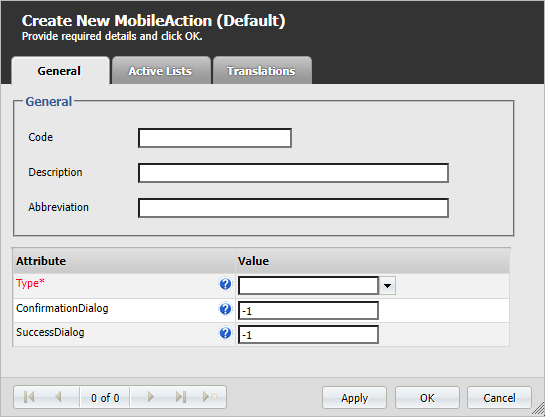
The MobileAction contains the following attributes:
| Attribute Name | Description |
|---|---|
| Type |
The display type for EventDetailsScreenMode.
|
| ConfirmationDialog | Whether a confirmation prompt is required to finalise. Set to -1 for Not required; 0 for Required with no timeout, X > 0 for Required with auto confirmation in X seconds. |
| SuccessDialog | Whether a success prompt is required. Set to -1 for Not required; 0 for Required with no timeout, X > 0 for Required with auto confirmation in X seconds. |
| MeasureActiveList | When the Type is set to Measure or Movement, this field is used to select the Measure active list to be displayed. If empty, details for all measures will be displayed. Only available for Movement and Measure EventDetailsScreenMode. |
Click OK to save the new MobileAction. With the action created, it can be assigned to a MobileWidget that can be added to a mobile user interface.
Information on configuring a Mobile User Interface is contained in Configuring Mobile UI Profiles.
For information on creating MobileWidgets, see Configuring Mobile Widgets.