Generic Weighbridge Integration
Integration reference data groups can be configured to allow the retrieval of weighbridge data automatically by defining the integration between Pitram and weighbridge systems. These groups are created to connect to various Weighbridge system types, enabling access to additional information provided by the systems, such as equipment operator, source location, dump destination, material type, etc.
For information on connection to a Phosagro weighbridge, see Phosagro Weighbridge Connector (PWBC).
The integration requires groups of reference data to be deployed:
-
Integration - Defines the integrations available.
-
IntegrationMapping - The mapping between Pitram tokens and tokens used in 3rd party integrations.
-
IntegrationMappingAttributes - Mapping between the Integration and the Pitram reference group and attribute.
To enable integration in Data Acquisition, reference groups must be deployed from Reference Edit.
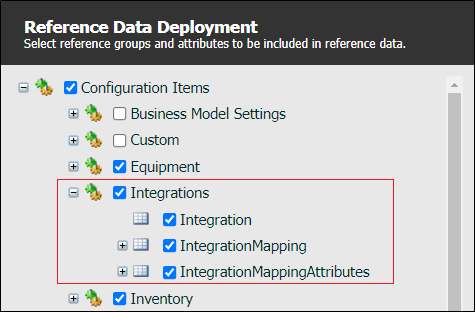
To access the Integrations configuration screens:
Click on the Reference Edit icon to open the Reference Data service:

The first step is to set up the integrations that will be mapped and configured.
Integration
In the Reference Data tree view, click on the Integration reference group:
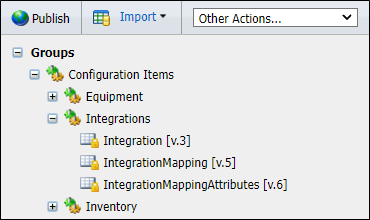
The Integration configuration screen is displayed:
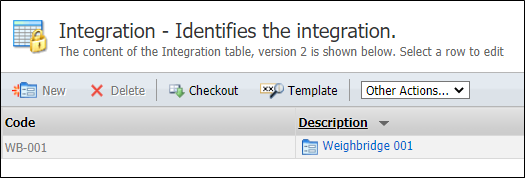
The configuration screen lists the existing Integrations. To create a new Integration, Checkout the table and click New.
The following parameters must be configured:
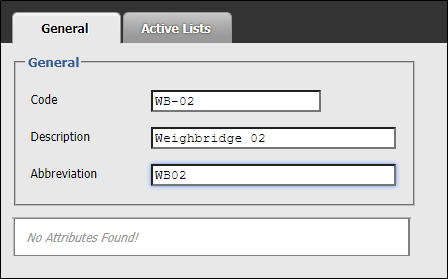
With the Integration created, an Integration Mapping can be created. To do this, in the Reference Data tree view,
Click on the IntegrationMapping reference group:
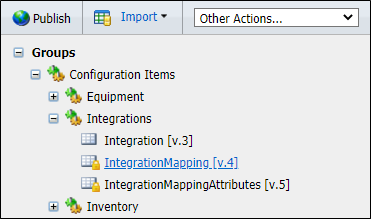
In the Integration Mapping configuration screen, Checkout the table and click New to create a new Integration Mapping.
The following parameters must be configured. Mandatory attributes appear asterisked and in red:
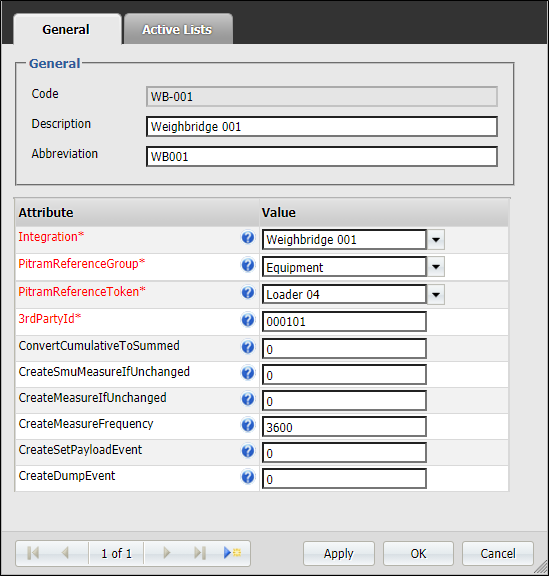
The Integration drop down is used to select the associated Integration to be mapped.
Select the Pitram Reference Group for the mapping from the drop down provided.
Use the Pitram Reference Token drop down to select the relevant token from the selected reference group.
Select the applicable 3rd Party ID for the Integration from the drop down.
The Convert Cumulative To Summed field is used to configure whether to convert cumulative signal into a summed measure. It does this by using the difference between the value and the previous value. Defaults to off (0), specify 1 to turn on.
In the Create Smu Measure If Unchanged field, set whether to create an SMU measure if the signal has not changed. Defaults to off (0), specify 1 to turn on.
Use the Create Measure If Unchanged field to configure whether to create a measure if the signal has not changed. Defaults to off (0), specify 1 to turn on.
The Create Measure Frequency field is used to configure the time interval, in seconds, that needs to pass before a measure is created. Set to 0 to create measures for every sample.
Enter a value in the Create Set Payload Event to configure whether a payload event is generated if the signal has not changed. Defaults to off (0), specify 1 to turn on.
Use the Create Dump Event field to configure whether a dump event is created when the signal has not changed. Defaults to off (0), specify 1 to turn on.
When the Integration Mapping has been configured and created, you can create Integration Mapping Attributes to associate Integrations with reference data and 3rd Party IDs.
Click on the IntegrationMappingAttributes reference group in the Reference Data tree view:
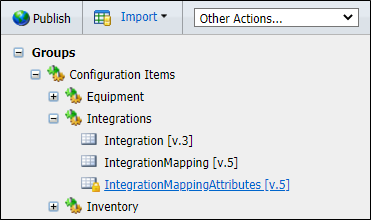
In the Integration Mapping Attributes configuration screen, Checkout the table and click New to create a new Integration Mapping Attribute reference.
The following parameters must be configured. Mandatory attributes appear asterisked and in red:
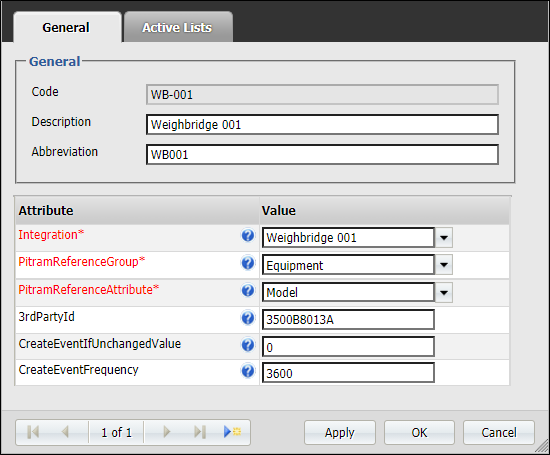
The Integration drop down is used to select the associated Integration for the mapping attribute.
Select the Pitram Reference Group for the mapping attribute from the drop down provided.
Use the Pitram Reference Attribute drop down to select the relevant attribute from the selected reference group.
The 3rd Party ID field is used to enter a 3rd party item value to be mapped to the Pitram Integration.
The Create Event If Unchanged Value field configures the default behaviour for the integration. If this value is 0, the integration will not trigger any events when the signal has not changed. A value of 1 will enable the creation of events when the signal has not changed.
In the Create Event Frequency field, enter the time interval, in seconds, that needs to pass before an event is created: Set to 0 to create measures for every sample.
When the details of the Integration Mapping Attribute have been configured, click OK to create the reference.
Database Marker Configuration (DatabaseMarkerConfiguration.xml)
The DatabaseMarkerConfiguration.xml file is found in the root folder of where the connector is installed e.g. C:\Program Files (x86)\Micromine Pty Ltd\Database Weighbridge Connector.
-
IntegrationId - The identifier of the integration.
-
LastDateTimeQueried - The time that the connector last queried for data and will be used for the request. The format used is the ISO 8601 format e.g. 2021-07-02T00:37:54.670Z.
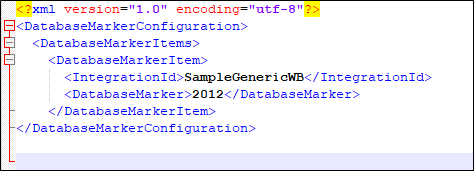
This file does not need to be manually configured; after the initial startup, the connector will either use the current time or the ID of the most recent record.
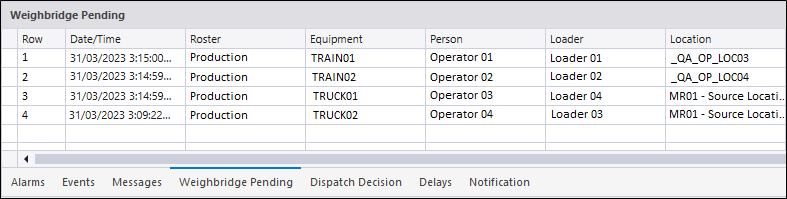
With the generic weighbridge Integration properly configured, data will be collected automatically and displayed in the Weighbridge Pending Pane in Data Acquisition.
Logging
The connector will output its log files to the normal Pitram log folder e.g.:
C:\ProgramData\Micromine\PITRAM\Logs.
The log file names will contain the identifier of WeighbridgeConnector. The level of tracing is controlled via the TraceLevel item in the General Configuration.