Administrator Options
Login
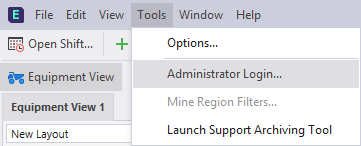
Administrator Options provide a consistent way to access restricted options for client applications such as Data Acquisition and the Event Editor. To gain access to these options, an Administrator PIN is required.
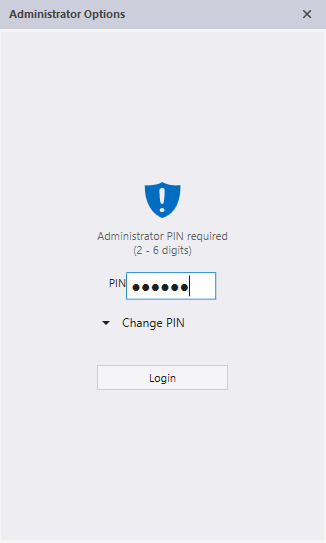
- The default PIN (before it is changed by the administrator) is 000000 (6 zeros).
- Pitram Support can reset the PIN if the PIN is forgotten.
- Changing the PIN requires the existing PIN as an input.
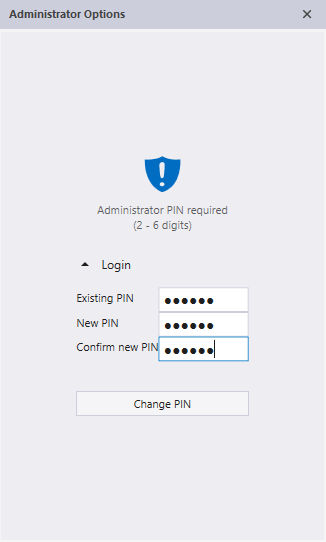
Each client application will have its own set of Administrator Options. The options available in Data Acquisition will be different from those in the Event Editor and other client applications.
Options are stored locally per machine and are applied at machine level (i.e. regardless of which user is currently logged in), and are backed up to the server. Should local storage be lost, the backup from the server will be downloaded on startup. Some clients, such as Data Acquisition, require Administrator Options in order to start.
Prerequisites
If options have not been set during a previous run, the application will connect to the General Services Server to access a default set of options.
General Services Service (GSS) version 4.7.0.89 or later must have been installed. Data Acquisition must be able to connect the first time on a new install or upgrade to 4.7. Thereafter, login information and Administrator Options are saved locally and backed up to GSS when a connection is available.
Data Acquisition
Administrator Options are available via the Tools | Administrator Options menu option:
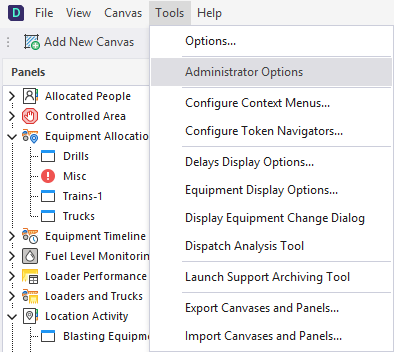
The following options are available for selection:

| Option | Description |
|---|---|
| Lock positions | Prevents moving and resizing of panels; dragging on new panels; adding, renaming or removing canvases. |
| Lock panel configuration | Prevents adding, removing or changing the properties of panels. |
| Lock Enter Measures dialog | Prevents re-ordering measures and changing favourites in the Enter Measures dialog. |
| Remove Canvas scrollbars | Hides the scrollbars, preventing the canvas from being scrolled. |
| Run in Dashboard mode | Enables Dashboard (View Only) mode on startup. |
| Speeding alarms | Enables subscription to Speeding alarms. |
| Controlled Area alarms | Enables subscription to Controlled Area alarms. |
| Operator Qualification alarms | Enables display of Operator Qualification alarms. |
| Stockpile Level alarms | Enables subscription to Stockpile Level alarms. |
| GPS events | Enables subscription to GPS events. |
| Export/Import Canvas and Panels | Used to Export or Import Canvases and Panels archive files. These options are also available from the Tools menu, unless either Lock Positions and Lock Panel Configuration is enabled in the Administrator Options. |
| Current Shift Roster | Sets the default current shift roster. |
Alarm Subscriptions
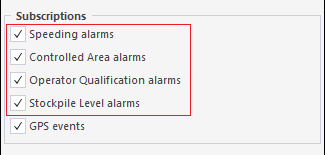
Speeding, Controlled Area, Operator Qualification and Stockpile Level alarms are enabled by default after an installation or an upgrade of the system:
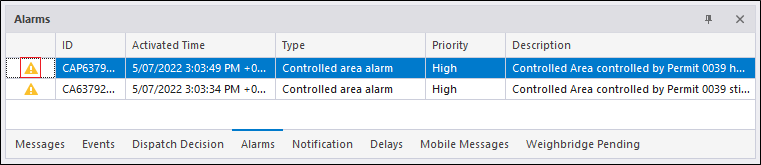
You can acknowledge alarms by clicking the icon at the left of the Alarms pane:
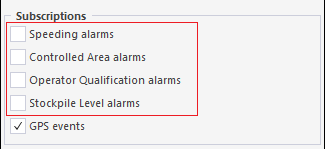
When Data Acquisition is run in dashboard (view only) mode, all alarms are automatically unsubscribed (greyed out and unchecked) in the Administrator Options dialog:
Event Editor
Administrator Options in the Event Editor use a shared Administrator login and PIN. Currently, the ability to set Mine Region Filters is the only administrator option: