Nexus - Home
Cloud licensing is a network style licence hosted in the cloud by Micromine Australia Pty Ltd. A Cloud Licence is only accessible online and via an authorised login, requiring a persistent network connection to the MLS Cloud Licensing Service. MLS Cloud Licensing links to and extends existing MLS Services with Nexus and new licensing services to facilitate specialised cloud licensing features.
To open Nexus - Home, navigate in your browser to the following URL, or click the link:
https://nexus-home.micromine.com/
-
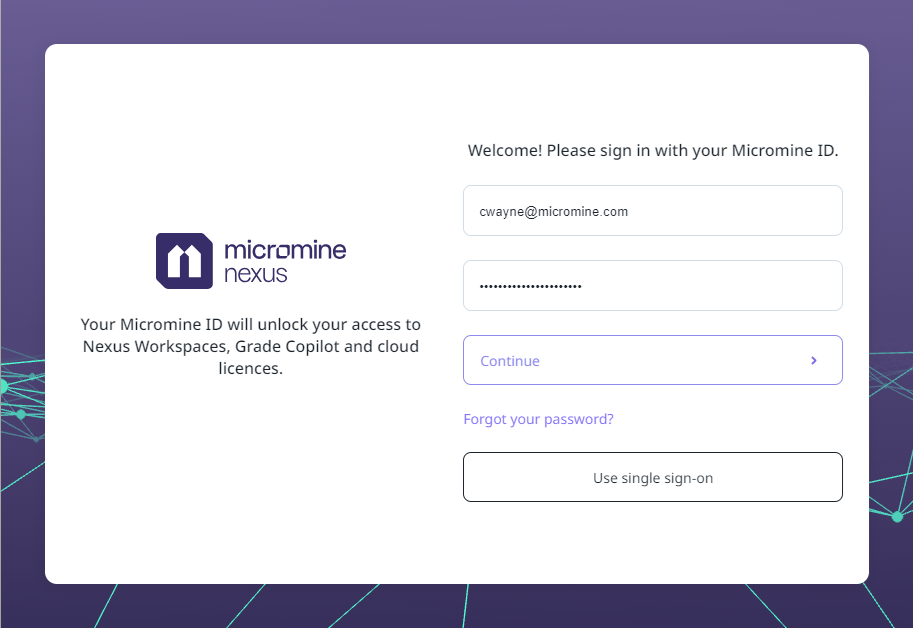
If you have a Micromine ID, enter the email address and password provided to you by Micromine Australia Pty Ltd.
A Micromine ID is a convenient single account for accessing all services on the Micromine Nexus platform. Your Micromine ID will be created for you from your email and a password when you set up a cloud licence or any feature which requires the cloud and an ID, such as Nexus Workspace. If you would like to use any of the cloud-enabled features and you have not been assigned a Micromine ID, contact Support at support@micromine.com to get started. You can also click the How do I get Micromine ID link for more information.
If you would like to Use single sign-on to login to the Micromine User Home, click the button to open the SSO login screen and enter your Micromine ID email:
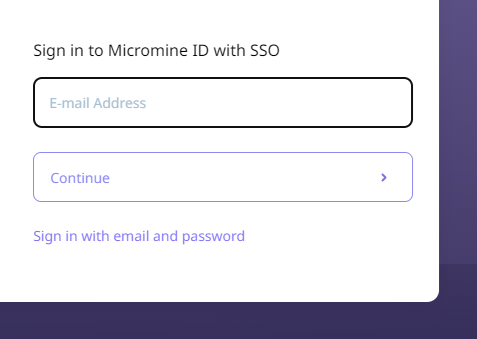
If you are not using single sign-on, click Sign in with email and password to return to the Welcome screen.
-
Click Continue to login.
If this is the first time you are logging in, you will need to enter your details in the Profile page:
Profile
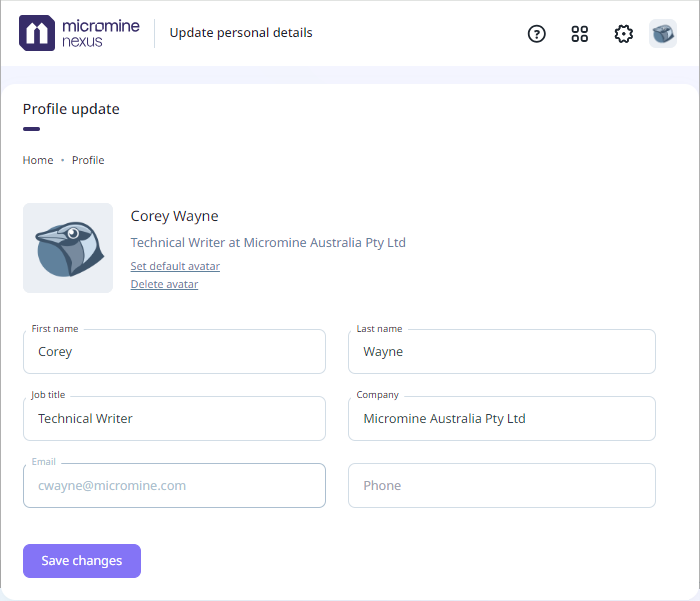
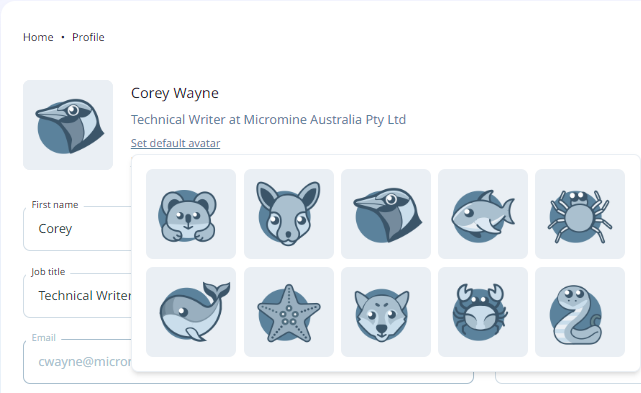
The Set default avatar option is used to set a default image to represent you, or another user. If you click the link, a panel containing the available avatars is displayed and you can select the preferred default:
If you hover on the avatar, the camera icon will be overlaid and you can click to add a custom avatar from the folders on your computer:
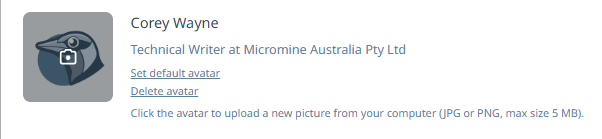
This will open the Explorer window and you can navigate to and select your picture for upload. Note, as displayed, only JPG or PNG images under 5 MB can be used.
You can remove an avatar from the open profile using the Delete avatar link.
Select your preferred System Language from the drop down.
Use the Save changes button to retain the details you have entered.
You can open Nexus - Home by clicking on the Nexus logo.
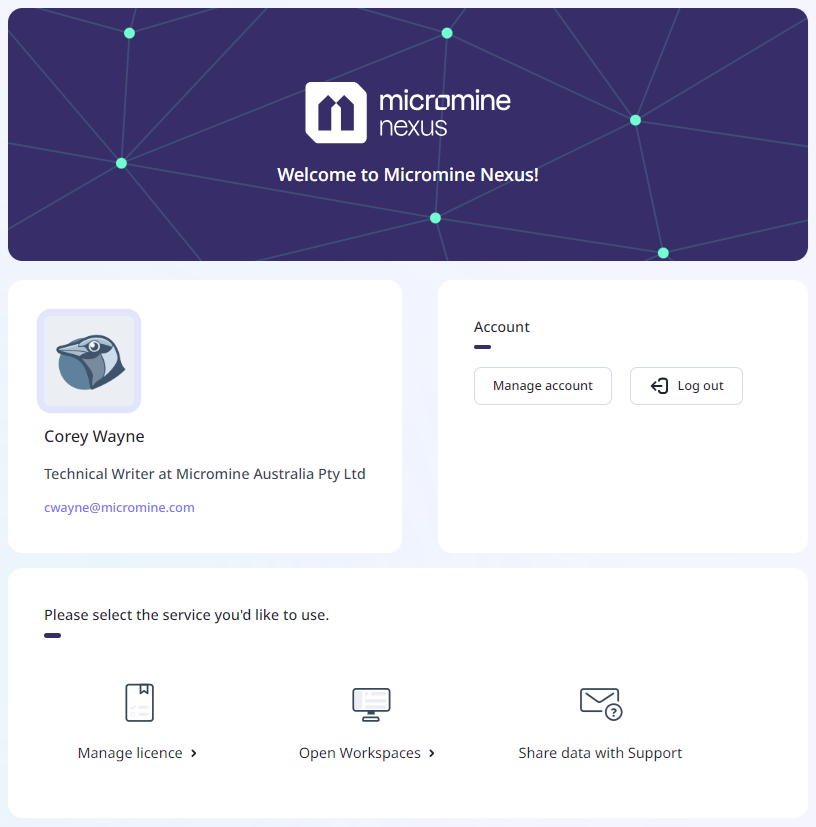
Your user details are displayed in the top left panel, including your avatar, name and email address. You can Log out of Nexus - Home using the option below the account details.
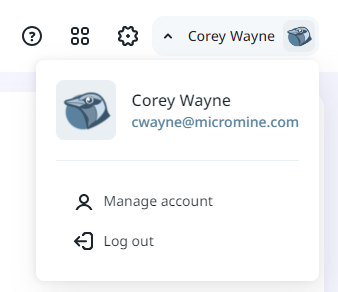
If you click your Name in the details, the Profile page will open and you can make changes to your details, as described above. The Manage Account option which will open your Profile details can also be accessed from any page on Nexus - Home from your Account Name at the top right:
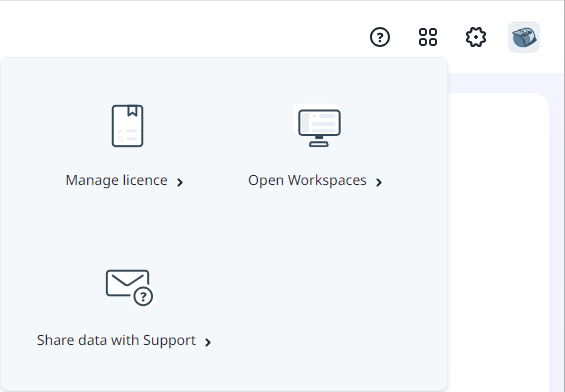
The My Apps panel at the right of the Home page provides access to Nexus services.
-
Open Workspaces - Click the Open Workspaces option to open Nexus and the Workspaces to which you have access. Note: A Nexus licence is required for this functionality.
-
Manage Licence - Select Manage Licence to manage your cloud licence. See: Manage Licences.
In the Support panel at the bottom of the Home page, the following support related services are available:
-
Share data with Support - Select Share data with Support to upload requested information and files to Micromine Australia Pty Ltd Support.
-
Knowledge Base - Select Knowledge base to visit the Micromine Technical Support Knowledge Base. Note: A subscription is required for access to the knowledge base.
-
My Requests - Select My Requests to connect with your Support requests in the Zendesk portal for Micromine Australia Pty Ltd.
The Learning panel at the bottom right of the Home page contains the following training related services;
-
Learning portal - Select Learning portal to access the Micromine Australia Pty Ltd Learning Management System which contains a range of self-paced learning programs for licensed users with a Micromine ID.
These services are also available from the Profile page of Nexus - Home using the Apps menu:
For information on managing licences with Nexus - Manage Licence, see Manage Licences.
For information on uploading information to Support, see Share Data with Support.
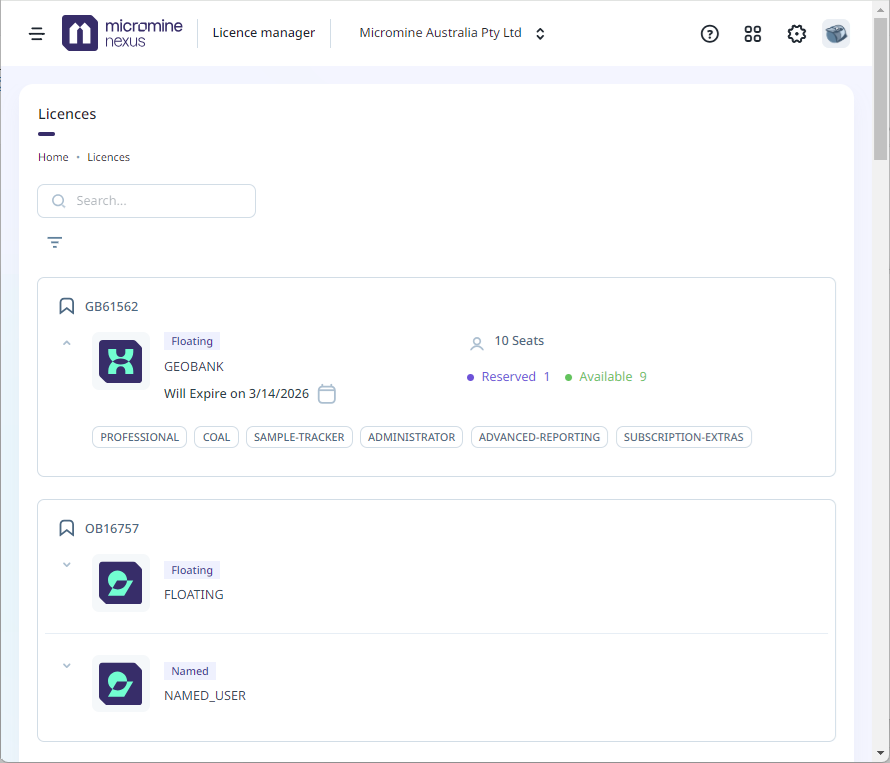
The Licences page is opened, with details of your available licence/s displayed:
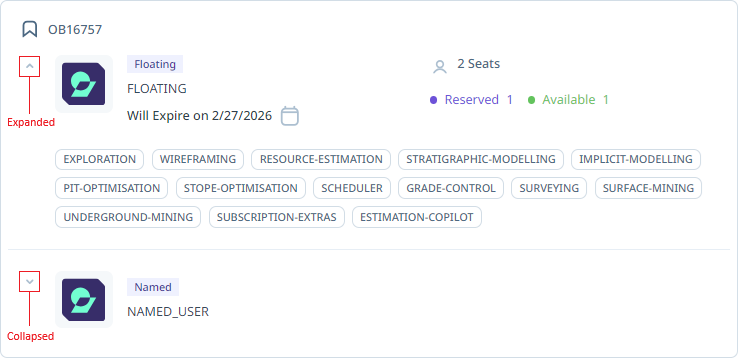
You can collapse or expand the details for each licence listed using the down arrow at the left of the licence product logo:
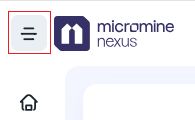
From any of the pages in Nexus - Manage Licence, you can expand the menu at the left using the Menu button next to the logo:
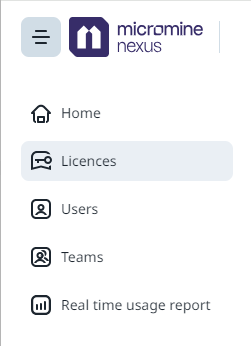
This will expand the menu and you can navigate to the other pages.
You can customise the appearance of Nexus - Home using the Appearance Settings, opened with the button in the top right:
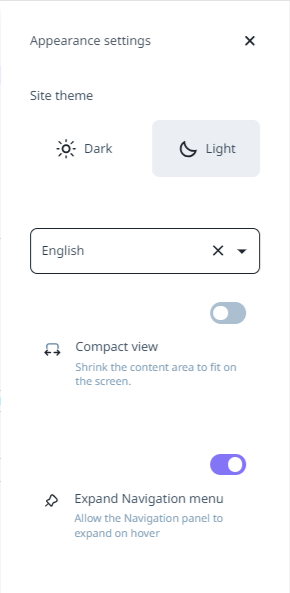
The default Site theme is Light, or you can set the appearance to Dark by clicking the option:
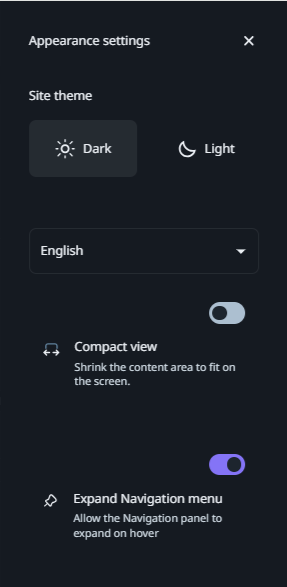
Select the Compact view option to change the layout of the page to compact settings.
Toggle the Expand Navigation menu option to collapse (OFF) or expand (ON) the main menu at the left of the Nexus - Manage Licence page.
When you have completed the configuration of your profile, click the Home option or the Nexus logo to open Nexus - Home.
You can log out of Nexus - Home using the Account drop down: