Teams
Users who have been invited to utilise a licence can be added to Teams created on the Teams page.
-
Click Teams on the menu at the left to navigate to the Teams page.
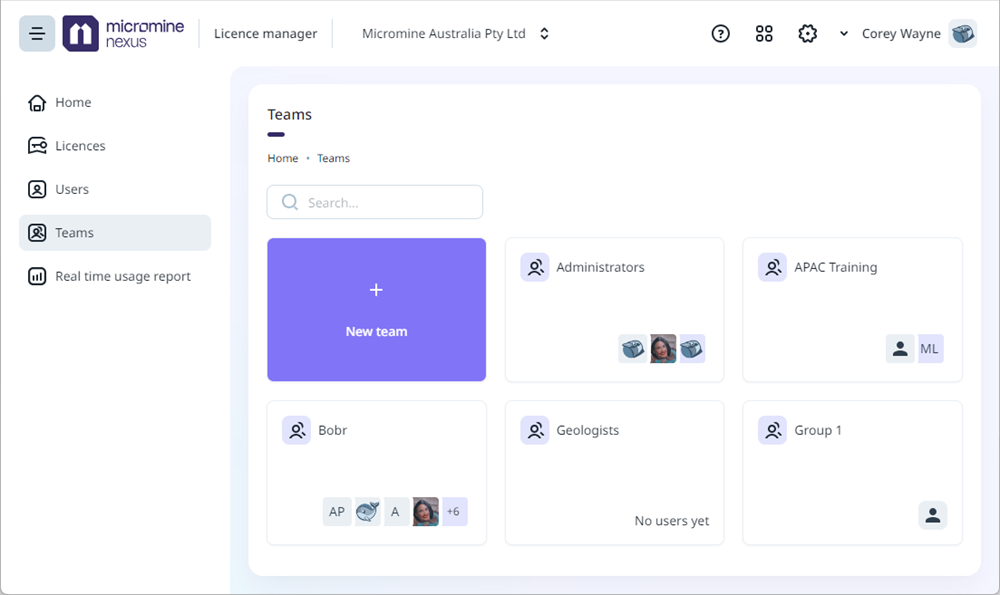
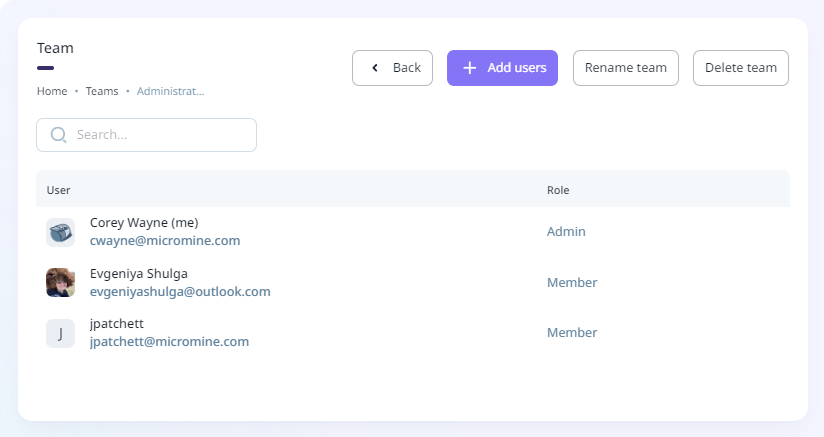
The Teams configured for Nexus - Manage Licences are displayed on the page. If you select a Team, the details of the Team are displayed, including the Users who are members:
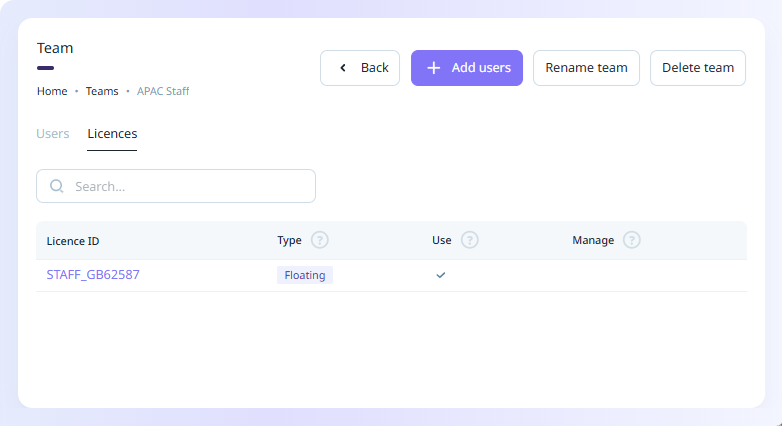
You can view the licence/s associated with the users in the Team on the Licences tab of the Team details:
To add other users to the Team displayed,
-
Click the Add Users button in the toolbar at the top.
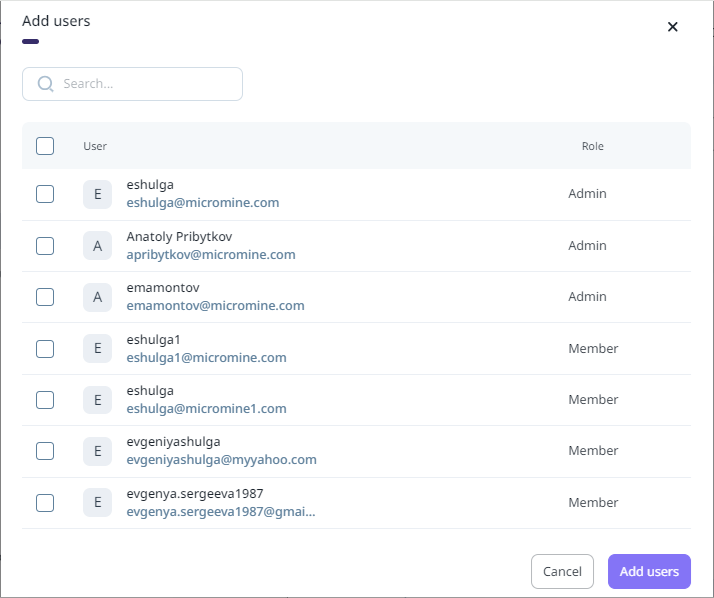
The Add users form opens.
-
You can use the Search field to find the users you want to add to the active Team.
-
Select the check box for any user you want to add, and
-
Click Save Changes.
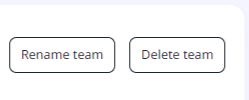
From the Team details page, you can also Rename or Delete the team using the buttons in the toolbar:
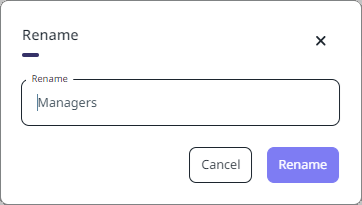
If you click the Rename team button, the Rename form will open:
If you click the Delete team button, you will need to confirm the action:
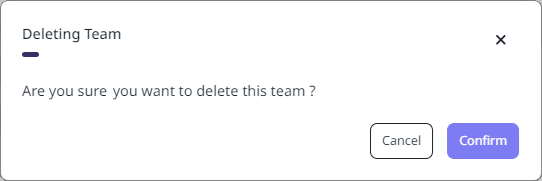
Note: Be aware that if you select the check box displayed, deleting a team which contains users from the Delete Team button will also permanently remove the users in the team from your Company's user list. If you do not enable the check box, the Team will be deleted and the users will remain.
Teams can also be managed from the main Teams page using the menu for each Team:
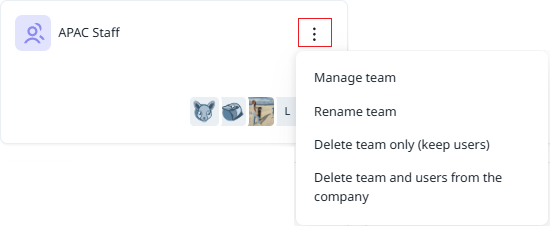
The Manage Team option will open the details for the selected team.
You can rename the team using the Rename team option.
The Delete team options provide a method for deleting a team or the team and all of the users it contains, respectively.
The Back button will return you to the Teams page.
To add a team to Nexus - Manage Licence,
-
Click the Add new team button.
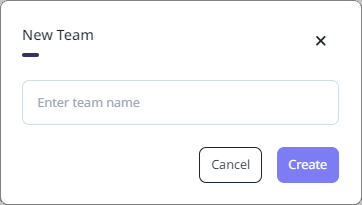
The New Team form is displayed.
-
Enter a unique name for the Team in the field provided, and,
-
Click Create.
The new team is displayed on the Teams page. Users can be added to the new team using the method outlined previously.