Users
Select Admin > Users to view and manage users and groups.
Username
Username is a property you can edit for each user. By default, the email address used to create the user account is set as the Username. See: Manage Users
Last active
(For on-premises clients) The date and time of the most recent activity of each user is shown to the right of the username. This makes it possible to monitor sign-in activity and see which users have not yet activated their accounts.
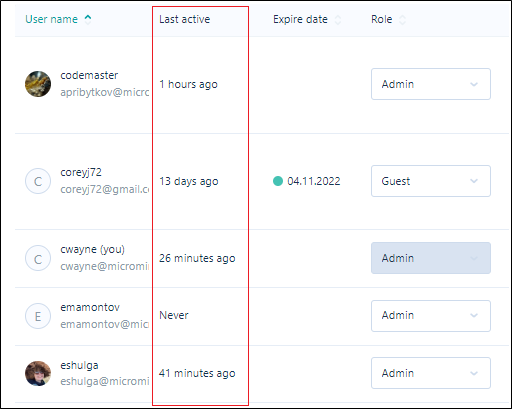
Users who have not yet activated their accounts are shown as "never".
Role
One of the following roles may be assigned to each user:
| Role | Description |
|---|---|
| User |
Manage the tasks, files, and attributes that you own and work with the tasks and files that are assigned to you. |
| Admin |
Setup user accounts and groups, apply permissions, define tasks, file types, attributes, and tasks. |
| Guest |
The Guest role provides Read-Only permission to view Nexus for a limited time via invitation from an Administrator. |
Group
The Group membership of each user is shown to the right of their role:
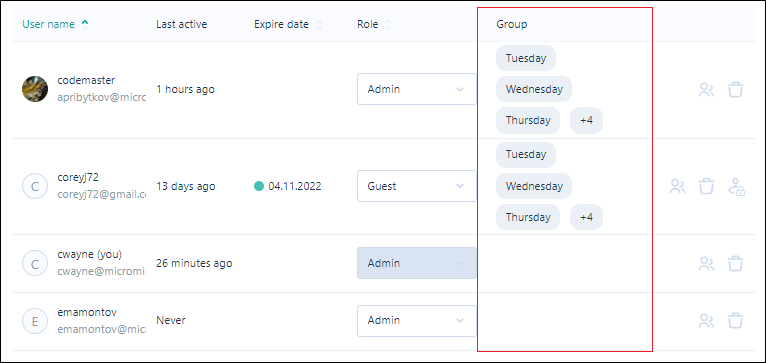
To add one or more users to a group:
-
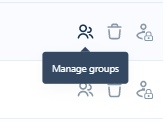
Click on the Manage Groups icon at the far right of the User row:
-
Create or edit an existing group in the Manage Groups dialog.
Invite Users
As an administrator, you can grant access to Nexus by inviting users to become members of your tenancy:
-
Click Invite above the list of Users:

-
Set user invitation parameters in the Invite Users dialog.
Delete
To delete a user:
-
Click on the Delete icon at the far right of the User row.
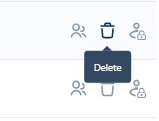
You will be prompted to confirm the deletion.
Permissions
To view and manage permissions for a user:
-
Click on the Permissions icon at the far right of the User row.
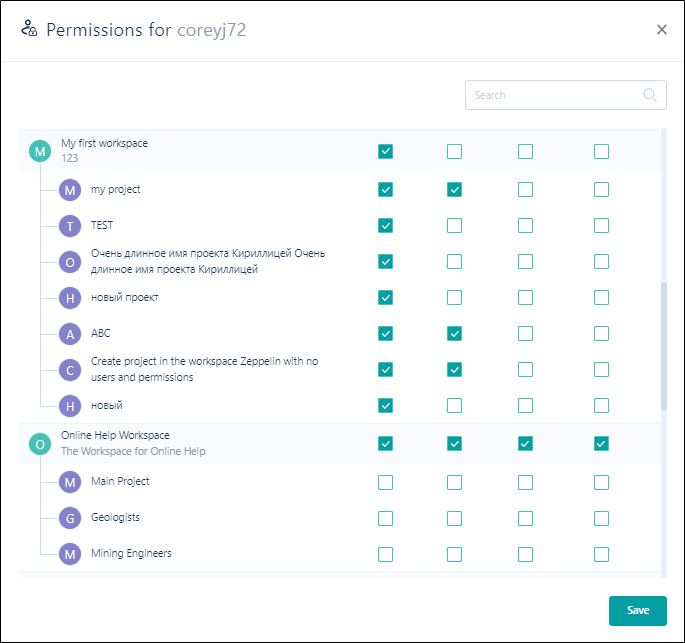
The Permissions for the selected user will be displayed in a separate window.
-
The permissions for the user can be modified using the Read, Write, Delete and Owner check boxes for each Workspace and Project.
-
If any changes are made, click Save to retain the new settings .
-
Click the cross at the top right to close the window and return to Admin > Users.