Customise Vizex Scales

If you select the Customise option from the Set Scale menu, the Customise Vizex Scales form opens.

The Millimetres and World Units columns display the scale values for each selectable scale.
Use the buttons on the local toolbar to Manage the rows in the list.
When you add a scale to the grid and click OK, the new scale will appear for selection in the Set Scale menu.

If you toggle the Lock Scale  button, the camera scale will be locked and you will not be able to zoom the camera. The Lock Scale button and the Set Scale menu are also available from the task bar:

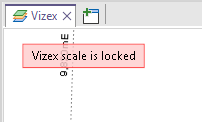
If the camera scale is locked and you zoom in or out, the scale will not be changed and a warning will be displayed at the top left of the Vizex window:
You can select a scale from the menu to apply scale settings. Toggle the Lock Scale button OFF to unlock the camera.