Block Model

The Block Model Report form requires the specification of a cutoff set or colour set to define the ranges in which estimates will be reported. You can create a Cutoff file in the same way as a colour set.
The ranges in the Cutoff file are applied to the first field for which you are calculating estimates.
Input/Output
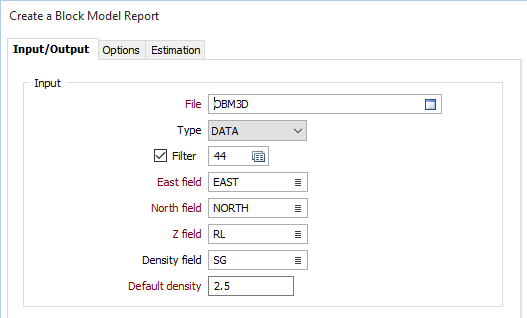
File
Double-click (or click on the Select icon) to select the name of the input file. This can be a block model file or a seam block model file.
East, North and Z fields
Enter the names of the East, North and Z fields in the input file. The function uses these field names to locate the fields containing the block dimensions in the input file.
Density field and Default Density
Enter a default Density value, expressed in tonnes per cubic metre (t/m3). Specific gravity values are also suitable for this purpose. If there is a Density field in the Input file, double-click to select the field. If a Density value is missing when a record is processed the default Density value will be used in its place. The Cumulative Density used in the Volume and Tonnage calculation is added to the output file. This enables the checking of the Density used to calculate the tonnage of different grade ranges.
Note: If your project uses Imperial rather than Metric units, the form will prompt for a Tonnage factor field (instead of a Density field) and prompt for a Default tonnage factor (instead of a Default density).
The Tonnage factor is also applied differently to calculate the tonnage. Grade calculations will use short ton (sh tn) instead of tonne (t), and tonnage factors must be specified in cubic feet per short ton (ft3/sh tn).
Output
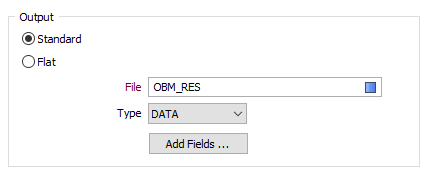
Select a (Standard or Flat) Reporting option and specify an Output file.
Standard
Select this option to write a cumulative total for each material and cutoff range.
Flat
Select this option to write a report that only groups the records by cutoff range.
File
Select a File Type. If the report is written to a DATA file, the .DAT format allows you to use any of the file processing tools such as Field Arithmetic to manipulate the grade estimate data.
Enter (or double click or click on the Select icon to select ) the name of the Output File.
The records are sorted alpha-numerically by Material field, in the top-down order the fields are specified, under the Multi-types group in the Processing Options tab.
Add Fields
Using the Add Fields option you can add up to five fields to the output file. They are often populated with values at a later stage in the modelling process using one of the Assign functions.
Forms
Click the Forms button to select and open a saved form set, or if a form set has been loaded, save the current form set.
Run
Finally, click Run to run the function. Estimates will be calculated. For very large files this can take a few moments.