Estimation
The Estimation tab of the Block Model Report form allows you to specify a cutoff set or a colour set to define the ranges in which estimates are reported. The ranges in the Cutoff file are applied to the first field you are calculating estimates for.
Reporting Cutoffs
Select the None (global) option to create an all-inclusive global report:
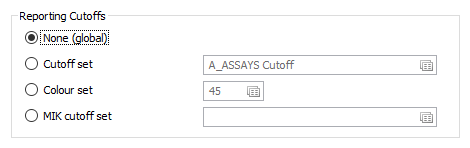
If you prefer to define the ranges that will be used in the report, there are three options:
- Cutoff set.
- Colour set.
- MIK cutoff set
Cutoff set
Select the Cutoff set option when you want to define the ranges in the reserve report using a cutoff set. If you need to create a cutoff set, right click in the cutoff set response.
When using a cutoff set to define the ranges that will be used in the report, you can click on a Calculate button to calculate a range based on first and last values (you enter) and either a set number of intervals or a set interval size. See: Create a cutoff set
Colour set
Select the Colour set option to define ranges in exactly the same way as for colour numeric sets. You can use all the relevant functionality such as Assign to create ranges. See: Numeric Colour Sets
MIK cutoff set
Select the MIK cutoff set option when you want to include MIK modelled recovery factors in the estimation of grades. Grade and Probability fields for each cutoff are queried based on the cutoff values defined in the cutoff set (this is the same cutoff set used to generate the model in Modelling | 3D Block Estimate | Multiple Indicator Kriging).
Estimate fields
Enter the names of up to 10 fields for which estimates will be calculated and reported. Use the buttons on the grid list toolbar to Manage the rows in the list.
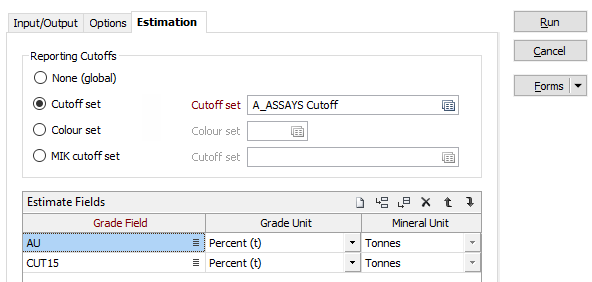
The ranges in the Cutoff file are applied to the FIRST estimate field in the list.
If you are using a MIK cutoff set, the Estimate fields grid must contain a single row. This is the field in which the e-type estimate is stored. This row is used only to define the field name and units. The Output file is modified to have a single Cutoff field rather than separate From and To fields. Cumulative statistics are not written to the file.
Grade Field
Double-click, or click on the List icon, to select the Grade fields you want to calculate estimates for. Dynamic field expressions are supported. Click on the Use an expression instead link to open the Expression Editor:
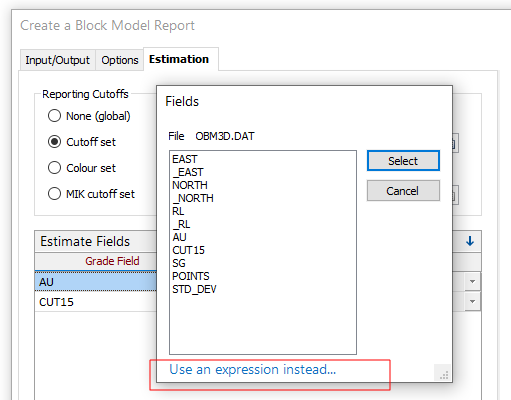
Alternatively, right-click on a Grade field and select Edit Expression.
Note: You can select a field more than once provided that the mineral units for reporting are different. See: Estimate fields and how they are used
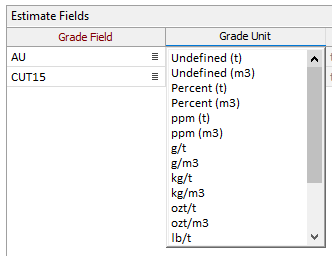
Grade Unit
When calculating the reported values for Grade fields, each value can be weighted according to either:
- the block volume (m3) or
- the block tonnage (t). The tonnage option includes density in the calculation (often important for coal).
If you select a Grade unit, a conversion to a Mineral unit can be performed. Mineral value is equal to the Grade field multiplied by volume (m3) or tonnage (t).
|
% |
Percent |
lb |
Pounds |
|
ppm |
Parts per million |
oz |
Troy Ounces |
|
kg |
Kilograms |
carats |
Carats |
|
g |
Grams |
dwt |
Pennyweights |
Note: If you have chosen an Undefined, Percent (m3) or ppm (m3) Grade unit, the Mineral unit input will be disabled (since the unit is unknown).
Mineral Unit
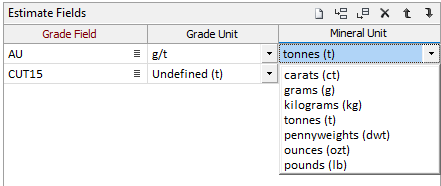
Select the Mineral unit (Tonnes, Ounces, Grams, Carats, Pounds, Pennyweights, Kilograms) that will be used to report the result calculated from the Grade unit.