Significant Intercepts
The Significant Intercepts tool is used to report on significant intercepts for multiple minerals. A significant intercept is an interval with a grade within a specified cutoff range.
|
Note: The Significant Intercept module requires a licence with the Professional module included; as well as the following:
|
Significant Intercept processes are configured and added to a user profile. To execute a Significant Intercept process,
-
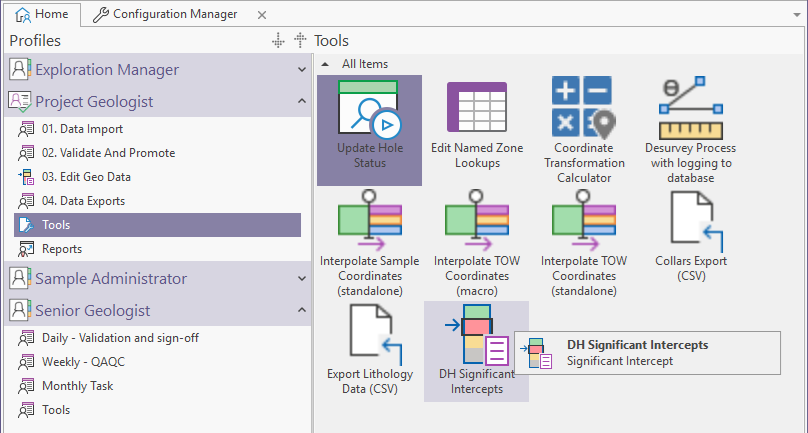
Either double-click on the Significant Intercept object, or select the object and click Execute from the Ribbon or right-click menu.
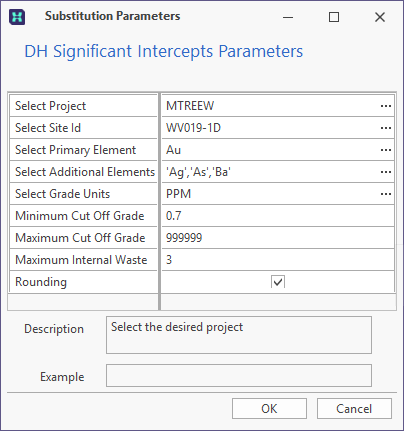
The Substitution Parameters form opens.
-
Select a Project and Site ID, as well as a Primary Element for the Significant Intercept process.
-
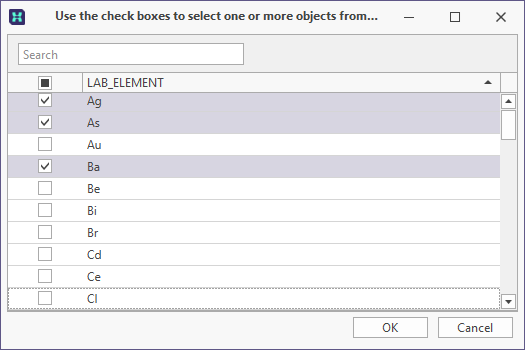
Optionally, you can select multiple Additional Elements for reporting.
Use the dialog that opens to select the check box for any element/s to add to the report and click OK:
-
Select the Grade Units in which the Significant Intercept will be calculated.
-
Specify the Minimum and Maximum Cut Off Grade which will indicate a significant intercept.
-
You can optionally enter the Maximum Internal Waste value which will apply to the significant intercept. If there is a higher waste value within the indicated intercept, it will not be reported.
-
Select the check box if Rounding should be applied to the Significant Intercept values calculated.
-
Click OK.
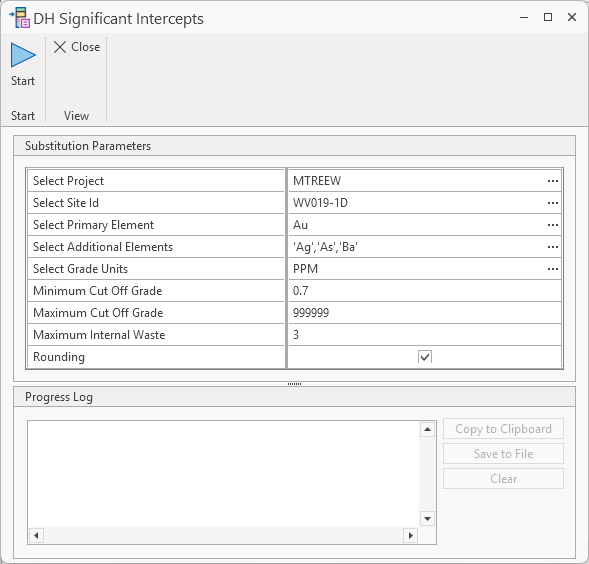
The Significant Intercept tool will open with the configured parameters displayed:
-
Click Start in the Significant Intercept toolbar to begin the process (or click Close to cancel).
The process will begin and the Progress Log will populate with information on the report.
If any significant intercepts matching the report criteria are found, they are listed in the Progress Log panel:
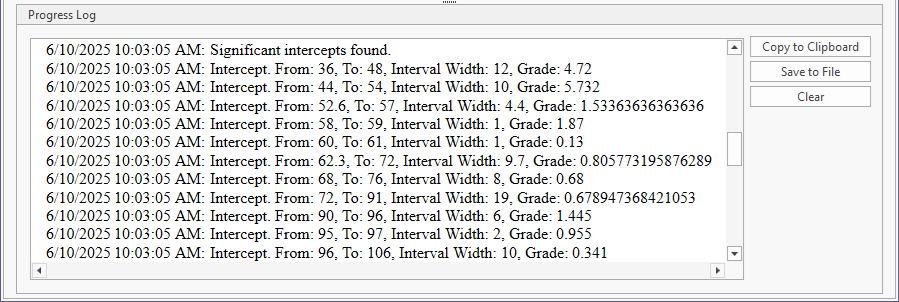
To save the Progress Log, you can Copy to Clipboard and paste into a text application, or Save to File and save a Text or HTML file.
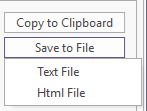
The saved data can be used for importing for reporting purposes.
The Clear button will empty the Progress Log panel of all text.
For information on creating significant intercepts, see New Significant Intercept
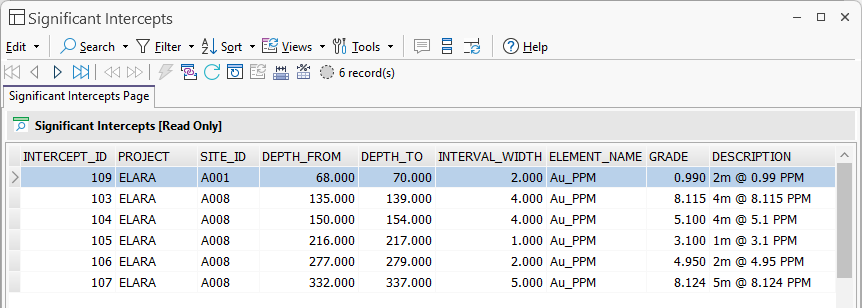
The Significant Intercept Calculator tool available in Query Groups is used to calculate the significant intercepts from your Assay data and store it in the Significant Intercept Results table (GB_SIGINT_RESULT) which can be reported on or added to Data Views - for example:
For information on creating Significant Intercepts, see New Significant Intercept.