Tactical Scheduler (ATS)
This
 Animation
Multiple Viewports
On the Animation tab you can now add, edit and view multiple animations and compare results,
Click the ‘plus’ icon in the bottom right of Viewport Display to add a new viewport. The new viewport will be added as a tab to the Viewport Display. Viewports can be docked together and moved to other screens to help view and compares scenarios.
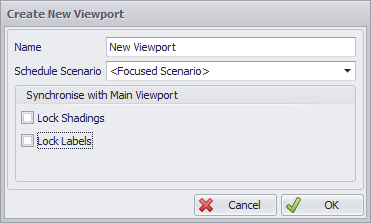
Viewports can be rearranged by left clicking on a specific viewport tab at the bottom of the Viewport Display and dragging the viewport to the desired location.
Right clicking on the viewport tab will open a context window with varying options based on the selected viewport and the current configuration of the windows.
Graphics View mode
Changes have been made to the Graphics View mode. You can now click to toggle between Show All to show the entire mine at that time in the schedule, or Selected to display the blasts/benches/stages selected in the Records Panel.

Note that in “Selected” mode, Animation cannot be played.
Display
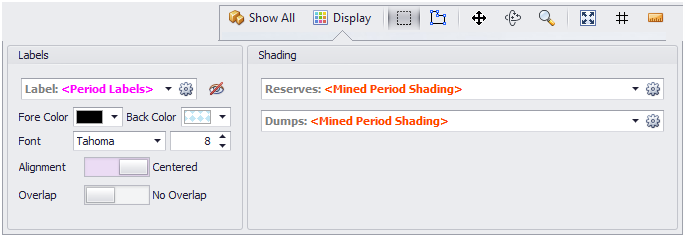
You can now click to a new Display button to open Label and Shading options in a separate pane:
Project Setup
Custom Dependency Sets
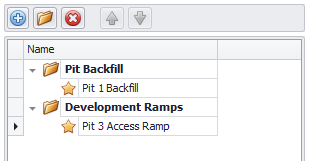
In the Scheduling > Dependencies > Custom step, you can now group dependency sets by adding them to folders.
-
Click on the New Folder icon to add a folder.

-
To add a dependency set to a folder, select the folder before clicking the Add icon.

Priority Incentives
The Priority tab provides the ability create and manage priority incentives with a visual Gantt tool. Priority Incentives can now also be edited in the Animation Window using options on the context menu:
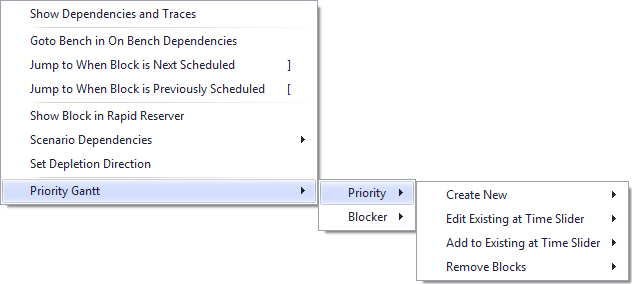
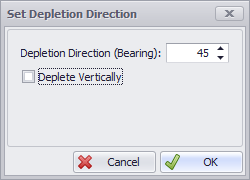
By default, blocks in ATS are depleted vertically in the animation and stage plans, however the depletion direction can now be changed to a bearing direction by selecting a Set Depletion Direction option on the same context menu.
Schedule
Scenarios Panel
On the Schedule tab, in the Scenarios panel, a new Schedule Control panel now allows schedule progress to be easily tracked.
When running multiple scenarios at once, a Run Next on Issue check box option can be selected so that the software will automatically move onto the next scenario whenever a scenario has an optimisation issue,
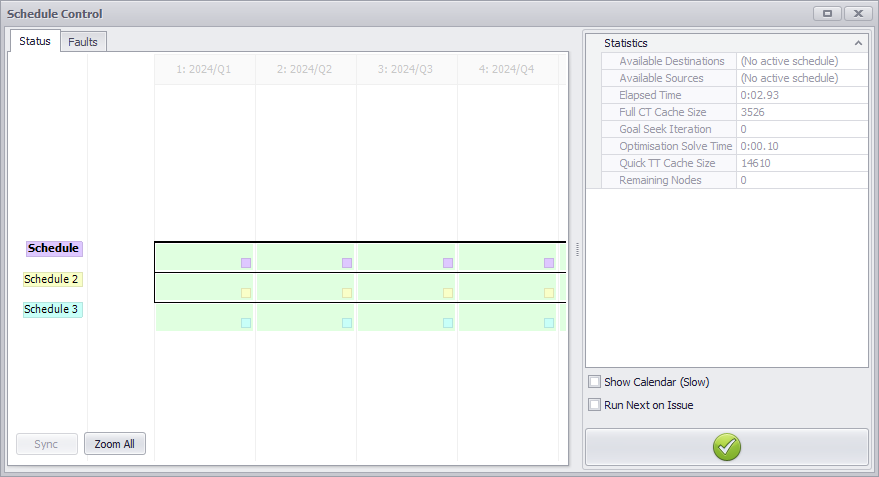
All issues encountered are output to the Schedule Control Faults tab, once schedule running is paused or stopped.
Stockpiles
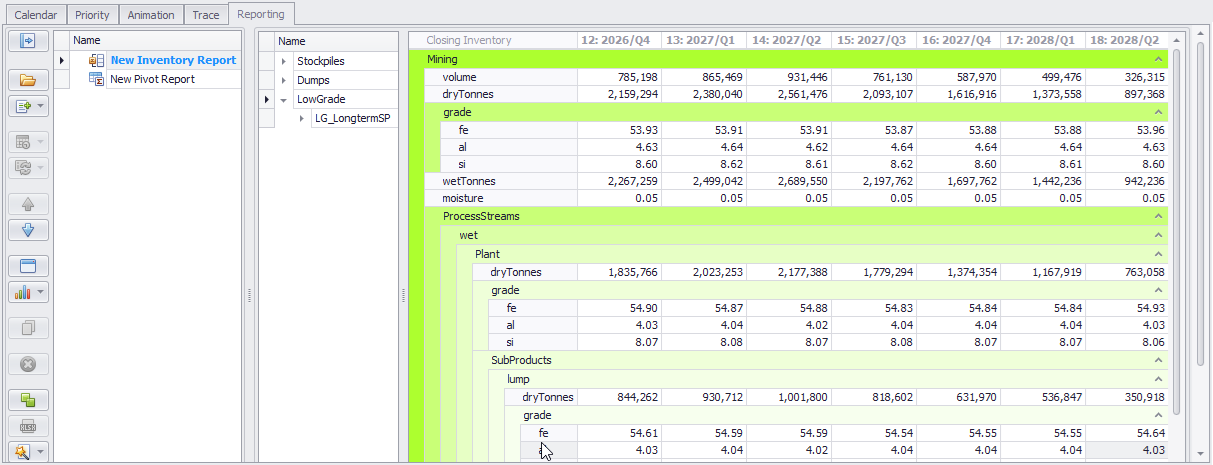
End of period inventory is now available for long term stockpiles in the Inventory Report. This treats the stockpile as a single entity and automatically handles when the stockpile switches from building to reclaiming.
Reports
Chrono Reports
When viewing the final report on the Table tab, a new Display menu at the top-right of the tab now provides three options:
- Blank Zero Cells - Will show a blank cell rather than a zero value.
-
Hide Zero Rows - Will hide a row if all values are zero.
-
Show Totals - Will add a Total column to the right side of the table.
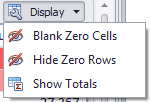
Chart setup
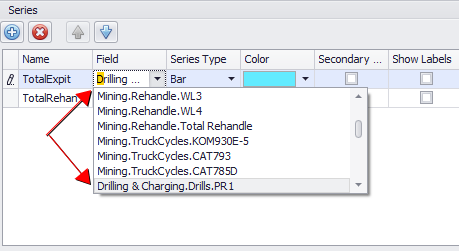
When you setup a Chrono Report, fields hidden in the Chrono Report (in Table Setup) are now excluded from the list of fields you can select in Chart setup.