Panels
Panels are configured to represent the production entities that need to be displayed in Data Acquisition. The types of panel that can be configured in Data Acquisition are shown in the Panels tab of the Display pane. The Panels tab lists the panels that have been configured for each Panel type.
To open the Panels tab, select the View | Navigator | Panels menu option.
Whenever you create a panel, a Panel Definition dialog is displayed. The properties presented in the Panel Definition dialog will vary depending on the type of panel you are creating.
In the following example, we will create a Location Activity Panel that shows the equipment operating at level 3000:
- Click on the Panels tab of the Display pane.
- Right-click on the Location Activity panel type and select New Panel.
- In the New Location Activity Panel Definition dialog, enter the name of the new panel, for example, 3000 Level.
- Click Next to continue.
- Select the Select individual locations option. In this example, we want to see the machinery at level 3000.
- In the left-hand list box, use the mouse to select all the locations prefixed with 3000. To select multiple locations, hold down the SHIFT key or the CTRL key as you select them with the mouse.
- Click the Right arrow
 to move the selected locations to the right-hand list box.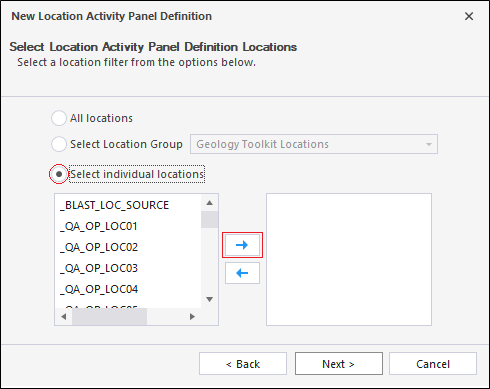
- Click Next to continue.
- Select All Status Types. In this example, we want to view all machinery regardless of its primary status (Idle, Operational or Maintenance).
- Click Next to continue.
- Select All equipment. In this example, we are interested in all the equipment on the 3000 level.
- Click Next to continue.
- Choose whether the role of the operator can be selected or not:
- Select role. If this option is selected, the default role you have selected, i.e. Operator, can be changed when a person is allocated to equipment.
- Use default role. If this option is selected, the default role you have selected, i.e. Operator, cannot be changed.
- Click Finish to exit and save the new panel (or Cancel to exit without saving).
A new panel, 3000 Level is listed under the Location Activity panel type:
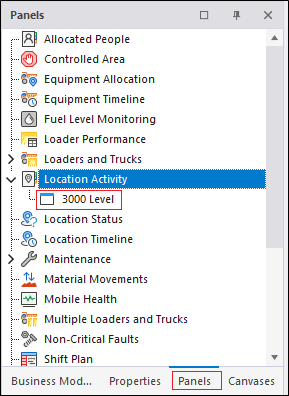
To display a panel, click on the name of the panel in the Panels tab of the Display pane and drag it onto an open canvas.
To modify a panel, right-click on the name of the panel in the Panels tab of the Display pane and select Properties from the right-click menu. Alternatively, if the panel is open, click the Properties button on the Panel Toolbar. You can use the Panel toolbar to view the people who are allocated to the equipment or locations in that panel.