Working with canvases
A canvas is a palette on which panels are displayed. Canvases are user-defined to contain the Panels you want to group together as part of the Data Acquisition display. Canvases are typically configured by the Control Room Operator on site. Think of a canvas as a presentation screen that might be created for:
- a particular level of user, or group of users
- a specific production entity
- a sequence of tasks, or a related group of tasks
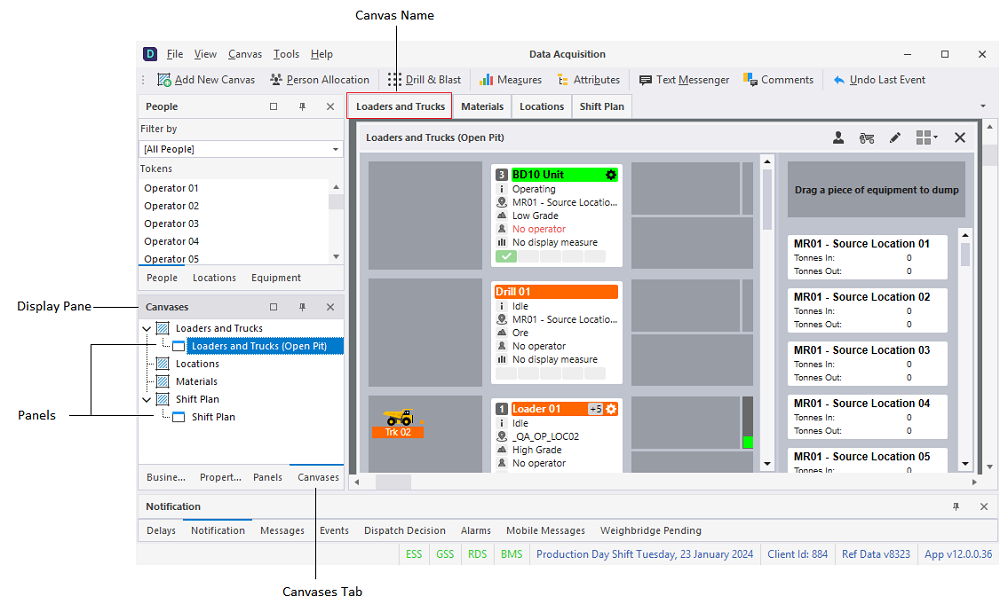
Add
To add a canvas:
- Click the Add New Canvas button on the toolbar or select the Canvas | Add New Canvas menu option.
- Enter a Name for the canvas.
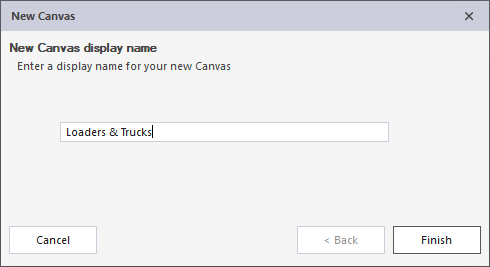
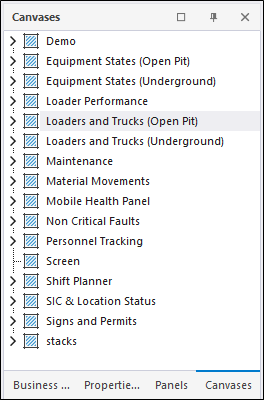
When a canvas is created it is added to the Canvases tab of the Display pane. The panels you add to a canvas are also listed for each canvas.
Open
To open a canvas:
- Double-click on a Canvas listed in the Canvases tab of the Display pane. Alternatively, select a canvas from the Canvas menu.
When you open a canvas a tick is shown against its name on the Canvas menu. a.
Rename
To rename a canvas:
- Click on the Canvases tab of the Display pane.
- Right-click on the canvas you want to rename and select Rename from the right-click menu.
- Enter a new name for the canvas.
- Click Finish.
Delete
To delete a canvas:
- Click on the Canvases tab of the Display pane.
- Right-click on the canvas you want to delete and select Delete from the right-click menu.
- You will be prompted to confirm the deletion.
- Click Finish.
When you delete a canvas, it is removed from the display (if it is open) and will no longer appear on the Canvases tab of the Display pane or on the Canvas menu. The panels that were added to the canvas are still available for selection on the Panels tab of the Display pane.